Key takeaways
- Linux Mint 22.3 Cinnamon for the gentlest transition from Windows.
- Bazzite if you want the gaming stack pre-installed and locked down.
- Fedora if you have very new hardware and want the freshest drivers.
Installing Linux for gaming used to feel like a rite of passage reserved for people who enjoyed editing config files at midnight. In 2026 that reputation is largely undeserved. The process is now closer to installing any modern operating system, and the payoff is a lean, fast, customizable platform that runs most of your Steam library through Proton without you ever touching a command line.
This guide walks through the whole journey in plain language: choosing a distribution, preparing your installation media, getting Linux onto your drive, and then setting up Steam so your games actually launch. Follow it in order and you will go from a Windows-only machine to a working Linux gaming rig in an afternoon.
Our top picks


As an Amazon Associate we earn from qualifying purchases at no extra cost to you. Ratings are shown as listed on Amazon.
⚡ Save on Your Next PC — Amazon Prime
Prime members get fast free shipping on the systems above, plus early access to Prime Day & Black Friday PC deals. New members get a 30-day free trial.
Watch: How To Install Linux For Gaming — Video Review
Step 1: Pick a Beginner-Friendly Distribution
Your first decision shapes everything that follows. For a first install, choose something stable and familiar rather than exotic. Linux Mint with the Cinnamon desktop is the classic choice because its layout feels like Windows, and a reference such as Linux Mint Made Simple for Beginners walks you through the quirks. If you want a system tuned specifically for play, Bazzite is designed around gaming from the ground up.
- Linux Mint 22.3 Cinnamon for the gentlest transition from Windows.
- Bazzite if you want the gaming stack pre-installed and locked down.
- Fedora if you have very new hardware and want the freshest drivers.
Step 2: Create Your Installation USB
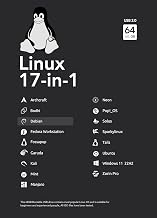
You install Linux by booting from a USB stick, so you need to write the distribution’s image to a drive. You can flash a downloaded ISO yourself with a tool like Balena Etcher, or skip the fuss with a pre-made bootable drive. Either way, back up any files on the machine first, because the install will reformat the target drive.
Step 3: Boot and Run the Installer
Restart the PC, open the boot menu (usually F12, F11, or Esc during startup), and select your USB drive. Most distros load a “live” desktop first, letting you try everything before committing. When you are ready, double-click the Install icon and follow the wizard: choose your language, connect to Wi-Fi, and decide whether to erase the disk or dual-boot alongside Windows. The Linux Mint 22.3 Zena beginner guide covers each screen if you want a printed companion.
- Choose “Install alongside” to keep Windows as a fallback.
- Tick the option to install third-party drivers and codecs when offered.
- Let the installer finish, then reboot and remove the USB.
Step 4: Install Steam and Enable Proton
Once you are on the desktop, open the software manager and install Steam, or grab it from the terminal if your distro prefers that. Log in, then go to Steam Settings, open the Compatibility tab, and enable Steam Play for all titles. This activates Proton, the translation layer that lets Windows games run on Linux. Restart Steam and your library will show far more playable titles than you expected.
Step 5: Tune Performance and Fix Stragglers
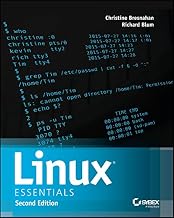
Most games now “just work,” but a few need a nudge. Install GameMode for a small performance boost, and if a specific title misbehaves, search ProtonDB for a community-tested launch option to paste into the game’s properties. Learning a handful of terminal basics from a resource like How Linux Works makes these occasional fixes quick rather than intimidating.
Frequently Asked Questions
Will installing Linux delete my Windows games?
Only if you choose to erase the whole disk. If you select the dual-boot option, Windows and its games stay intact on their own partition, and you pick which system to load each time you power on.
How much drive space does a gaming Linux install need?
The system itself fits comfortably in around 30GB, but games are the real consumers of space. Plan for at least a 256GB drive, and ideally an SSD, so your library and shader caches have room to breathe.
Do anti-cheat games work after installing Linux?
Some do and some do not. Many titles have enabled Linux support through Easy Anti-Cheat or BattlEye, but a few competitive shooters still block it entirely. Check each game on a compatibility tracker before assuming it will run.
I am stuck at the boot menu. What did I miss?
Usually the USB was not written as bootable, or Secure Boot is interfering. Re-flash the drive, and in your BIOS temporarily disable Secure Boot or Fast Boot. A pre-made multiboot USB avoids the flashing errors that trip up most first-timers.
Conclusion
Installing Linux for gaming in 2026 is a well-marked path, not a leap into the unknown. Choose a friendly distro, write a bootable USB, run the graphical installer, and flip on Proton in Steam, and you will have a responsive gaming system that respects your hardware and your privacy. Keep a beginner’s guide nearby for the occasional tweak, and within a week the command line will feel like a helpful tool rather than a barrier.