Key takeaways
- Your shoulders stay down and relaxed.
- Your elbows remain close to your sides.
- Your forearms receive support without hard pressure at the elbows.
- Your wrists remain mostly straight.
- The armrests do not hit the desk when you move the chair.
- Both pads feel stable and do not wobble during normal use.
Learning how to adjust 4d armrests on gaming chair correctly can make a noticeable difference in comfort, posture, and control during long sessions. A proper adjustment keeps your elbows supported without forcing your shoulders upward or your wrists to bend sharply. A poor adjustment can cause shoulder tension, neck pain, wrist pressure, and even instability if the armrests are loose or overloaded.
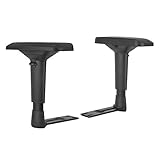
“4D” usually means each armrest can be adjusted in four ways: height, width, front-to-back position, and angle or pivot. The exact controls vary by chair, but the basic process is similar. Use the steps below to set the armrests for your body, desk, keyboard, and mouse. The goal is neutral support—not simply placing the pads as high or as far forward as possible.
As an Amazon Associate we earn from qualifying purchases at no extra cost to you. Product prices and availability are accurate as of the date shown and are subject to change.

What You Need
| Item | Why | Optional? |
|---|---|---|
| Your gaming chair and desk | Armrest position depends on your seated height, desktop height, and available legroom. | No |
| Adjustable wrench or hex-key set | Useful for tightening a loose armrest base or replacing damaged hardware. Many chairs use 5 mm or 6 mm hex bolts, but check your hardware first. | Yes |
| Tape measure | Helps compare armrest height, spacing, and desk clearance. A practical pad height is often about 7 to 10 inches below the top of the desk, depending on your chair and posture. | Yes |
| Replacement 4D armrests | Useful when a control button, pad, bracket, or mounting point is broken. Compatible replacement pairs commonly cost about $40 to $50, such as $48.99 or $39.99 examples. | Yes |
| Clean, level floor | Prevents the chair from rolling while you inspect bolts and compare both sides. | No |
Before making adjustments, remove heavy items from the seat and move the chair away from the desk. If the chair has a height-lock button, press or release it only while supporting the arm pad with your other hand. Never force a lever or button; a stuck mechanism may need cleaning or replacement.
Step-by-Step
1. Set the chair and desk height first (2 minutes)
Sit all the way back with your lower back against the lumbar support. Place both feet flat on the floor, or use a footrest if your feet do not reach comfortably. Adjust the seat so your knees are near a 90- to 100-degree angle and your thighs are supported without pressure behind the knees.
Next, set your desk, keyboard, and mouse position. Your elbows should be close to your sides, generally within about 1 to 3 inches of your torso. Do not adjust the armrests while slouching or leaning to one side; that creates an uneven setup that will feel wrong later.
2. Find the height adjustment (2 minutes)
Locate the height button or lever on the outside of each armrest. Raise or lower the pads until they lightly support your forearms while your shoulders remain relaxed. When your hands rest on the keyboard, your elbows should be approximately level with or slightly below the keyboard surface.
A useful test is to lift your shoulders deliberately, then let them drop. If the pads push your shoulders upward, lower the armrests by about 0.25 to 0.5 inch and test again. If your forearms fall away from the pads, raise them in small increments. The armrest pad should support the lower portion of your forearm, not press directly into the elbow joint.
3. Adjust the width (2 minutes)
Width controls are commonly located beneath the armrest or on the mounting bracket. Loosen the width lock if necessary, then move each armrest inward until your elbows sit naturally under your shoulders. Keep the two sides symmetrical unless you have a specific ergonomic reason to offset one side.
For many users, the inside edges of the pads end up about 17 to 22 inches apart, but your shoulder width and chair design matter more than a target measurement. Leave enough space for your torso and avoid pressing your elbows inward. If the pads collide with the desk edge, move the chair slightly closer or use the front-to-back adjustment before widening the armrests.
4. Set front-to-back depth (2 minutes)
Slide each pad forward or backward so it supports your forearms during your main tasks. For typing, the rear half of the pad should usually sit beneath the area between your elbow and mid-forearm. For gaming with a mouse, you may prefer the pad slightly farther forward so it supports your arm while allowing the wrist and hand to move freely.
Keep at least 1 inch of clearance between the front edge of the armrest and the desk when possible. This prevents the armrest from catching on the desk as you move the chair. If the pad is too far forward, it may push your elbows away from your body. If it is too far back, it may support the elbow joint and restrict movement.
5. Set the pivot or angle (2 minutes)
Many 4D armrests pivot inward and outward. Turn the pads so they follow the natural direction of your forearms. A slight inward angle can feel comfortable for keyboard use, while a flatter or slightly outward position may provide more room for mouse movement.
Keep the angle modest. The pad should not force your wrists to twist or make your forearms slide toward the edge. Rest your hands on the keyboard and mouse for 30 seconds, then check whether your wrists remain straight rather than bent upward, downward, or sideways.
6. Test your working position (5 minutes)
Use the chair as you normally would for typing, browsing, or gaming. Test both a keyboard and mouse because they place your arms differently. Make small changes—about 0.25 to 0.5 inch at a time—and pause after each change.
Check these points:
- Your shoulders stay down and relaxed.
- Your elbows remain close to your sides.
- Your forearms receive support without hard pressure at the elbows.
- Your wrists remain mostly straight.
- The armrests do not hit the desk when you move the chair.
- Both pads feel stable and do not wobble during normal use.
After you find a comfortable position, measure the distance from the floor to the top of each pad and compare the left and right sides. They should usually be within about 0.25 inch of each other. Marking the preferred height with a small piece of removable tape can make future adjustments easier.
7. Inspect and tighten the hardware (3 minutes)
With the chair stationary, check the bolts connecting the armrest brackets to the seat. Tighten loose fasteners gradually and evenly. Do not overtighten plastic components, because excessive force can crack the housing or strip the threads.
If the pad still wobbles after tightening, check whether the movement comes from the adjustment track, pivot joint, or seat-mounted bracket. A little designed movement is normal, but a visibly loose bracket, cracked mount, missing bolt, or armrest that drops under light pressure is not safe to ignore.
Mistakes to Avoid
- Setting the armrests too high: This lifts the shoulders and can create neck and upper-back tension.
- Using the armrests as a standing aid: Most gaming-chair armrests are intended for seated support, not for lifting your full body weight.
- Adjusting only one side: Uneven height or width can encourage leaning and asymmetrical posture.
- Ignoring the desk: An armrest that presses against the desktop can prevent the chair from moving close enough to the keyboard.
- Leaning hard on narrow pads: Keep your weight distributed through the seat and backrest rather than placing your full body weight on one armrest.
- Forcing controls: If a button will not move, inspect for debris or a damaged mechanism instead of applying pliers or excessive force.
- Choosing universal replacements without checking fit: Compare the bolt-hole spacing, bracket shape, mounting plate size, and included hardware before buying replacement arms.
How Often
Recheck your setup whenever you change your desk, keyboard, monitor height, chair height, or sitting position. Otherwise, inspect the armrests about once a month. Press each pad gently, operate every adjustment control, and look for cracks, missing fasteners, or uneven height.
If more than one person uses the chair, readjust it each time rather than forcing your body to fit someone else’s settings. A quick five-minute check is usually enough. Wipe the pads and exposed adjustment tracks with a slightly damp cloth, but avoid soaking mechanical controls.
When to Call a Pro or Replace
Stop using an armrest if its bracket is cracked, the mounting bolts will not hold, the pad unexpectedly drops, or the armrest separates from the chair under normal pressure. Contact the chair manufacturer or a qualified furniture repair technician when the mounting plate is damaged or the bolts spin without tightening.
Replacement 4D armrest pairs generally cost about $40 to $50, based on available examples priced at $39.99 and $48.99. Replacement makes sense when the chair frame and seat remain sound but the armrest controls or pads are worn. Replace the entire chair if the seat mount is bent, the frame is unstable, or several structural parts have failed. Confirm dimensions and hole spacing before ordering; “fits most” does not guarantee compatibility with every chair.
FAQ
How high should 4D gaming-chair armrests be?
Set them high enough to support your forearms while keeping your shoulders relaxed. Your elbows should be close to keyboard height or slightly lower. There is no universal height because seat height, desk height, and body proportions vary.
Should gaming-chair armrests touch the desk?
No. Leave roughly 1 inch of clearance when possible so the chair can move freely. If the armrests touch the desk, lower them, adjust their depth, or move the chair position. Do not let desk contact force your shoulders upward.
Why do my 4D armrests wobble?
Some pivot movement is normal, but excessive wobble may come from loose mounting bolts, worn adjustment tracks, or a damaged bracket. Tighten the hardware carefully and inspect the mount. If the bracket is cracked or the pad drops, replace the armrest rather than continuing to use it.
Are replacement 4D armrests universal?
No. Many replacement arms fit common gaming and office chairs, but compatibility depends on bolt-hole spacing, mounting plate dimensions, bracket orientation, and included hardware. Measure your existing mount and compare it with the replacement specifications before purchasing.