A computer monitor with built in cpu is usually called an all-in-one computer: a desktop that combines the screen and computer hardware in one enclosure. It can simplify a home office, homework station, or shared family desk without requiring a separate tower. However, a smart monitor that streams video and opens websites is a different kind of product. The right choice depends on the software you need, the quality of the built-in display, and how much flexibility you want later. Start by choosing between a complete all-in-one PC and a separate monitor paired with a compact computer, then compare specific configurations.
Choosing a computer monitor with built in cpu
For everyday desktop work, look for a genuine all-in-one running the operating system your applications require. As an editorial starting point, consider 16GB of memory and a 512GB SSD, then adjust for your workload. These are practical shopping targets rather than minimum requirements for every user.
Prioritize the display alongside the computer specifications. With an all-in-one, an uncomfortable stand or disappointing screen can affect every task, even when the processor is more powerful than you need.
Before comparing brands, answer three questions:
- Do you need locally installed Windows or Mac applications?
- Will the screen also need to display a laptop or game console?
- Do you expect to upgrade the computer while keeping the display?
Your answers determine whether an all-in-one is the most suitable purchase or whether a mini PC and separate monitor deserve equal consideration.
What a computer monitor with built in cpu actually includes
In an all-in-one, the processor, memory, storage, and other computer components are integrated into the display assembly or its associated housing. You connect power and input devices, complete the operating system setup, and use it as a standalone computer.
“CPU” technically means the central processing unit. In shopping language, however, buyers sometimes use it to mean the entire computer tower. An all-in-one replaces that separate tower, rather than simply adding a processor to an ordinary monitor.
Check the package contents carefully. A keyboard and mouse may be included, but accessories vary by configuration. Also confirm the operating system, wireless connectivity, camera, speakers, and power adapter rather than assuming every listing includes the same equipment.
How smart monitors differ from complete computers
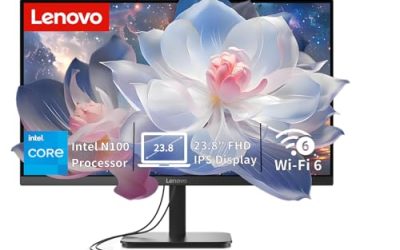
A smart monitor has its own processing hardware and software for supported functions such as streaming, browsing, and connected services. That does not automatically make it a Windows PC or Mac.
For example, Samsung identifies Tizen as the operating system on its M7 M70D smart monitor. Its built-in services belong to that platform; they do not establish compatibility with conventional Windows or macOS desktop applications.
Remote desktop features introduce another distinction. A monitor may let you access a computer elsewhere, but the remote computer still does the underlying work. Account requirements, network access, and service availability can also affect what you can do.
Choose a smart monitor when its documented apps cover your needs or when it will accompany another computer. Choose a complete all-in-one when you need a self-contained desktop for locally installed software.
Compare the three practical setups
The cleanest-looking product is not always the best fit for the way you work.
| Setup | Where the computing happens | Suitable uses | Main trade-off |
|---|---|---|---|
| All-in-one computer | Inside the integrated computer/display assembly | Shared family computing, schoolwork, office applications | Computer and display replacement decisions are connected |
| Smart monitor used alone | Within its built-in smart platform, with remote services where supported | Streaming, supported apps, limited browser-based tasks | Desktop software compatibility is restricted |
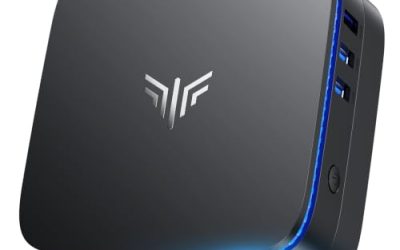
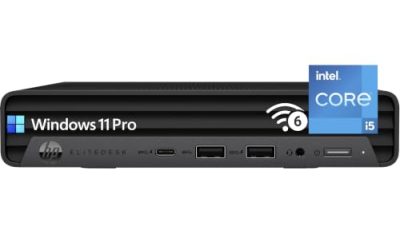
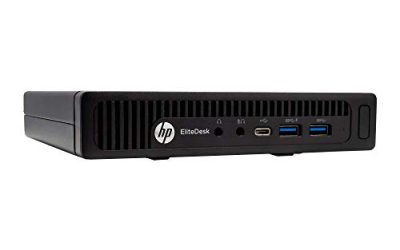
| Mini PC with a separate monitor | In a small external computer | Home offices, flexible screen choices, independent replacement | Requires separate components and connecting cables |
A mini PC can sit behind a compatible monitor mount or elsewhere on the desk, but mounting hardware and ventilation clearance need checking. It can provide a tidy setup while allowing the screen and computer to be replaced separately.
An all-in-one makes more sense when you value an integrated package and have already found a suitable screen. A separate setup becomes more attractive when you want a particular monitor size, refresh rate, adjustable stand, or long-term replacement strategy.
Match the computer to your actual workload
Family use, schoolwork, and routine office tasks
For email, documents, video calls, and ordinary browsing, balance matters more than buying the highest processor tier available. Enough memory, an SSD, a readable display, and reliable peripheral connections usually deserve attention before an expensive CPU upgrade.
A 16GB memory configuration is a sensible starting point for a shared computer that may keep a browser, document editor, and communication app open together. Lighter use can require less, while heavier multitasking can justify more.
Storage needs depend on what stays on the computer. A household using cloud documents and streaming services has different requirements from one storing years of photos and videos locally. Check usable storage expectations, backup arrangements, and the cost of expanding capacity before choosing a smaller SSD.
For a shared desk, also consider separate user accounts and the placement of ports. Easily accessible USB connections can be more useful than a specification upgrade when family members regularly connect headsets, storage drives, or school accessories.
Professional work and creative applications
Begin with the requirements of your actual software. Accounting tools, specialized business programs, creative applications, and peripheral drivers can determine the operating system and hardware you need.
For heavier multitasking or large creative projects, consider whether 32GB of memory is justified. That is a workload-based recommendation, not a guarantee that every user will notice a difference. Review the application developer’s guidance and, where performance matters, independent testing of a closely matching configuration.
Display specifications need similar scrutiny. Resolution, color coverage, surface finish, and brightness describe different aspects of the screen. A high-resolution panel is not automatically suitable for color-critical work, and a manufacturer’s color-gamut claim is not a substitute for measured accuracy.
If your workflow depends on an external display, fast storage, or multiple specialized peripherals, verify the full connection plan before buying. Adapters can solve some limitations, but they introduce cost and may not provide every function you expect.
Gaming and graphics-intensive workloads
Do not assume that a large all-in-one screen comes with graphics hardware suited to demanding games. Integrated graphics and dedicated GPUs can serve very different needs, and performance varies substantially within both categories.
Check the exact GPU, game requirements, intended resolution, and desired frame rate. A benchmark from a desktop graphics card does not establish the performance of a complete all-in-one with different hardware, cooling, and power limits.
Display refresh rate matters too. A sharp screen designed primarily for office work may not offer the motion performance you want for competitive games.
For gaming as the main purpose, compare an all-in-one against a gaming desktop and separate monitor. The separate setup offers more freedom to match graphics performance and display characteristics, although the exact upgrade options still depend on the computer.
Evaluate the display before paying for processor upgrades
Choose resolution and screen size together
A larger diagonal measurement gives you a physically larger screen, but it does not automatically provide more workspace. Resolution and operating system scaling determine how much information fits comfortably.
At the same 1920 × 1080 resolution, a 27-inch screen has lower pixel density than a 23.8-inch screen. Text and interface elements appear physically larger at matching scaling settings, but fine edges look less crisp at the same viewing distance.
For a 27-inch desktop used heavily for text, compare 2560 × 1440 and 3840 × 2160 options where available. Higher resolution can improve fine detail, but comfortable scaling remains important. A 4K panel does not mean you must use tiny interface elements to benefit from it.
Also distinguish panel variants within the same product family. A touch configuration may use a different resolution or surface finish from a non-touch configuration. Do not assume the more expensive version has the sharper display.
Check stand adjustment, reflections, and touch usefulness
Stand adjustment affects whether you can position the screen comfortably. Check height adjustment, tilt range, and the total footprint with the stand attached. If you plan to use a monitor arm, confirm mounting compatibility and supported weight for the exact configuration.
Screen finish deserves attention in bright rooms. Compare the desk location with windows and overhead lighting, and use the return period to assess reflections under your normal conditions. Brightness alone does not eliminate glare.
Touch is useful when your applications and desk arrangement support it. It may be less valuable if you mainly type and use a mouse, especially when reaching across the desk is inconvenient. Evaluate it as a specific function rather than an automatic upgrade.
Read processor, memory, and storage specifications correctly
Identify the full processor model
Labels such as Core i5, Core Ultra 7, or Ryzen 7 are too broad to establish performance by themselves. Record the complete processor designation and check the configuration in which it is installed.
A thin all-in-one can have different sustained operating limits from a tower using similarly branded hardware. Processor naming, core counts, and advertised clock speeds cannot establish application performance on their own.
For routine computing, avoid sacrificing memory or display quality simply to move up one processor tier. For demanding work, use relevant software testing and exact system specifications to decide whether that upgrade addresses a real bottleneck.
Treat memory capacity and upgradeability as separate questions
Installed memory tells you what the computer provides now. Upgradeability tells you whether you can change it later.
Look for a service manual that identifies memory slots, supported modules, maximum capacity, or integrated memory. Do not interpret “up to 32GB” on a product-family page as confirmation that a particular configuration can be upgraded after purchase.
When memory is not replaceable, choose capacity with your expected ownership period in mind. When it is replaceable, consider the difficulty and cost of access rather than assuming the process is as simple as opening a conventional tower.
Plan storage around local files and backups
A 512GB SSD is a useful starting point for general-purpose shopping, but local media collections and large applications can justify more. Remember that the operating system and installed software consume part of the advertised capacity.
External storage can expand file space, but it adds another device and does not automatically create a backup. Important files need a separate recovery plan.
If internal expansion matters, verify the number and type of storage connections in the service documentation. A configurable larger SSD at checkout does not prove that a second drive slot exists.
Check connections in both directions
HDMI input and output perform different jobs
An HDMI output sends the all-in-one’s picture to another display. An HDMI input receives a picture from a laptop, console, or other source.
The sockets can look alike. A listing that says only “HDMI” is not enough to confirm that the built-in screen can serve as an external monitor.
Some all-in-ones offer both directions. Dell’s documentation distinguishes the functions, and selected Dell all-in-one specifications explicitly list separate input and output ports. Other systems provide output only.
If external-monitor use matters, verify:
- Whether the exact configuration includes a video input.
- The input’s supported resolution and refresh rate.
- How to switch to the external source.
- Whether the computer must remain powered on.
- Whether audio and peripheral switching work as expected.
Do not assume that a keyboard and mouse connected to the all-in-one will automatically control an attached laptop. Display input and USB peripheral sharing are separate features.
USB-C does not guarantee every connection feature
A USB-C connector can support different combinations of data transfer, video, and power functions. The connector shape alone does not confirm that it accepts a laptop’s video signal or charges that laptop.
Read the port description and the relevant manual. For a second monitor, check supported display output, resolution, refresh rate, and display count. For external storage, check data capabilities. For laptop charging, look for an explicit power-delivery specification.
This is especially important when a retailer combines specifications from several variants. Match the manufacturer’s model number and configuration before purchasing adapters or cables.
Use real product specifications as configuration examples
These examples illustrate what to inspect, rather than forming a ranked product list.
| Product or family | Verified point relevant to this guide | Buying implication |
|---|---|---|
| Dell 27 All-in-One EC27260 | The U.S. page lists configurations with different display resolutions, including 2560 × 1440 non-touch and 1920 × 1080 touch options | Compare panel specifications alongside memory and processor upgrades |
| HP OmniStudio X 27-inch family | HP’s U.S. overview lists multiple generations and configurations, including 4K options and height-adjustable stands | Match the precise configuration; family-level maximums are not universal specifications |
| Samsung M7 M70D smart monitor | Samsung identifies it as a smart monitor with Tizen-based functionality | Evaluate supported services separately from Windows or Mac application requirements |
The Dell example shows why configuration details matter: a higher-priced computer configuration can include a lower-resolution screen. That does not make it the wrong choice, but the trade-off should be deliberate.
The HP overview also demonstrates why product-family pages need careful reading. Several versions can share similar names while differing in processors, memory types, and display options.
The Samsung example belongs to a different category. Its smart functions may be useful, but they should not be treated as evidence that it replaces a complete desktop for every workload.
Budget for the complete setup and ownership period
Without a defined workload or a like-for-like price comparison, a single “good price” would be misleading. Compare complete configurations rather than starting prices.
Include the computer, display, required accessories, adapters, software, backup storage, and any support plan you actually need. For a mini PC alternative, include the monitor and mounting hardware where relevant.
If you need to reduce cost, protect the features that would be difficult to change later. Depending on the system, those may include the display, non-upgradeable memory, and connection capabilities. Avoid paying for touch or a higher processor tier unless those features serve your work.
Repair arrangements also deserve attention. An integrated computer can require the entire unit to be serviced when one component fails. That can affect downtime even when repair is covered.
Before ordering, read the seller’s return terms and the applicable warranty. Confirm who provides service, how the unit is transported, and what coverage applies to the display and other components. No single warranty policy should be assumed across a brand’s entire range.
Apply the guide to realistic buying situations
A shared household computer
An all-in-one can suit a family desk used for homework, documents, browsing, and video calls. Begin with software compatibility, a comfortable screen, sufficient memory, and an SSD sized for local files.
Then check the practical details: camera privacy controls where provided, accessible ports, the included input devices, and whether the stand fits the desk. A balanced configuration is more useful here than an expensive processor paired with a screen nobody enjoys using.
A home office that also needs a laptop display
Video input becomes a purchase requirement. A computer with HDMI output alone cannot perform the same job.
Confirm the input function and operating behavior in the manual. If switching between computers and sharing peripherals is central to your day, compare a separate monitor with appropriate switching features and a mini PC. That arrangement may better match the workflow.
A buyer planning to keep the screen through several computers
Compare separate components carefully. An all-in-one does not necessarily provide a straightforward way to reuse its panel after the integrated computer becomes unsuitable.
A monitor and mini PC let you make replacement decisions independently. An all-in-one can still be appropriate when integration is the priority, but do not assign it future monitor functionality that the manufacturer has not documented.
Avoid common buying mistakes
The most consequential errors usually come from assumptions about the product category or configuration:
- Buying a smart monitor while expecting unrestricted desktop application support.
- Choosing by screen size without checking resolution.
- Assuming every model in a product family has the same panel or ports.
- Treating an HDMI output as an input.
- Assuming USB-C supports video input or laptop charging.
- Expecting memory, storage, or graphics upgrades without service documentation.
- Comparing starting prices while ignoring accessories and configuration differences.
During the return period, use the applications, peripherals, and connections you depend on. Check screen readability, reflections, camera framing, wireless reception, and fan behavior under your normal workload. Discovering a mismatch early is more useful than relying on a specification sheet alone.
Frequently asked questions
Does an all-in-one need a separate tower?
No. A complete all-in-one includes the computer hardware needed to run its operating system. It still needs power and input devices, and online services require an appropriate network connection.
Can a smart monitor run Windows programs?
Built-in smart functions do not establish Windows application compatibility. A smart monitor may display a connected Windows computer or provide supported remote access, but those functions differ from installing Windows programs directly on the monitor.
Can an all-in-one screen be used with a game console?
Only when the exact model supports a suitable video input or another explicitly documented method. Check the accepted signal formats and switching procedure. An HDMI output cannot receive the console’s picture.
Can you add a second monitor?
Often, but the supported connection, display count, resolution, and refresh rate depend on the computer. Check the exact model’s external-display specifications before buying the screen or adapter.
Is an all-in-one portable?
It is an integrated desktop, not automatically a battery-powered computer. Even if it is easy to move between rooms, plan for mains power, safe transport, and enough space for its stand and accessories.
Conclusion
An all-in-one computer is the category to explore when you want a complete desktop built around its screen. Choose the operating system first, then balance display quality, memory, storage, and connections around your actual work. Verify video input if you want to connect a laptop or console, and check service documentation before counting on upgrades. A smart monitor can handle supported entertainment and connected tasks, while a mini PC with a separate display offers more independent replacement choices. The strongest purchase is the configuration whose documented capabilities match your desk, applications, and ownership plans.