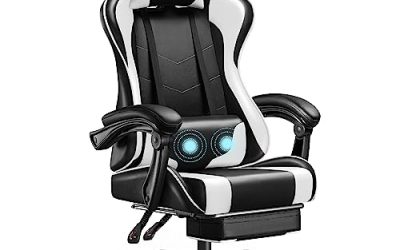
Key takeaways
- Buying by speaker count. A 2.1 label describes two main audio channels and a subwoofer. Verify dedicated vibration and its controls separately.
- Assuming console support means direct pairing. Find the connection diagram and identify whether it uses your TV, controller, or a specific transmitter.
- Buying by overall chair height. Use the height of the sitting surface and armrests to judge desk fit. The height of the backrest serves a different purpose.
- Overlooking the headset switch. Check what happens when you join voice chat or turn on a wireless headset. Changing the playback destination can also change what the chair receives.
- Trusting a shared listing across variants. Match the manual and accessories to the retailer’s model number before ordering, especially when the same page offers pedestal and floor-rocker versions.
The right audio and vibration swivel gaming chair fits where you play, receives game audio from your existing equipment, and lets you adjust vibration without making the speakers louder. Start with the seat height and the audio path. A low pedestal chair can suit a TV setup, while a height-adjustable swivel chair is usually easier to fit at a computer desk. For a console, check whether sound will reach the chair from the TV, the controller, or a supported transmitter. Once those details work, compare vibration controls, cable clearance, and the complete setup cost.
What to check on an audio and vibration swivel gaming chair
A retailer’s feature list can describe the chair accurately and still leave out details that determine whether it works in your room. Look up the exact model number and open the manual before comparing listings. The base, control panel, and included accessories tell you more about everyday use than the speaker count alone.
| Buying decision | What to verify | Why it matters |
|---|---|---|
| Seating position | Seat height or adjustment range, seat width, and base style | Determines whether you can sit comfortably at a TV or reach your desk controls |
| Audio connection | Source device, output jack or supported transmitter, and chair input | A console compatibility label can describe a setup that relies on your TV |
| Vibration control | Dedicated intensity adjustment and a documented way to turn it off | Gives you more flexibility when playing quietly or using the chair for other tasks |
| Headset use | Whether the speakers mute and vibration continues in your intended headset setup | A working microphone and active chair vibration may require different audio routes |
| Movement | Swivel clearance, cable slack, recline space, and outlet location | A chair can fit when stationary and catch a cable when it turns |
| Total cost | Included accessories, any required adapter, and return shipping terms | A lower chair price can come with a more expensive setup |
Choose an audio and vibration swivel gaming chair by seat height
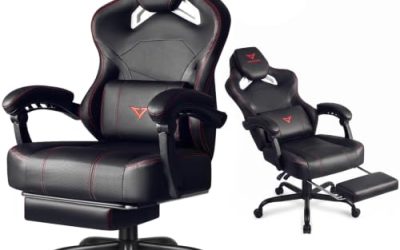
For TV gaming, a fixed pedestal can make sense when the seat puts your eye line near the middle of the screen and lets your feet rest comfortably. Start by measuring a seat you already like. Compare its seat height and usable cushion depth with the candidate chair, alongside the position of the TV.
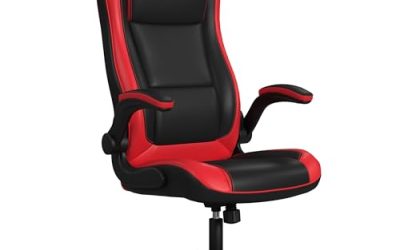
For desk gaming, measure from the floor to the underside of the desk wherever the armrests need to pass. Include any drawer, apron, or keyboard tray. Then compare the candidate’s armrest height at the seat setting you would actually use. If you would need to lower the seat to tuck the armrests under, check whether that leaves you reaching upward for the mouse. A base that swivels makes turning easier, but it does little to fix a poor match between seat and desk height.
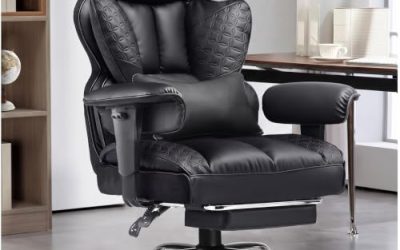
A floor rocker is a separate fit decision. Some listings group floor rockers and raised pedestal chairs together because they share similar audio features. Look at the exact model’s side profile and check how the seat is supported. If you want to rotate toward a second screen or stand up from a raised seat, verify that the model has the base you expect.
Look for a dedicated vibration control
A built-in subwoofer and a vibration system serve different purposes. A subwoofer reproduces low-frequency sound, which can make the chair itself feel like it is vibrating. A chair with a dedicated vibration system and an intensity control gives you more direct control over what you feel. The manual’s control panel diagram can help you identify which design you’re buying.
On an audio-reactive chair, what you feel depends on the sound reaching the chair. A game with strong engine noise or low-frequency effects can produce a different response from one dominated by dialogue. If you want distinct effects for individual events in a racing simulator, look for explicit support for those events and your game. If your goal is simply to feel some of the soundtrack, audio-reactive vibration is the relevant feature.
Check minimum intensity and the off behavior separately. A dial that reduces vibration may or may not have a definite off position. This matters in a shared room or if you plan to watch videos between games. Also check whether the vibration control is within reach when seated, especially if you expect to adjust it frequently.
Match the chair to your audio setup
Draw the signal path from the game device to the chair before you buy. Identify the equipment sending sound, the port or wireless method carrying it, and the input receiving it. Then check how your headset and microphone fit into the same setup. The connection that works for solo play may change when you join party chat.
Start with your TV or controller for console play
If your TV has an analog headphone output and the chair accepts 3.5 mm audio, the console can send sound to the TV over HDMI and the TV can feed the chair. This keeps the controller free of an audio cable. Check the TV’s behavior when a cable is plugged in. Depending on its settings, the connection may mute the built-in speakers or change which remote controls the volume.
A controller headphone jack can be more convenient when the TV has no usable audio output and the chair accepts analog input. Before choosing that route, check whether your console sends game audio to the controller jack and how it handles chat. The cable between your controller and the chair also needs enough slack for normal play. If you frequently put the controller down or move around the room, a stationary TV connection may be easier to live with.
If the TV has optical audio output, look for a chair receiver or converter that explicitly accepts optical input. Confirm which sound formats the receiver supports and whether your TV can output one of them. A port marked HDMI ARC or eARC calls for a compatible audio device. Simply finding an HDMI port on the TV tells you little about how the chair will receive sound.
Check what wireless actually connects
A chair can receive wireless audio through Bluetooth or through a dedicated transmitter. With a transmitter, the source still has to feed audio into it through a supported connection. If you are buying used or comparing retailer bundles, verify that the transmitter is included and that the chair’s receiver supports it.
For a Bluetooth chair, check whether the device sending audio supports Bluetooth audio with that receiver. In a console setup, the sending device might be the TV. If you play rhythm games or already notice lip-sync delays with wireless headphones, prioritize a documented wired path you can fall back on. A wireless audio connection can simplify cable routing across the room, while the chair’s electronics may still need a power cord.
A USB port also deserves a closer look. A chair’s USB port can be intended for charging another device, while a separate transmitter may use USB for power, audio, or both. Confirm the function of the actual port on each component before assuming that plugging the chair into a console or PC will carry sound.
Plan for headphones and voice chat on PC
A PC with a compatible analog output can feed a wired chair directly. If you use a USB headset, that headset may become the selected playback device. The chair then needs a separate way to receive game audio if you want the vibration to continue. Check your operating system, game, and chat app routing before treating simultaneous playback as part of the chair’s feature set.
A headphone jack on the chair itself may solve part of the problem. Look for documentation on whether it mutes the built-in speakers, whether vibration stays active, and whether the jack carries a microphone signal back to the source. If the manual only identifies it as a headphone output, confirm microphone support separately. For regular multiplayer, your deciding question may be whether you can keep your existing headset and mic working through the setup you already use.
Compare fit, cable clearance, and total cost
Once you have a working connection on paper, picture the chair in its usual position with every required cable plugged in. Include the moments when you turn to get up, slide under a desk, or recline. Then price the cables and adapters that setup requires alongside the chair itself.
Measure the moving footprint
Measure the widest part of the chair, including any armrests or control panel that stick out. Leave room for the seat to turn near a wall, desk leg, or entertainment cabinet. If it tilts or reclines, check the rear clearance as well. A wide armrest can hit a desk leg even when the base fits comfortably under the desktop.
Look at where the power and audio cords leave the chair. Plan a route that allows ordinary movement without pulling on the plugs or letting a cable collect around the pedestal. A chair advertised with full swivel still needs room for its connected cables. If the logical cable route crosses a walkway, reconsider the chair location or the way audio reaches it.
Compare complete setups within your budget
The useful price comparison is the chair plus what it takes to use the features you are paying for. A wired chair that can take sound directly from your TV may need little beyond the included cable. A different chair might require a transmitter or audio converter that is sold separately. Confirm the power adapter and included audio accessories for the exact U.S. listing, particularly with used or open-box units.
Check the retailer’s return window and who pays return shipping for an assembled chair. For warranty coverage, look at the terms for the electronics as well as the frame and base. If your budget is tight, prioritize the chair that fits your seating position and has a documented audio path. Then decide whether upgrades such as a wireless transmitter or additional speakers improve the way you actually play.
Apply the checklist to your setup
The most valuable feature changes with the room and the way you play. A solo console player may care most about a clean cable route, while a PC player may need an adjustable seat and uninterrupted voice chat. Use your most common setup to decide which compromise would be hardest to live with.
For a living room with a shared TV
Suppose you mainly play single-player games from a fixed spot and the TV has a headphone output. A swivel pedestal chair with a compatible analog input and separate vibration adjustment is a straightforward candidate. You can keep the controller untethered and adjust the chair for solo play. If someone else regularly watches the TV with you, find out whether inserting the cable mutes the speakers. That behavior could determine whether the connection works as a permanent setup or needs to be swapped out each time.
For a desk where you use a headset every night
Suppose your desk is narrow and you spend most sessions in voice chat through a USB headset. Start by checking seat and armrest geometry, then confirm whether the chair can receive game audio while your headset remains active. If your audio setup only feeds one device at a time, the built-in sound and vibration may go unused during the sessions that matter most. Spend the budget on the seat fit and controls you will use every day, and count vibration as a buying benefit only after you have worked out the audio route.
Common buying mistakes
Listing photos can show the right-looking chair alongside details from another version. Keep the exact SKU, manual, and included-parts list together as you compare sellers. That small step catches several costly mistakes, especially when a familiar product name covers multiple bases or audio configurations.
- Buying by speaker count. A 2.1 label describes two main audio channels and a subwoofer. Verify dedicated vibration and its controls separately.
- Assuming console support means direct pairing. Find the connection diagram and identify whether it uses your TV, controller, or a specific transmitter.
- Buying by overall chair height. Use the height of the sitting surface and armrests to judge desk fit. The height of the backrest serves a different purpose.
- Overlooking the headset switch. Check what happens when you join voice chat or turn on a wireless headset. Changing the playback destination can also change what the chair receives.
- Trusting a shared listing across variants. Match the manual and accessories to the retailer’s model number before ordering, especially when the same page offers pedestal and floor-rocker versions.
Frequently asked questions
Feature labels can leave open a few questions that are hard to answer from product photos, especially if you plan to wear headphones or play near other people. The control panel and connection diagram are the best places to check. Look for explicit answers for your version of the chair.
Can I use vibration with the chair speakers muted?
Some setups make this possible. Check whether the chair has a mode that mutes its speakers while keeping vibration active, or whether the manufacturer documents that behavior when headphones are plugged into the chair. If vibration follows incoming audio, muting the game at the source can remove the signal the vibration system needs. Turning down the chair’s own volume may behave differently, so check the specific manual.
Will vibration be noticeable in another room?
The answer depends on the intensity, the chair’s base, the floor, and how the building carries vibration. A hard floor and a rug may feel or sound different, and speaker bass can travel separately from movement at the base. If you share a wall or have downstairs neighbors, look for independent control of bass and vibration. If you plan to put a mat under the chair, check that the base remains stable on it.
Conclusion
Choose the chair that fits your seating position and accepts audio from equipment you already use. For TV gaming, a pedestal model with a documented wired or transmitter connection can be a practical fit. For desk gaming, prioritize seat height, armrest clearance, and compatibility with your headset. Buy the exact model whose manual confirms adjustable vibration and whose listing includes the accessories your setup needs. Once those checks pass, compare speaker features and total cost. You’ll have a clearer sense of what you’re paying for and which features you’ll actually use.
More from Amazon
Programs that pair well with the guide above. Offers and eligibility are set by Amazon and may change.
Set up recurring deliveries of everyday items on eligible products. Terms and savings are set by Amazon.
Explore Subscribe & SaveFree shipping on eligible items, Prime Video and more. Eligible new members can start with a free trial.
Start a Prime free trialA Prime membership for ages 18-24 with a trial period. Eligibility is set by Amazon.
See Prime for Young AdultsAudiobooks and podcasts to listen to on the go. Eligible new members can start with a free trial.
Try Audible freeAs an Amazon Associate we earn from qualifying purchases.