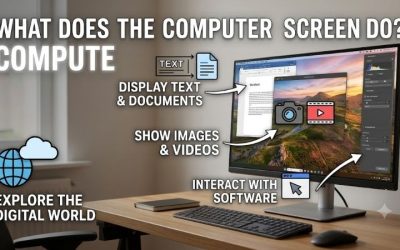
A computer monitor receives a video signal and turns it into an image by controlling the color and brightness of millions of pixels. The computer generates the picture, the connection carries the image data, and the monitor’s electronics tell the panel how to display it. So how does a computer monitor operate when you open a document, move your mouse, or play a game? The same process repeats with each screen update. An LCD controls how much light passes through from a backlight, while an OLED controls light at the pixel level. Resolution determines how much detail the panel can show, and refresh rate determines how often it can update.
How does a computer monitor operate from signal to screen?
Think about dragging a window across your desktop. Your computer prepares a series of images with the window in a slightly different position each time. Its graphics hardware sends those images to the monitor. The monitor receives the data, processes it as needed, and drives the panel so the corresponding pixels change color and brightness. You see movement because those changes happen in quick succession.
| Stage | What happens | Example |
|---|---|---|
| The computer prepares the image | Graphics hardware produces the image for the connected display. | A window appears in a new position after you move the mouse. |
| The connection carries the signal | A compatible video link sends image data and the information needed to interpret it. | A DisplayPort cable carries the desktop image to the monitor. |
| The monitor processes the image | The monitor can scale the incoming picture or apply settings such as a color preset. | A 4K monitor scales a 1080p input to fill the screen. |
| The panel produces visible light | The panel controls the amount and color of light at each pixel. | The pixels along the window’s old edge change back to the desktop background. |
How does a computer monitor operate when you first connect it?
When you connect a powered monitor to a computer, the computer can read a block of display information called Extended Display Identification Data, or EDID. It includes information such as the monitor’s identity and display timings. The graphics driver and operating system use that information, together with the capabilities of the connection, to determine which display modes they can offer.
A display mode specifies how the image will be sent, including its resolution and refresh rate. A monitor might support a higher refresh rate through one input than another, or only at certain resolutions. A dock or adapter can also limit the available modes. If the advertised refresh rate is missing from your display settings, check the supported resolution and refresh-rate combinations for the input you’re using.
What the monitor does after receiving the signal
The monitor’s input electronics interpret the incoming video data. If the signal already matches the panel’s pixel grid, each image pixel can map directly to a physical pixel. If the sizes differ, the monitor can use a scaler to calculate how the incoming image should fit the panel. Depending on the monitor’s settings, it may fill the screen, preserve the original proportions with blank space around the picture, or show the image at its original pixel size.
The panel’s timing and driver electronics then control when and how the pixels update. A monitor can also generate its own on-screen menu. If that menu appears over a blank screen, the monitor is receiving power and can display its own graphics. The computer’s video signal follows a separate path, so the menu can appear even when the selected input has no usable signal.
How pixels create color and brightness
A pixel is one addressable picture element in the display’s physical grid. Most color monitors create each pixel’s visible color by varying contributions from red, green, and blue subpixels. At a normal viewing distance, your eyes blend those contributions into one color. Strong red and green contributions, for example, can produce yellow. The exact subpixel arrangement varies by panel design, which can affect how fine text and thin lines look up close.
How an LCD monitor uses a backlight
An LCD uses a light source behind the panel. In an LED-backlit LCD, LEDs provide that light. Voltage changes the orientation of liquid crystals, and the liquid crystal layer works with polarizing filters to control how much light passes through. Color filters create the red, green, and blue components in a typical LCD. By adjusting how much light gets through each component, the monitor sets the pixel’s apparent color and brightness.
This explains why a monitor marketed as an “LED monitor” is usually an LCD with LED backlighting. Mini-LED uses smaller LEDs in the backlight. A monitor with local dimming can lower the light output behind dark parts of the image while keeping other zones brighter. Since a backlight zone typically covers many pixels, a bright object on a dark background can illuminate the area around it. You may see this as a halo around a white cursor or subtitle.
How an OLED monitor produces its own light
An OLED panel uses organic light-emitting materials to generate light within the panel. Individual pixels can be driven to different brightness levels, and a pixel displaying black can turn off its light output. A white cursor can therefore sit beside dark pixels without requiring a shared backlight zone to illuminate both.
OLED designs vary in how they produce color. Some use different emitters or filters, while quantum-dot OLED designs use quantum dots to convert some of the light into other colors. The operating principle relevant to everyday use is that the panel can control light at the pixel level. Actual brightness and the appearance of fine text depend on the specific panel and monitor.
Why resolution and refresh rate change what you see
Resolution tells you how many pixels the image or panel has. Refresh rate tells you how often the display can update. Pixel response time describes how quickly a pixel changes between levels, and input lag is the delay between a signal or action and its visible result, depending on where the measurement starts. Those measurements describe different parts of the process. A high refresh rate can make movement look smoother, while slow pixel transitions can still leave visible trails behind moving objects.
Native resolution and scaling affect sharpness
A flat-panel monitor has a fixed physical pixel grid. A 1920 × 1080 panel has 1,920 columns and 1,080 rows. A 3840 × 2160 panel has twice as many columns and rows, for four times as many pixels. At the same screen size, the denser grid can show finer text and image detail when the source takes advantage of it.
When a 1080p signal fills a 4K screen, the incoming picture must be expanded to fit the panel. The result can look softer than an image generated at native 4K, with the appearance depending partly on how the image is scaled. If desktop text looks too small at native resolution, try increasing the operating system’s display scaling. This enlarges interface elements while keeping the monitor at its native output resolution.
Refresh rate and frame rate describe different things
A 60 Hz monitor operating at a fixed refresh rate starts a new refresh about every 16.7 milliseconds. At 120 Hz, that interval drops to about 8.3 milliseconds. These figures describe when refreshes begin. They do not tell you how quickly an individual pixel changes or how long your mouse movement takes to appear on screen.
Frame rate measures how many images the computer produces per second. If a computer sends the same image across several refreshes, the monitor can show it more than once. If the image changes while the monitor is scanning out a refresh, parts of two frames can appear together, creating a visible break called screen tearing. Variable refresh rate lets a compatible monitor adjust its refresh timing to the arrival of frames within a supported range.
Response time explains why motion can still look smeared
A panel can start a new refresh before all the pixels from the previous refresh have finished changing. Some LCD transitions take longer than others. For example, a panel might display light-colored text clearly while dark details in a moving game leave a more noticeable trail. A single response-time number cannot describe every transition.
Some LCD monitors offer an overdrive setting that accelerates pixel transitions. A stronger setting can reduce one type of trailing but introduce bright or dark outlines if pixels overshoot their target. If moving objects look worse after switching to the strongest setting, compare a lower setting at the refresh rate you normally use.
What the cable can change
HDMI and DisplayPort both carry digital video. A monitor’s available modes depend on the computer’s output, the monitor’s chosen input, the cable, and any intervening dock or adapter. Higher resolutions and refresh rates generally require more bandwidth, all else being equal. Color depth and the way the video is encoded can also affect which combinations fit over a particular connection.
USB-C describes the connector shape. For a direct USB-C video connection using DisplayPort Alt Mode, the computer’s port must support that mode, and the rest of the connection must carry it. A USB-C port or cable that charges a laptop may still be unsuitable for video. If a monitor works over HDMI but stays blank over USB-C, check video support for the exact laptop port, cable, and monitor input before assuming the panel has failed.
Frequently asked questions
Can the same monitor look different on two computers?
Yes. The computers may send different resolutions, refresh rates, color settings, or HDR modes. The monitor may also remember different picture settings for each input. If text looks sharp on one computer and soft on the other, compare the active resolution and display scaling first. If colors differ, check the picture preset and HDR setting on each connection.
Why does a powered monitor say “No signal”?
The monitor can power its panel and display a message without receiving usable video from the selected input. A wrong input selection, a loose cable, a computer in sleep mode, or an incompatible adapter can all interrupt that path. Match the input shown in the monitor’s menu to the port you connected, wake the computer, and reseat the video cable. If the message remains, a direct connection with a compatible cable can help isolate a dock or adapter issue.
Does a higher refresh rate make a still image sharper?
A higher refresh rate mainly changes how motion and updates appear. Static text sharpness depends more on factors such as the panel’s pixel density, the incoming resolution, scaling, and subpixel layout. If a stationary document looks blurry, check whether the computer is sending the monitor’s native resolution. If the text looks sharp at rest but smears when you scroll, refresh rate and pixel response are more relevant.
Conclusion
A computer monitor takes the image sent by your graphics hardware, maps it to the panel, and controls the light you see at each pixel. An LCD regulates light from a backlight, while an OLED produces light within the panel itself. If the picture looks soft, start with the active resolution and scaling. If motion looks uneven, check the refresh rate and the rate at which the computer supplies new frames. If the monitor shows its own menu but no desktop, start with the selected input and the connection carrying the video.
More from Amazon
Programs that pair well with the guide above. Offers and eligibility are set by Amazon and may change.
Set up recurring deliveries of everyday items on eligible products. Terms and savings are set by Amazon.
Explore Subscribe & SaveFree shipping on eligible items, Prime Video and more. Eligible new members can start with a free trial.
Start a Prime free trialA Prime membership for ages 18-24 with a trial period. Eligibility is set by Amazon.
See Prime for Young AdultsAudiobooks and podcasts to listen to on the go. Eligible new members can start with a free trial.
Try Audible freeAs an Amazon Associate we earn from qualifying purchases.