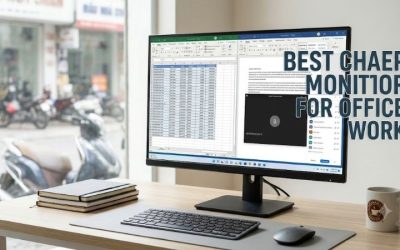
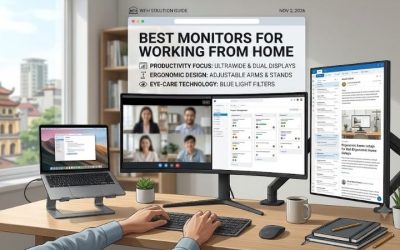
The best monitors for working at home give you enough room for the apps you use together, keep text readable at your preferred size, and connect cleanly to your computer. The Dell P2725QE is the strongest starting point for most laptop-based home offices because it combines a sharp 27-inch 4K screen with USB-C charging, Ethernet, and an adjustable stand. A compact 24-inch display makes more sense on a narrow desk, while an ultrawide suits work that keeps several panes open at once. The picks below cover those setups, plus options for photo editing and desks shared by two computers.
Best monitors for working at home at a glance
Quick verdict. Choose the Dell P2725QE for a home office built around one compatible laptop. Choose the Dell P2425H if desk space is tight and your computer already has a suitable video output. If you switch between work and personal computers throughout the week, the Dell U2725QE earns its place by letting you share a keyboard and mouse between them.
| Monitor | Best for | Display | Laptop connection | Main trade-off |
|---|---|---|---|---|
| Dell Pro 27 Plus P2725QE | Most laptop-based home offices | 27-inch 4K IPS, up to 100 Hz | USB-C, up to 90W, Gigabit Ethernet | One main laptop connection is the natural fit |
| Dell Pro 24 Plus P2425H | Narrow desks and basic office work | 23.8-inch 1080p IPS, up to 100 Hz | HDMI or DisplayPort for video | USB-C port cannot receive video or charge a laptop |
| ASUS ProArt PA278CV | A 1440p workspace with USB-C | 27-inch 1440p IPS, up to 75 Hz | USB-C, up to 65W | Less text detail than 27-inch 4K |
| ASUS ProArt PA279CRV | Photo editing and design alongside office work | 27-inch 4K IPS, up to 60 Hz | USB-C, up to 96W | Scrolling and window movement are limited to 60 Hz |
| Dell UltraSharp U2725QE | Sharing a desk between two computers | 27-inch 4K IPS Black, up to 120 Hz | Thunderbolt 4, up to 140W, KVM | Getting the full benefit requires compatible hardware and some setup |
| Dell UltraSharp U3225QE | A larger 4K screen for spreadsheets and apps | 31.5-inch 4K IPS Black, up to 120 Hz | Thunderbolt 4, up to 140W, KVM | Needs more desk room and has lower pixel density than 27-inch 4K |
| Dell UltraSharp U3425WE | Timelines and side-by-side apps | 34-inch curved 3440 × 1440 IPS Black, up to 120 Hz | Thunderbolt 4, up to 90W | Fewer vertical pixels than a 4K display |
How we selected the monitors
We prioritized the features that change a home-office setup in practice. Screen size and resolution determine how much you can see at a comfortable text size. Stand adjustment affects where the display can sit relative to your laptop and keyboard. Ports determine whether the monitor can replace a dock or whether you still need separate connections for power, video, and peripherals.
We checked manufacturer specifications for the exact models and used independent reviews from TechRadar and RTINGS to corroborate relevant observations about selected displays. These are research-based recommendations. The model comparisons draw on published specifications and selected independent findings, with the use-case judgments based on how those features fit a desk. Charging figures are manufacturer maximums and depend on the computer and cable.
The seven picks and who should buy them
Dell P2725QE — Best overall for a one-laptop desk
The P2725QE combines the features most likely to simplify a typical work-from-home setup. Its 27-inch 3840 × 2160 panel gives fine text and spreadsheet gridlines more definition, and the stand lets you adjust height, tilt, swivel, and pivot. USB-C carries video and data while supplying up to 90W to a compatible laptop. With Ethernet and peripherals connected to the monitor, one laptop cable can handle most of what a separate dock would do at that desk.
The 100 Hz maximum refresh rate is useful if you spend much of the day scrolling through long pages or moving windows between apps. The larger reason to choose it is the combination of 4K and docking in a 27-inch format. Compared with the similar-looking P2425H, the P2725QE also removes the need to run separate video and USB hub cables for a compatible laptop.
Buy if you regularly take your laptop away from the desk and want one connection when you return. Skip if your laptop needs more than 90W for sustained work or your daily routine revolves around switching one set of peripherals between two computers.
Dell P2425H — Best for a narrow desk
The 23.8-inch P2425H measures 21.21 inches wide, and Dell lists the stand depth at 7.16 inches. Those dimensions help if the monitor has to share a small desk with a laptop, a lamp, and a notebook. Its 1080p panel suits a workflow built around one main window, and the stand gives you room to position it above your keyboard or beside the laptop screen.
The USB-C port is easy to misread on a product listing. It is a downstream data port that provides up to 15W to a connected accessory. Plan on HDMI or DisplayPort for the picture and a USB upstream connection if you want to use the monitor’s hub. A laptop with USB-C as its only video output will need a compatible adapter or cable and its own charger.
Buy if you handle email, documents, or calls on a narrow desk and prefer to keep the laptop open for chat. Skip if you work with two dense documents side by side or want the monitor to dock and charge your laptop over one cable.
ASUS ProArt PA278CV — Best for everyday 1440p work
The PA278CV gives you 2560 × 1440 pixels across a 27-inch screen. That is a practical step up from 1080p when a browser and spreadsheet need to stay visible together. It also gives you a reasonable starting point if you prefer a straightforward 100% scale on Windows, though your viewing distance and text preferences still matter. ASUS provides USB-C video and up to 65W of charging, plus a USB hub and an adjustable stand.
This is the middle ground for someone who needs more layout room before they need finer text rendering. If your day consists of dashboards, documentation, and occasional design feedback, 1440p can handle the layout without requiring a 4K panel. The P2725QE makes more sense if you value crisper small type or need more charging headroom. Check the wattage printed on your laptop’s adapter and the computer maker’s USB-C charging guidance before relying on the ASUS to power your machine.
Buy if you want 27-inch 1440p and your laptop is comfortable with 65W USB-C charging. Skip if your work involves frequent close reading of small type or your laptop needs a higher-power connection under load.
ASUS ProArt PA279CRV — Best for photo editing and design
The PA279CRV makes sense when the same monitor has to handle spreadsheets in the morning and color-managed work in the afternoon. ASUS specifies a 27-inch 4K IPS panel, 99% Adobe RGB and 99% DCI-P3 coverage, and up to 96W of USB-C charging. Its preset modes include sRGB and Adobe RGB, so you can choose a display mode that suits the intended output and the way your editing software handles color.
For a web project, the sRGB mode gives you a more relevant starting point than leaving the panel in a wide-gamut mode for every task. For print-oriented work, the wide-gamut specification makes the ASUS a more relevant candidate than choosing a general office display purely on resolution. Gamut coverage describes the range of colors a monitor can reproduce. A color-managed workflow still depends on the display profile, the application, and the intended output.
Buy if you regularly edit photos, review visual assets, or design for several outputs. Skip if your workload is mostly documents and calls, and you would get more daily use from Ethernet docking or smoother scrolling than from the ProArt color modes.
Dell U2725QE — Best for sharing one desk between two computers
The U2725QE pairs a 27-inch 4K screen running at up to 120 Hz with Thunderbolt 4 and a built-in KVM. The KVM lets a keyboard and mouse connected to the monitor follow the active computer once both systems have the right connections. A typical arrangement is to connect a work laptop over Thunderbolt and a personal desktop over DisplayPort or HDMI, with a separate USB upstream connection for the desktop.
That setup is worth considering when you switch machines more often than you unplug them. For example, it lets you use a full-size keyboard and mouse for a work laptop in the morning and a desktop after hours without moving their receivers. The primary Thunderbolt connection can provide up to 140W with compatible equipment. Check the laptop’s supported USB Power Delivery level before assuming it will draw the full amount.
Buy if you regularly switch between two computers and want to share the display and desk peripherals. Skip if you keep one laptop at the desk, 90W covers its needs, and you expect to use the extra ports and switching features only occasionally.
Dell U3225QE — Best for a larger 4K canvas
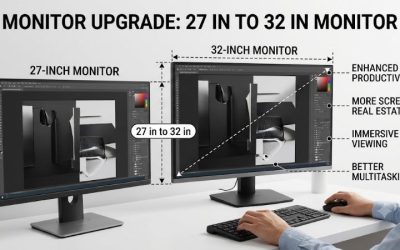
The U3225QE spreads 3840 × 2160 pixels across 31.5 inches. At the same scaling setting, app controls and text are physically larger than on a 27-inch 4K monitor. The total pixel count stays the same. The benefit is that you may find a lower scaling setting comfortable and fit more usable content on screen. That matters when you want to keep more spreadsheet rows and a reference pane visible together.
It also offers up to 120 Hz, Thunderbolt 4 with up to 140W of charging, and KVM connectivity. The size is the deciding factor against the U2725QE. If you sit close and mainly use a centered editor, the smaller display puts more of the workspace near your line of sight. If you want larger on-screen controls with enough vertical space for full sheets or long documents, the 31.5-inch model better fits that preference.
Buy if you have room to sit comfortably in front of a larger screen and frequently use both its width and height. Skip if your desk is shallow, you use one centered app most of the day, or you prefer the finer pixel density of 27-inch 4K.
Dell U3425WE — Best for side-by-side work on one screen
The 34-inch U3425WE uses a curved 3440 × 1440 panel with a maximum refresh rate of 120 Hz. Its extra horizontal room makes it easier to leave a narrow communication pane beside a wider working area. A marketer can keep a reporting dashboard and notes visible together. An editor can stretch a timeline across the display and reserve space at the edge for a media bin or reference material.
Thunderbolt 4 delivers up to 90W of power to a compatible laptop. The key trade-off is the screen shape. The 1,440 vertical pixels suit wide layouts, while a 4K monitor has 2,160 vertical pixels for work that benefits from more rows or longer pages. Screen sharing also deserves a trial with your meeting software. Sharing a single app window can make text easier for colleagues viewing on conventional 16:9 displays.
Buy if your main frustration is fitting wide or adjacent windows across a single screen. Skip if you need more vertical room, have a narrow desk, or spend most of the day with a single document centered in front of you.
How to choose the right home-office monitor
Match the size to your working windows
Start with the two or three things you actually keep visible. A 24-inch 1080p screen works well as the main display for a ticket queue, a document, or a call while the laptop screen holds secondary apps. A 27-inch 1440p monitor is the next step if two working windows keep overlapping. A 27-inch 4K panel makes particular sense for fine type, detailed spreadsheets, or a workspace that combines text and visual assets.
Scaling changes what you can fit. On Windows, 4K at 150% scaling gives you roughly the same logical workspace as 2560 × 1440 at 100%, while text can draw on more physical pixels in apps that scale properly. If you buy 4K expecting twice as many usable columns, the result will depend on the scale you can read comfortably. Open your actual spreadsheet, editor, or reporting tool before settling on a display setting.
Check the entire USB-C connection
Start with the laptop’s exact model and look up three details. Confirm whether the USB-C port sends video, what display resolution and refresh rate it supports, and how much power it can accept. Then match those requirements to the monitor’s upstream video port and the cable. A charging-capable USB-C cable may lack the video and data capabilities the setup needs.
If your laptop uses a high-wattage adapter, check how it behaves on the monitor’s power supply during your actual workload. A setup may be fine for writing and calls but still benefit from the original adapter during longer exports or other sustained tasks. For employer-managed laptops, it is also worth confirming that the company supports using the monitor as a USB hub or network connection.
Measure the usable desk space
Look up the monitor’s width and depth with its stand installed. Measure from the wall or back edge of the desk to where your keyboard normally sits, then allow room for cables behind the panel. If the desk sits against a wall, the stand and cable clearance can bring a large screen closer than its diagonal suggests. Also allow enough height for the monitor to clear an open laptop if you plan to place one behind the keyboard.
If you want an arm, check the monitor’s mounting pattern, its weight without the stand, and the arm’s supported load range. With a large curved screen, check the arm maker’s limits for screen size and depth as well. A clamp also needs a suitable edge and enough clearance underneath, which can be an issue on desks with drawers or a thick rear apron.
Frequently asked questions
Are the best monitors for working at home always 4K?
A 4K display is most valuable when finer rendering changes the work, such as reading dense spreadsheets or comparing image details. A 27-inch 1440p screen can be the better fit if you want a comfortable two-window layout and already like how your software looks at its default scale. For one primary app and a laptop used as a secondary screen, a compact 1080p monitor may cover the entire workflow.
Should you buy one ultrawide or two monitors?
One ultrawide suits a continuous workspace, such as a timeline, dashboard, or document next to a large preview. Two monitors make it easier to dedicate a full screen to a call or presentation while keeping notes private on the other. If presenting is a major part of your week, compare the steps for sharing a single window on an ultrawide with the convenience of dedicating one complete screen to the audience.
Does 120 Hz matter for office work?
A higher refresh rate can make scrolling, pointer movement, and window dragging look smoother when the computer and connection support it. It does little to change a stationary document or spreadsheet. For text-heavy work, choose the right resolution, size, and scaling first. A 60 Hz display with features you use every day can be a better match than a faster display that leaves you relying on an inconvenient dock or adapter.
Conclusion
The Dell P2725QE is the most versatile choice here for a single-laptop desk. It gives you sharp 27-inch 4K text, adjustable positioning, and one-cable docking when your laptop supports USB-C video and up to 90W covers its power needs. Choose the P2425H for a narrow desk or the PA278CV if 1440p fits your work. The PA279CRV suits color-managed projects, while the U2725QE makes sense when two computers share one keyboard and mouse. Between the larger Dells, choose the U3225QE for a taller 4K workspace or the U3425WE for wide, side-by-side layouts.
More from Amazon
Programs that pair well with the guide above. Offers and eligibility are set by Amazon and may change.
Set up recurring deliveries of everyday items on eligible products. Terms and savings are set by Amazon.
Explore Subscribe & SaveFree shipping on eligible items, Prime Video and more. Eligible new members can start with a free trial.
Start a Prime free trialA Prime membership for ages 18-24 with a trial period. Eligibility is set by Amazon.
See Prime for Young AdultsAudiobooks and podcasts to listen to on the go. Eligible new members can start with a free trial.
Try Audible freeAs an Amazon Associate we earn from qualifying purchases.