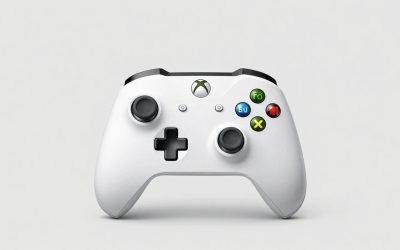
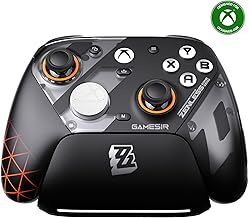
The standard Xbox Wireless Controller is the best controller for Rocket League PC players who want a straightforward Windows setup, offset sticks, and the option to play over USB or Bluetooth. Choose the DualSense if you already play comfortably with symmetrical sticks. If you struggle to jump and boost together while steering, the wired GameSir G7 SE gives you two rear buttons to work with. The other picks make sense when you want a wireless receiver, four rear paddles, or replaceable stick modules. Start with the layout and bindings you can use consistently in a match.
Best controller for Rocket League PC: Quick comparison
The current USB-C Xbox Wireless Controller is the default pick because it covers the basics without asking you to commit to a wired setup or configure extra controls. If you already have a gamepad that feels comfortable and registers every input reliably, try changing your bindings before replacing it. A free remap can solve the same button-reach problem that makes a controller with rear inputs appealing.
| Controller | Best for | Windows connection | Layout and extra controls | Main trade-off |
|---|---|---|---|---|
| Xbox Wireless Controller, USB-C model | Most Windows players | USB-C or Bluetooth | Offset sticks, standard button layout | No rear inputs. Wireless power uses AA batteries or a compatible battery pack. |
| Sony DualSense | Players who prefer symmetrical sticks | USB or Bluetooth | Symmetrical sticks, standard button layout | No rear inputs. Check detection in the launcher and connection mode you use. |
| GameSir G7 SE | Wired play with two rear buttons | USB-C wired | Offset Hall effect sticks, two lockable rear buttons | Requires a cable during play. |
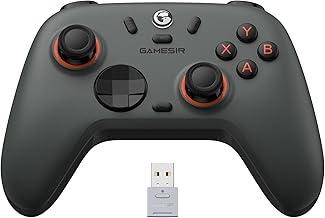
| GameSir G7 Pro Tri-Mode | Receiver-based wireless with extra controls | USB wired or 2.4 GHz receiver | Offset TMR sticks, two rear buttons, two mini bumpers | The standard Tri-Mode model’s Bluetooth mode is for Android. |
| Xbox Elite Wireless Controller Series 2, full kit | Players who want four rear paddles | USB-C or Bluetooth | Offset sticks, adjustable stick tension, four paddles | Bulkier setup if you only use one or two paddles. |
| Sony DualSense Edge | Symmetrical sticks with rear controls and replaceable modules | USB or Bluetooth | Symmetrical sticks, two rear inputs, replaceable stick modules | Replacement modules are sold separately. The PC setup merits a Free Play check before competitive use. |
How we selected the controllers
The shortlist prioritizes Windows connection options, stick layout, analog trigger control, and buttons you can reach while steering. Each pick addresses a different reason to replace a controller. For example, the G7 SE gives you rear buttons on a wired pad, while the standard DualSense lets you keep the symmetrical PlayStation layout without paying for controls you may never bind.
The recommendations draw on manufacturer documentation, Rocket League support information, and independent PC controller coverage. They’re based on documented features and how those features apply to Rocket League. No first-hand testing or cross-controller latency measurements were available. For models without specific launcher guidance, the comparison uses documented Windows support and explains how to confirm the setup in-game.
The six controllers compared
Xbox Wireless Controller: Best controller for Rocket League PC for most players
The current USB-C Xbox Wireless Controller is the easiest pick to recommend to someone starting from scratch. Its offset layout puts the left stick high on the controller, with triggers and bumpers in the familiar Xbox positions. It connects to a Windows PC over Bluetooth or a USB data cable. Starting wired makes it easy to check basic input before deciding whether to pair it wirelessly.
The standard layout is enough if you’re happy binding a frequent action to a bumper. For example, moving boost to RB lets you keep jump on A while steering with your left thumb. If reaching RB while holding RT feels awkward with your grip, the G7 SE’s rear buttons give you another way to set up those actions. The Xbox pad also uses AA batteries in its standard wireless configuration, so plan for spare batteries or a compatible rechargeable pack if you rarely play wired.
Buy if you want offset sticks, conventional controls, and a choice between wired and Bluetooth play. Skip if you specifically want a rear input for jump, boost, or air roll.
Sony DualSense: Best for players who prefer symmetrical sticks
The standard DualSense is the natural starting point if a PlayStation layout already feels familiar. Both sticks sit low and at the same height, so you can retain the same basic thumb position when moving from console to PC. Sony supports USB and Bluetooth on compatible Windows setups, and Epic provides DualSense troubleshooting for both the Steam and Epic Games Launcher versions of Rocket League.
The layout is the main reason to choose it. If your boost and jump bindings are already comfortable on a PlayStation pad, keeping that arrangement saves you from changing your grip and relearning two inputs at once. The standard DualSense has no rear buttons, so you’ll still need a bumper or a face button for each frequent action. If you like the layout but need two controls underneath, the DualSense Edge is the closer upgrade.
Buy if you already play well with symmetrical sticks or own a DualSense you can try before buying another controller. Skip if rear inputs are the main reason you’re shopping.
GameSir G7 SE: Best wired pick with two rear buttons
The G7 SE is a wired USB-C controller with an Xbox-style layout, Hall effect sticks, analog Hall effect triggers, and two remappable rear buttons. Those buttons are more relevant to Rocket League than the sensor label alone. You can put boost under one finger and keep your right thumb on jump, or put jump on the back and keep boost where you already expect it. The rear buttons can also be locked if your grip causes accidental presses.
Compared with the standard Xbox controller, the G7 SE gives you two more places to put actions without changing stick layout. In return, you give up wireless play. Hall effect sensors measure position magnetically, but a controller can still have centering or calibration issues. Check whether your car tracks straight when you release the stick and whether small corrections feel predictable at your usual deadzone.
Buy if you play at a desk and want to solve a specific button-reach problem. Skip if you regularly play away from your PC and need wireless.
GameSir G7 Pro Tri-Mode: Best for receiver-based wireless and extra inputs
The standard G7 Pro Tri-Mode is the step up from the G7 SE if you want to keep the Xbox-style layout and get off the cable. It supports USB and a 2.4 GHz receiver on Windows, with TMR sticks, two lockable rear buttons, and two mini bumpers. GameSir assigns Bluetooth to Android on this particular version, so plan to use a USB port for the receiver if you want wireless PC play.
The extra shoulder buttons give you options if squeezing a rear button makes you shift your grip. You could put boost on a rear button and directional air roll on a mini bumper. Keep the triggers in full analog travel if you use partial throttle or brake inputs, and add new bindings one at a time. If your only goal is moving boost off a face button and a cable already works for you, the G7 SE covers that use case.
Buy if you want a USB receiver and will use at least some of the extra controls. Skip if Bluetooth directly to Windows is a requirement for your setup.
Xbox Elite Wireless Controller Series 2: Best for four rear paddles
The full Xbox Elite Wireless Controller Series 2 kit adds four removable paddles, adjustable stick tension, and an internal rechargeable battery. It connects to a Windows PC over USB-C or Bluetooth. Check the package name before buying if you want all four paddles. This recommendation refers to the full kit, while the Series 2 Core package has different included accessories.
The paddles give you several places to remap buttons without rearranging the face layout. Start with one paddle for the action you have the most trouble reaching. If that solves your problem, leave the others off. If you have another awkward combination, you can add a second. Stick tension is also a matter of feel. Test it while doing ordinary turns and small aerial corrections before changing your in-game sensitivity.
Buy if you want interchangeable rear paddles and adjustable stick tension in an Xbox layout. Skip if you use only one extra binding and a simpler two-button controller already feels comfortable.
Sony DualSense Edge: Best for symmetrical sticks and replaceable modules
The DualSense Edge keeps the symmetrical PlayStation layout and adds two rear inputs. Sony supplies lever and half-dome back-button options, and the PlayStation Accessories app supports profile customization on Windows. If a stick module develops a fault, it can be removed and replaced separately. The ability to replace a module is useful if you want to keep the same controller and bindings over time.
The Edge makes the most sense when you want both the PlayStation grip and a place to move a frequent action. For instance, you could put jump on a rear input so your right thumb can stay near the face button you use for boost. Choose the back-button shape you can press deliberately without squeezing it by accident. Confirm that the PC app has saved your intended profile, then check the rear mappings in your own Rocket League setup before queuing.
Buy if symmetrical sticks, rear buttons, and serviceable stick modules justify the upgrade for you. Skip if your standard DualSense already feels comfortable and you rarely need a different physical button for jump or boost.
What matters when buying a Rocket League controller
Choose around your grip and bindings
Think about your hardest combination during a match. If you struggle to hold boost while jumping, a rear button or a bumper remap can reduce the work your right thumb has to do. If you’re late recovering after landing, look at how easily you can reach powerslide while keeping your left thumb on the stick. That tells you more about which layout you need than the total number of buttons on the box.
Try the new mapping in Free Play before changing anything else. Jump and boost together, turn sharply, and recover after landing sideways. If the same movement becomes easier without introducing accidental inputs, the binding is doing its job. If pressing the rear button makes you grip harder and steer less smoothly, move that action to a different button or leave it on a bumper.
Keep controller deadzone and dodge deadzone separate
Controller deadzone determines how far the stick must move away from center before the game responds. A lower setting can make small inputs register sooner, but it can also reveal unwanted input when you release the stick. Start from a familiar setting and lower it gradually only if the car consistently stays neutral when you let go.
Dodge deadzone affects how far you need to move the stick to trigger a directional dodge on the second jump. If you keep flipping while trying to take off for an aerial, check that setting and your stick position at the moment of the second jump. Test with the stick centered and then deliberately tilted. Change one setting at a time so you can tell which adjustment affected your inputs.
Check the connection before playing ranked
Start with a known USB data cable if a controller is new to your setup. Launch Rocket League, open Free Play, and check steering, throttle, brake, jump, boost, and any remapped buttons. Then switch to Bluetooth or a receiver if you plan to play wirelessly. Repeat the checks after reconnecting to make sure the correct profile loads and the game still registers the intended inputs.
If Windows recognizes the controller but Rocket League doesn’t, check the connection mode and launcher before buying replacement hardware. On Steam, Steam Input can change how the game receives controller inputs. Test one configuration at a time so you can isolate what changed. For a DualSense that has stopped responding, Epic’s troubleshooting starts with updating the controller software and reconnecting it after restarting the PC.
Frequently asked questions
Do you need rear paddles for Rocket League?
No. Before shopping for a controller with paddles, try moving one frequent action to a bumper on your current pad. If you can jump and boost together without shifting your grip, you may have solved the problem. Paddles are most useful when the available bumper or face-button arrangement still forces an awkward reach.
Should you use Hall effect or TMR sticks for Rocket League?
Either type can work well. Both sense position magnetically, and the stick’s centering, firmware, and calibration still affect how inputs feel around neutral. If two pads differ in grip, button reach, and connection options, start with those factors. After you connect the controller, check that small inputs register consistently and that the stick settles where you expect when released.
Can the same controller feel different on Steam and Epic?
Yes. On Steam, a controller configuration can change button mappings or how stick input reaches the game. That may affect the feel even if the physical controller and in-game settings are identical. If you’re moving between installations, confirm your bindings and test steering and dodges in Free Play before copying your settings over wholesale.
Conclusion
Choose the standard Xbox Wireless Controller if you’re buying your first Rocket League pad for Windows and prefer offset sticks. Choose the DualSense if you already play comfortably with symmetrical sticks. The wired GameSir G7 SE is the clearest upgrade when you need two rear buttons, while the G7 Pro Tri-Mode adds receiver-based wireless. The Elite Series 2 and DualSense Edge make sense when you want their specific paddle or stick options. Whichever you choose, verify your bindings and practice a few takeoffs and recoveries in Free Play before using a new setup in ranked.
More from Amazon
Programs that pair well with the guide above. Offers and eligibility are set by Amazon and may change.
Set up recurring deliveries of everyday items on eligible products. Terms and savings are set by Amazon.
Explore Subscribe & SaveFree shipping on eligible items, Prime Video and more. Eligible new members can start with a free trial.
Start a Prime free trialA Prime membership for ages 18-24 with a trial period. Eligibility is set by Amazon.
See Prime for Young AdultsAudiobooks and podcasts to listen to on the go. Eligible new members can start with a free trial.
Try Audible freeAs an Amazon Associate we earn from qualifying purchases.