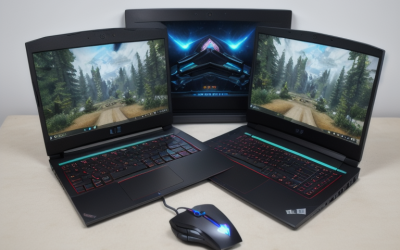
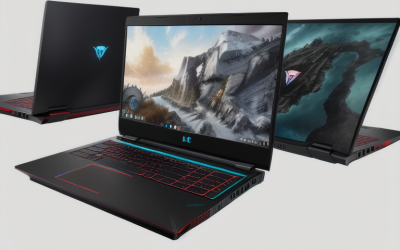
If you’re asking which laptop is best for gaming, start with the games you play, the screen you’ll use, and how often you’ll carry it. For most buyers who play plugged in, a 15- or 16-inch Windows laptop with a midrange dedicated GPU, 16 GB of RAM, and a 1 TB SSD is a sensible starting point. Choose a lighter 14-inch model if you carry it daily. Put more of your budget into graphics performance and cooling if you play demanding games at 1600p, enable ray tracing, or use an external 4K monitor. Then verify how the exact configuration performs in the settings you intend to use.
Which laptop is best for gaming in your situation?
Start with the game you would be most disappointed to run poorly. Decide whether you’d rather lower graphics settings to keep motion smooth or accept a lower frame rate to preserve image quality. Then choose whether to judge performance on the laptop’s built-in display or an external monitor. Those decisions narrow the field faster than comparing processor names or screen refresh rates in isolation.
| How you play | Configuration to start with | What to verify |
|---|---|---|
| Competitive shooters and esports | A 1080p or 1200p display with a high refresh rate, plus a CPU and GPU that meet your frame-rate target | Performance at competitive settings and frame consistency during busy matches |
| A mix of multiplayer and single-player games | A 15- or 16-inch laptop with midrange dedicated graphics and a 1 TB SSD | Results at the resolution you plan to use, fan noise, and whether storage can be expanded |
| Graphics-heavy games at 1600p or on a 4K monitor | A stronger laptop GPU, enough video memory for your settings, and cooling that sustains performance | Native and upscaled results with ray tracing and frame generation clearly labeled |
| Gaming and daily travel | A compact 14-inch model with dedicated graphics if your games need it | Laptop and charger weight, light-use battery life, and gaming noise |
| Simulation games, large strategy saves, or mod packs | A capable CPU and enough RAM for the game, mods, and background apps | Performance in complex scenes or large saves, plus whether memory is replaceable |
Which laptop is best for gaming when you’re on a tight budget?
For a tight budget, start with a 1080p or 1200p laptop that meets the performance target for your main games. A display at either resolution puts less demand on the GPU than a higher-resolution panel at native settings. If two laptops cost about the same, prioritize the configuration that has stronger evidence of meeting your target. Then check whether you can add storage or memory later.
Suppose one listing has a sharper screen and more storage, while another has a stronger GPU and a lower-resolution display. For demanding single-player games, the second can be the better buy if independent tests show steadier performance at the settings you’ll use and its SSD is expandable. For a laptop used mainly for classes and lightweight games, screen quality and battery life might matter more. Compare the final checkout total with any upgrades or accessories you would need immediately.
How to compare laptop graphics and processor performance
A GPU name tells you what chip is inside, while the laptop’s power settings and cooling help determine how it performs in that chassis. Even two machines from the same product family can ship with different graphics power limits, displays, or memory configurations. Use the full model number or retailer SKU to connect a spec sheet, a review, and the listing you intend to buy.
Check GPU power and video memory together
Look for the laptop maker’s graphics power specification, often called total graphics power or TGP. Check whether the figure includes a feature such as Dynamic Boost, which can shift available power toward the GPU under suitable conditions. Treat the published number as configuration information. A laptop may operate at a different power level during a game, especially when the CPU needs more power or the machine is in a quieter mode.
Video memory, or VRAM, matters when games use demanding textures, ray tracing, or high-resolution mods. If those settings are important to you, look for reviews that tested them directly and check whether frame delivery stays consistent. A GPU with more VRAM can help when the game is constrained by video memory. Graphics processing power, cooling, and the game itself still affect how smoothly the laptop plays.
Give the processor more weight for esports and simulations
Competitive games at lower graphics settings can put more emphasis on CPU performance, especially when you’re trying to make use of a fast display. Simulation games and strategy titles can also become CPU-heavy in busy areas or late-game saves. If those are your main games, compare how the exact laptops handle demanding scenes before paying extra for a higher GPU tier.
Read frame-time data or 1% lows alongside average FPS when the reviewer provides them. Frame times show how long individual frames take to render, so they can reveal interruptions that a strong average conceals. Compare results from the same test method, ideally using the same game version, resolution, settings, and laptop power mode. A benchmark from a quiet practice area can be less relevant than a run through the busiest part of a match.
Match benchmarks to the settings you’ll actually use
If a laptop review says a game runs well at 1600p, find out what that means. Native resolution, upscaling quality, ray tracing, and frame generation can all change the result. Upscaling renders the image internally at a lower resolution and reconstructs it for display. Frame generation adds generated frames to improve apparent motion smoothness. For competitive play, check the underlying performance with frame generation disabled. For single-player games, consider how the chosen settings affect responsiveness and image quality together.
Also check how the reviewer powered the laptop. A result obtained with the stock charger in maximum-performance mode describes that setup. If you’ll play in a shared room using a quieter mode, a review that includes that mode gives you more relevant evidence.
How to choose the screen, RAM, and SSD
The screen determines the resolution the GPU may have to drive, while RAM and storage determine what you can run or keep installed. These are also areas where retailer variants often differ. Before choosing between two seemingly similar laptops, verify the panel specifications, installed memory, and storage configuration for the exact model code.
Choose resolution and refresh rate as a pair
A 1080p or 1200p display is a practical fit for buyers who want to keep GPU demands down. A 1600p screen can make text and fine detail look sharper, particularly on a larger panel, but demanding games need more graphics performance at native resolution. You can use upscaling or selectively reduce demanding settings if the game supports your preferred options.
Refresh rate describes how often the screen can update. Pixel response describes how quickly its pixels change. Check both if you care about motion clarity, and look for variable refresh rate support if you play games with changing frame rates. Travelers should also consider brightness and glare. These traits can matter more in a bright classroom than a higher refresh ceiling.
Buy the RAM you’ll need if it’s soldered
Use 16 GB as a starting point for a general gaming laptop. Consider 32 GB if your games or mod packs call for it, you run a game alongside several heavy applications, or you intend to keep a soldered-memory laptop for years. Verify memory construction in the service manual. An installed capacity tells you how much RAM you’ll get today. The slot layout tells you what a future upgrade would require.
One U.S. listing illustrates why the SKU matters. The ASUS ROG Zephyrus G14 configuration GA403WR-G14.R9T5070TI pairs an RTX 5070 Ti Laptop GPU with 32 GB of onboard RAM, a 1 TB SSD, and a 14-inch 2880 × 1800 OLED display at 120 Hz. Its memory capacity is a purchase decision because ASUS lists it as onboard. Check the exact code before carrying those specs over to another G14 listing.
Choose SSD capacity from your installed library
A 1 TB SSD is a practical starting point if you want several games installed at once. A 512 GB drive can work if you rotate a few titles and keep recordings elsewhere. Estimate how much space you need for your games, operating system, captures, and update files before paying for more capacity.
When a listing says storage is upgradeable, find out whether it has an empty drive slot or requires replacing the original SSD. An empty slot can let you keep your operating system and expand the game library separately. Replacing a sole drive usually means reinstalling or migrating your system. Check the service manual for the supported drive size and connector before factoring an upgrade into the purchase.
How portability and cooling change the decision
A laptop that spends most of the week on a desk can justify a larger chassis and charger if it delivers the noise and performance you want. If you carry the machine daily, add the power adapter to the weight you’ll actually pack and check whether the display is comfortable for work away from home. Screen size is a useful starting point for portability. The total travel setup tells you more.
Compare heat and noise during a full session
Look for reviews that report performance after sustained use, fan noise, and temperatures around the keyboard. A brief benchmark captures a different experience from an hour of gaming with warm air coming out beside your mouse hand. Noise measurements are most helpful when the reviewer discloses the test distance, workload, and power mode.
If you play with speakers in a shared room, give quiet-mode performance extra weight. Check whether a less aggressive fan profile still meets your frame-rate target. If you use a headset and the laptop sits on a stand, keyboard heat or fan noise may matter less than they would when playing directly on the built-in controls.
Check battery life and charger support separately
For classes, work, or flights, look at light-use battery tests. For local gaming away from an outlet, look for tests that actually run a game on battery. A video playback result answers a different question, and a laptop can reduce CPU or GPU performance when unplugged.
If you plan to carry a smaller USB-C charger, check the manual for supported input wattage and restrictions. A laptop may accept USB-C power for everyday use and still require its main adapter to sustain full gaming performance. At a desk, verify that the chosen video port supports your external monitor’s target resolution and refresh rate, especially when a dock sits between them.
Frequently asked questions
Can a regular laptop be good enough for gaming?
Yes, if it supports your games and reaches the frame rate you want at settings you’re willing to use. Integrated graphics can make sense for lightweight or older titles, particularly if battery life and portability matter more. Check the exact processor, memory configuration, and game requirements. If you’re considering Windows on Arm, confirm publisher support for your games and their anti-cheat components before buying.
Is a 14-inch gaming laptop a good choice with an external monitor?
It can be a strong combination if you want a light laptop during the day and a larger screen at home. Verify the video output and read benchmarks at the external display’s resolution. A laptop that meets your target on its built-in panel may need different settings on an external 4K screen. Also check how the ports and exhaust vents line up with your mouse, stand, and dock.
When is it worth paying for a stronger GPU?
Pay more when exact-configuration benchmarks show that the stronger GPU solves a problem you expect to have. That might mean playing at higher resolution, keeping ray tracing enabled, or maintaining steadier frame rates in a demanding title. If the cheaper machine already meets your target, compare the screen, fan noise, SSD capacity, and return terms before spending the rest of your budget on graphics.
Conclusion
For most mixed gaming, start with a 15- or 16-inch laptop that pairs a midrange dedicated GPU with 16 GB of RAM and a 1 TB SSD. Choose a 14-inch model if you carry it most days, and put more of the budget into graphics and cooling if you mainly play demanding games at 1600p or 4K. For competitive games and simulations, check CPU performance in busy scenes and pay attention to frame consistency. Before ordering, match the retailer’s exact SKU to the specifications and find a test that reflects the way you plan to play.
More from Amazon
Programs that pair well with the guide above. Offers and eligibility are set by Amazon and may change.
Set up recurring deliveries of everyday items on eligible products. Terms and savings are set by Amazon.
Explore Subscribe & SaveFree shipping on eligible items, Prime Video and more. Eligible new members can start with a free trial.
Start a Prime free trialA Prime membership for ages 18-24 with a trial period. Eligibility is set by Amazon.
See Prime for Young AdultsAudiobooks and podcasts to listen to on the go. Eligible new members can start with a free trial.
Try Audible freeAs an Amazon Associate we earn from qualifying purchases.