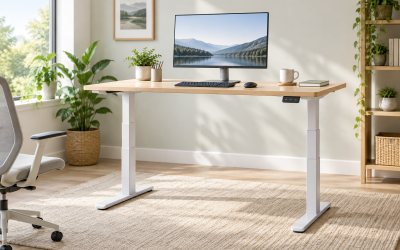
A modern PC gaming battle station or dedicated home office setup is incomplete without a premium motorized sit-stand desk. But when you press your handset controller to transition from a seated gaming session to a standing posture and nothing happens, the frustration is immediate. Your custom mechanical keyboard is stuck at an awkward angle, your high-refresh-rate monitors are positioned incorrectly for your line of sight, and your carefully organized cable management runs the risk of being pulled taut or snapped. An electric standing desk motor not working is a productivity-halting issue that requires immediate, systematic troubleshooting.
Before you panic and begin looking up replacement frames or dismantling your entire multi-monitor array, understand that a non-responsive standing desk motor is rarely a sign of a completely dead motor. More often, the issue stems from a simple calibration desync, a triggered safety sensor, a temporary thermal lock, or a loose data connection under the desktop. Because these desks utilize precise optical encoders and control boxes to keep the legs moving in perfect synchronization, even a minor electrical hiccup can cause the system to lock down as a safety precaution. This comprehensive guide will walk you through the diagnostic steps to identify the root cause and apply an permanent electric standing desk motor not working fix to get your workstation back in motion by 2026.
Likely Causes
To diagnose your desk efficiently, refer to this breakdown of the most common failure points, how to identify them, and the difficulty of the required repair:
| Cause | How to Confirm | Fix Difficulty |
|---|---|---|
| Control Box Calibration Desync | Handset displays “RST”, “ASR”, “E01”, or desk only moves downward in small increments. | Very Easy |
| Loose Power or Data Cabling | Handset is completely dark or displays error codes “E07” or “E08”. | Easy |
| Duty Cycle Thermal Overload | Handset displays “HOT”, “ovr”, or “E20” after repeated height adjustments. | Very Easy (Requires patience) |
| False Collision Detection Trip | Desk moves up slightly, stops, and automatically reverses direction. | Easy |
| Uneven Weight Distribution | Desk tilts to one side, makes a loud groaning noise, and stops. | Medium |
| Control Box Logic Lockup | Handset display is frozen, backlit but blank, or unresponsive to any button inputs. | Easy |
Fix 1: Perform a Hard Manual Reset (Calibration)
What causes it
Modern dual-motor and single-motor standing desks rely on internal optical encoders or Hall effect sensors inside the motor housing to track the precise height of each leg. If one leg encounters slightly more resistance than the other, or if the power is briefly interrupted while the desk is in motion, the control box microprocessor loses its reference points. To prevent the desk from tilting and dumping your expensive gaming PC onto the floor, the control box enters a safe mode (often displayed as “RST” or “ASR”) and disables all upward travel.
How to check
Look at your handset display. If it shows “RST”, “ASR”, or a flashing error code like “E01”, your desk is in reset mode. If you press the “Up” button, nothing will happen, or the desk will emit a short beep. If you press the “Down” button, the desk will only move downward in tiny, stuttering increments.
What to do
Clear all items from underneath your desk, ensuring there are no trash cans, filing cabinets, or chairs in the way. Press and hold the “Down” arrow button on your handset until the desk reaches its absolute lowest physical limit. Release the button. Press and hold the “Down” button again for 10 to 15 seconds. Keep holding the button down until you see the display flash “RST”, or until you hear a beep and see the desktop make a slight down-and-up shudder movement (about 5mm of travel). Once this bounce occurs, release the button. Your desk is now recalibrated and should operate normally across its entire height range.
How to undo it
This is a standard calibration procedure that cannot damage your desk. There is no need to undo this process, as it simply establishes a new “zero” ground plane for the control box’s tracking software. If you accidentally trigger a reset, simply complete the process to restore normal operation.
Fix 2: Power Cycle the Control Box (Logic Reset)
What causes it
The control box mounted underneath your desktop is a dedicated mini-computer. Static electricity, power surges from your home’s electrical grid, or plugging high-draw gaming peripherals into the same power strip can cause the control box’s firmware to lock up. When this logic loop crash occurs, the control box stops sending voltage to the motors and ignores commands from the handset.
How to check
The handset display may be completely dead despite being plugged in, or the display may show gibberish characters. Alternatively, the handset might display your last height setting but remain completely unresponsive when you press any of the physical or capacitive buttons.
What to do
Unplug the main power cable of your standing desk directly from the wall outlet or power strip. Next, crawl under the desk and locate the control box. Unplug the DC power adapter cable (usually a heavy-gauge black cable) directly from the control box port. To ensure the capacitors inside the control box discharge completely, press and hold any button on your handset for 10 seconds while the desk is unplugged. Leave the desk completely disconnected from power for a minimum of 5 minutes. After 5 minutes, plug the DC power connector back into the control box first, then plug the main power cable back into the wall outlet. Perform the manual reset procedure outlined in Fix 1 to restore movement.
How to undo it
Power cycling is entirely safe and non-destructive. The only setting that may be cleared is your active height offset calibration, which will automatically restore itself once you run the manual reset procedure again.
Fix 3: Inspect and Reseat All Cable Connections
What causes it
As a standing desk transitions between sitting and standing heights, the cables running from the control box to the leg motors and the handset are subjected to mechanical tension. If your cable management is too tight, or if a cable gets snagged on a monitor mount or PC tower bracket, the connectors can be partially pulled out of their ports. Even a fraction of a millimeter of separation in a multi-pin data connector can disrupt the signal flow, causing the control box to shut down the motors to prevent uneven lifting.
How to check
Inspect the handset for error codes such as “E07”, “E08”, “E11”, or “E12”. These specific codes indicate a connection error or open circuit between the control box and Motor 1 or Motor 2. Visually inspect the underside of your desk to check for sagging wires or connectors that are sitting at an angle in their ports.
What to do
Unplug the desk from the wall outlet. Trace the wire harness running from each leg motor back to the central control box. Unplug each connector—including the 6-pin or 8-pin motor cables, the RJ45 or USB-style handset data cable, and the main power cord. Inspect the male pins inside the connectors for any signs of bending, corrosion, or plastic damage. If the pins are straight, firmly plug each connector back into its designated port on the control box. You must press them in until you hear or feel a distinct plastic “click” indicating the locking tab has engaged. Secure the cables with zip ties or cable clips, leaving plenty of slack so the wires do not pull tight when the desk is raised to its maximum height.
How to undo it
Re-plugging cables is a standard maintenance step. There is nothing to undo. Ensure you do not force a connector into the wrong port, as they are keyed to only fit in one direction.
Fix 4: Allow the Motor to Cool Down (Duty Cycle Lockout)
What causes it
To prevent the electric motors from overheating and melting their internal copper windings, standing desk manufacturers program a strict duty cycle limit into the control box. For most consumer standing desks, this limit is a 10% duty cycle—typically translated as 2 minutes of continuous motor operation followed by 18 minutes of rest. If you have recently spent time adjusting your desk to route cables, showing off your setup, or leveling your monitor arms, you may have exceeded this thermal threshold.
How to check
The desk will suddenly stop moving entirely during an adjustment. The handset will display the error code “HOT”, “ovr”, “E20”, or “E22”. The motors themselves may feel warm to the touch if you place your hand on the upper section of the metal leg columns.
What to do
Do not attempt to force the desk to move by repeatedly pressing the buttons, as this can lock the control box permanently. Unplug the desk’s power cable from the wall to clear the active alarm from the handset display, then plug it back in. Leave the desk completely alone for 20 to 25 minutes. Ensure that your gaming PC’s exhaust fans are not blowing hot air directly onto the desk’s leg columns or control box, as this can artificially extend the required cooldown period. Once the internal thermistor registers a safe temperature, the error code will disappear, and the desk will respond to inputs.
How to undo it
No undo process is required. The thermal protection circuit will automatically reset itself once the internal components cool down to safe operational limits.
Fix 5: Adjust the Anti-Collision Sensitivity
What causes it
Most premium standing desks are equipped with an integrated gyroscope or an electronic current sensor that monitors resistance. If the desk hits an obstacle—like a windowsill, a chair armrest, or an unyielding cable bundle—the sensor detects a spike in motor resistance and reverses direction to prevent crushing the object. However, if you have a heavy gaming PC, heavy dual-monitor mount, or a heavy wood top installed, the default sensitivity setting may be too high, causing the desk to falsely detect its own weight as an obstruction.
How to check
When you press the “Up” or “Down” button, the desk will move for less than a second, stop abruptly, and then automatically travel about one inch in the opposite direction. No permanent error code will remain on the screen, though a brief “E05” or “collision” indicator may flash.
What to do
Most controllers allow you to adjust this sensitivity via a hidden settings menu. On standard Jiecang, Uplift, or Jarvis controllers, you can adjust this by pressing and holding the “Up” and “Down” buttons simultaneously for 5 to 7 seconds. The screen will change to show a menu option such as “S-1”, “S-2”, or “S-3” (or “CF1”, “CF2”, “CF3”). S-3 represents the highest sensitivity, while S-1 represents the lowest sensitivity (or off). Use the arrow keys to change the setting to a lower sensitivity (such as S-1). Press the “M” or “S” button to save the setting, then test the desk’s movement.
How to undo it
To restore the safety feature to its default level, repeat the button combination and change the setting back to the medium sensitivity level (usually S-2) once you have cleared any heavy items or cable tension causing the false trips.
Fix 6: Balance the Desktop Weight Distribution
What causes it
Electric standing desks have strict weight capacity limits, typically ranging from 220 lbs to 355 lbs depending on whether you have a dual-motor or single-motor frame. Furthermore, this weight must be distributed evenly. If you have a massive full-tower gaming PC, a heavy UPS backup system, and three monitor arms clamped to the far right edge of the desktop, the right-side motor must pull significantly more current than the left-side motor. This imbalance causes the motors to run out of sync, triggering an over-current safety shutdown.
How to check
Measure the weight of all items currently resting on your desktop, including the wood top itself if it is an aftermarket solid hardwood slab. Look at the desk during movement; if one side visibly lags behind the other before the desk cuts power and displays “E01” or “E02”, your load is unbalanced.
What to do
Unplug your PC and monitors and temporarily move them off the desk. Redistribute your gear so that the heaviest items are positioned directly over the leg columns rather than hanging off the extreme rear edge or concentrated on one side. If you use a heavy monitor mount, try clamping it closer to the center of the desk. Ensure that your cables running from the PC down to the floor have enough slack and are not acting as a physical anchor that pulls down on one side of the frame during upward travel.
How to undo it
If you must keep your heavy PC tower on one side of the desk for aesthetic or cable routing reasons, you will need to offset that weight by placing other items (like a heavy book stack, studio monitors, or console hardware) on the opposite side, or transition your PC tower to a dedicated floor stand.
Fix 7: Level the Frame and Adjust the Feet
What causes it
If your standing desk is placed on an uneven floor, or if the leveling glides under the feet are adjusted incorrectly, the two telescoping leg columns will not rise at a perfect 90-degree angle relative to the floor. This misalignment causes mechanical binding inside the nested metal tubes. The physical friction increases the workload on the internal spindle drive, drawing excessive current and forcing the motor to stall.
How to check
Place a bubble level across the length and depth of your desktop. If the bubble is not perfectly centered, your frame is crooked. Inspect the bottom of the steel feet to see if any of the adjustable leveling pads are hovering off the floor or unscrewed unevenly.
What to do
Slightly loosen the main frame bolts under the desktop to allow the metal components to settle. Locate the threaded plastic leveling glides underneath both T-style feet. Rotate the glides clockwise to extend them or counterclockwise to retract them until your bubble level indicates the desktop is perfectly level in both directions. Once leveled, re-tighten the main frame bolts firmly using your Allen wrench. Perform a manual reset (Fix 1) to sync the motors in their newly aligned physical orientation.
How to undo it
If you relocate your desk to a different room or a different flooring surface (such as moving from hardwood to carpet), you will need to repeat this leveling process to match the new floor contours.
If Nothing Works
If you have performed a manual reset, verified every cable connection, allowed the motors to cool, and checked for physical obstructions, but your desk still refuses to budge, you may be dealing with a component failure. In dual-motor standing desks, you can isolate whether the issue lies within the control box or an individual leg motor by performing a simple diagnostic swap.
Unplug the desk from the power outlet. Underneath the desk, swap the motor cables plugged into the control box ports labeled “M1” and “M2” (or “Port 1” and “Port 2”). Plug the desk back in and attempt a manual reset. If the error code on your handset changes (for example, switching from “E07” to “E08”), this indicates that the control box port is functioning correctly, but the physical motor inside that specific leg has failed or has a broken internal encoder wire. If the error code remains identical, the control box’s internal circuitry is damaged and the control box itself must be replaced.
Contact your desk manufacturer’s customer support team (such as Uplift, FlexiSpot, Secretlab, or Jarvis). Provide them with your original purchase invoice, the specific error codes you observed, and the results of your motor cable swap test. Most premium standing desks carry a warranty ranging from 5 to 15 years, and the manufacturer will typically ship you a replacement control box or leg column free of charge.
FAQ
Why does my standing desk only go down and not up?
This behavior indicates that your desk has entered its safety “Reset” mode. When the control box detects an electrical anomaly, an uneven load, or a temporary loss of power, it restricts upward travel to prevent mechanical damage or tipping. To restore upward movement, you must run the manual reset procedure by holding the “Down” button until the desk bottoms out, bounces slightly, and beeps.
What does the “RST” error code mean on a standing desk?
“RST” stands for Reset. It is not a permanent hardware error, but rather a status notification indicating that the control box needs to recalibrate its height tracking. This occurs when the desk is unplugged while moving, when the duty cycle is exceeded, or when the optical encoders in the legs lose synchronization.
Can I manually raise an electric standing desk if the motor is dead?
No. Electric standing desks utilize a worm gear or lead screw spindle drive inside the metal leg columns. This mechanical design is self-locking to prevent the desk from collapsing under the weight of your equipment. It cannot be pushed, pulled, or cranked manually without completely dismantling the leg columns and removing the motor assembly.
How long do electric standing desk motors typically last?
Under normal operating conditions, high-quality brushless DC motors used in premium standing desks are rated for approximately 10,000 to 20,000 up-and-down cycles. For an average user adjusting their desk four times a day, this translates to a lifespan of 10 to 15 years of daily use.