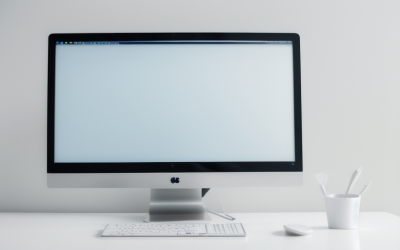
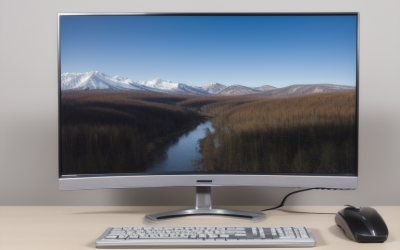
If you’ve wondered how does a computer screen work, start with a grid of tiny picture elements called pixels. Your computer prepares an image and sends it as a video signal. The screen’s electronics use that signal to control the color and brightness of its pixels. An LCD does this by controlling how much light passes through each part of the panel. An OLED produces light at the pixels themselves. The screen updates the grid many times per second, so a sequence of images looks like continuous motion. The same process draws a mouse pointer, displays text, and shows a game in motion.
How does a computer screen work from signal to image?
The computer decides what picture to show. The display receives the picture data, processes it as needed, and drives the panel to make the image visible. Those jobs happen in quick succession, so moving a window feels immediate. Following one update from the computer to the screen makes it easier to understand what happens when a monitor looks blurry, runs at the wrong refresh rate, or displays a “No signal” message.
| Stage | What happens | Example |
|---|---|---|
| Image preparation | The computer renders or combines the content it wants to show. | A browser window, desktop wallpaper, and pointer appear together. |
| Signal transmission | The display hardware sends image data with timing information. | An external monitor receives the signal over HDMI or DisplayPort. |
| Signal processing | The monitor interprets the signal and may scale or adjust it for the panel. | A 1080p signal is resized to fill a 4K screen. |
| Pixel update | The panel electronics drive the pixels, and the panel controls or emits light. | The pointer appears in its new position. |
The computer prepares the picture
When you open an app, its interface has to become an image the display hardware can use. Apps and the operating system draw elements such as text, icons, and windows. A game also calculates what its scene should look like from your current viewpoint. The operating system often combines visible surfaces into the desktop image. The computer can hold the image data in memory that the display hardware reads as it sends the output.
The graphics processor can be integrated into the computer’s main processor or supplied by a dedicated graphics chip. Either way, preparing a picture and sending it to a screen are distinct jobs. If you stop moving the mouse, the computer may have little new content to draw. The display can keep refreshing with the same image, so a still desktop stays visible.
The connection carries image data and timing
An external monitor commonly receives video over HDMI or DisplayPort. Some computers also send DisplayPort video through USB-C when the port supports that capability. For a direct USB-C monitor connection, check the computer port, cable, and monitor input. A plug that fits gives you little information about which functions the connection supports. A laptop’s built-in panel receives its signal over an internal link.
The video signal carries information about what the picture should look like and how the display should time the updates. The selected display mode includes settings such as resolution and refresh rate. If you connect through a dock, the available mode can depend on the computer, dock, cable, and display input together. That’s why the same monitor may offer a higher refresh rate through a direct connection than through a particular dock.
The display electronics translate the signal into panel updates
The display receives the signal and prepares the data for its physical grid of pixels. Depending on the monitor and its settings, processing may include resizing the image, adjusting color, or adding an on-screen menu. The panel’s timing and driver electronics then coordinate when pixel values are updated.
A monitor’s own menu comes from the monitor. If “No signal” or the input menu appears, the screen can display at least that built-in image. This gives you a practical clue about where to look next. Check the selected input, cable or dock, and whether the computer is sending video. A visible menu alone gives limited information about the health of the panel or any particular input.
How pixels create color and brightness
A pixel is one addressable picture element in the visible grid. In a conventional RGB layout, each pixel uses red, green, and blue subpixels. By varying the amount of light from those components, the display creates different colors and brightness levels. From a normal distance, nearby subpixels blend together visually, so you see a colored line or a letter instead of separate points of light.
How does a computer screen work when it shows different colors?
In a simple RGB example, a strong red component and a strong green component combine to appear yellow. If the red, green, and blue components contribute light in a suitable balance, the result can appear neutral, such as gray or white. Lowering their output together makes the result darker. This is called additive color mixing because the light reaching your eyes combines to create the visible color.
Two screens can display the same image data and still look different. Their panels may reproduce different ranges of color, and their brightness, color mode, and calibration can differ. A color gamut describes the range of colors a screen can reproduce under a given specification. The simple RGB example explains the principle. Physical subpixel layouts vary, especially among OLED panels.
Resolution counts pixels and pixel density describes how closely they’re packed
A 1920 × 1080 screen has 1,920 pixel positions across and 1,080 down. A 3840 × 2160 screen has twice as many across and twice as many down, for four times as many pixel positions overall. At the same physical screen size, the higher-resolution panel packs those pixels closer together. That extra density can make fine text and curved edges look smoother at the same viewing distance.
Screen size changes the result. A 24-inch 1080p screen has a higher pixel density than a 32-inch 1080p screen because the same grid fits into a smaller area. Viewing distance also matters. If text looks too small on a high-resolution screen, increasing the operating system’s display scaling usually preserves the panel’s native resolution while making text and interface elements larger.
How LCD and OLED screens make an image
Both technologies display the same kinds of picture data, but their physical panels create the visible image differently. LCD panels control light from behind the screen. OLED panels use light-emitting elements at the pixels. That difference explains why a white subtitle on a black background can look different on the two screens even when they receive the same signal.
An LCD controls light from a backlight
In a typical computer LCD, the backlight shines through layers that include polarizers, liquid crystals, and color filters. An electrical signal changes the orientation of the liquid crystals. Together with the polarizers, this controls how much light gets through. Red, green, and blue filters give the subpixels their respective colors. By controlling the amount of light that passes through each subpixel, the panel forms the image.
A monitor marketed as an LED monitor usually uses an LCD panel with an LED backlight. Mini-LED is a type of backlighting that uses small LEDs and can be paired with many independently dimmable zones. If a bright object and a dark background share the same zone, the backlight may brighten both areas enough to create a visible halo. That effect is often called blooming, and its visibility depends on the display and the scene.
An OLED produces light at the pixels
OLED stands for organic light-emitting diode. In an OLED display, electrically driven organic materials emit light, so the panel can operate without a separate backlight. A pixel displaying black can turn off its light output while adjacent pixels continue emitting light. This gives the display finer control over a bright object surrounded by darkness than a backlight zone that covers many pixels.
OLED designs vary in how they create the visible colors. A QD-OLED design uses blue OLED light and quantum dots to convert some of that light to red and green. The common principle is that light originates in the display’s pixel structure. In a bright room, reflections can still affect how dark any black area looks to you.
What makes movement look smooth or delayed?
Several different timings affect motion. The computer produces frames, the screen refreshes, and the pixels take time to change. There’s also a delay between the signal reaching the monitor and the picture beginning to appear. Separating these timings can help you understand why a high-refresh screen may still show blur, or why a game may feel slow even though its image looks sharp.
| Term | What it measures | What you may notice |
|---|---|---|
| Frame rate | How many frames the source produces per second | Uneven game frame delivery can make motion look jerky. |
| Refresh rate | How often the screen updates, expressed in hertz | A higher refresh rate gives the display more opportunities to show new frames. |
| Pixel response time | How quickly a pixel changes between levels | Slow transitions can leave trails behind moving objects. |
| Display input lag | The delay between the monitor receiving a signal and the image starting to appear, under the measurement method used | Added display delay can make controls feel less immediate. |
Refresh rate and frame rate can differ
At 60 Hz, one refresh interval is about 16.7 milliseconds. At 144 Hz, it’s about 6.9 milliseconds. These are the intervals between refreshes at those rates. They don’t tell you how long a pixel takes to change or how long a mouse click takes to appear in a game. A high-refresh screen can show more updates when the game supplies them. When the source supplies fewer distinct frames, some refreshes can show repeated content.
If the GPU switches to a new frame while the display is drawing the previous one, parts of different frames can appear in the same refresh. That can produce a visible horizontal break called screen tearing. Variable refresh rate lets compatible equipment adjust display timing to follow frame delivery within a supported range. This can reduce tearing when frame rates fluctuate.
Pixel response and input lag explain different problems
Imagine a white object moving across a dark background. If the pixels behind it take a while to settle back to a dark shade, you may see a trail. That’s a pixel transition issue. If a button press seems to register late even though the moving object looks clean, the delay can come from several places, including the input device, the game, the computer’s rendering process, and the display.
A monitor’s input-lag measurement describes the display’s contribution under particular test conditions. Pixel response is measured differently, and results can vary across color transitions or monitor settings. For example, increasing an LCD’s overdrive setting can speed up transitions. An aggressive setting can also overshoot the target and create a brighter or darker outline. Both behaviors can affect motion clarity.
Why the same screen can look different after a settings change
The physical panel has a fixed pixel grid, while the incoming image can use different resolutions and timing. Changing the signal mode can alter how the screen looks without changing its hardware. Two common examples are soft text after lowering the output resolution and less fluid motion after connecting through a different input.
A non-native signal can make text look soft
A flat-panel display has a native resolution that describes its physical pixel grid. If a lower-resolution image fills that grid, either the computer or the display must scale it. Depending on the scaling method and the ratio between the two resolutions, the result may look soft around fine details. Text and thin lines tend to make the effect easier to see than a photograph does.
If desktop text is hard to read, try the screen’s recommended native resolution and adjust the size of text and apps. A game can handle this differently. Some games render the 3D scene below the output resolution to reduce GPU workload while keeping interface elements sharp at the output resolution.
A high-refresh screen can be running in a lower mode
A screen rated for 144 Hz or higher can still be set to 60 Hz. In Windows, Settings → System → Display → Advanced display shows the active refresh rate and the available choices for the selected screen. If the expected rate is missing, verify the display resolution and check which modes the monitor supports on the input you’re using.
If the monitor is connected through a dock, adapter, or hub, a direct connection can help isolate a link limitation. A setup that offers 4K at 60 Hz may have different options at a lower resolution or through another port. The useful comparison is the combination of resolution and refresh rate supported along the whole connection.
Frequently asked questions
Does the monitor generate the picture by itself?
For normal use, the computer or another source prepares the picture and sends it to the monitor. The monitor processes the signal and creates the visible result on its panel. It can generate its own menus and status messages, and some models can display built-in test patterns. Seeing one of those screens confirms that the display can show that internal image even when video from the computer is missing.
Why does a phone camera show bands when filming a monitor?
The camera and monitor operate on different timing cycles. Many phone cameras read the scene one row at a time. If the display’s light output changes while the camera reads those rows, parts of the recording can look brighter or darker than others. Display timing, brightness control, and camera exposure settings can all influence the result.
What is the difference between an LED monitor and an OLED monitor?
In typical monitor listings, LED refers to an LCD screen lit by LEDs. The LCD layer controls how much of that backlight you see at each subpixel. In an OLED screen, the light-emitting elements are in the pixels themselves. This is why the OLED can turn off light at a dark pixel while a neighboring pixel stays bright.
Conclusion
A computer screen turns picture data into visible light. The computer prepares an image and sends it with timing information. The display processes that signal and drives its pixel grid. An LCD controls light from a backlight, while an OLED produces light at the pixels. Resolution describes how many pixels the panel has. Refresh rate describes how often it updates. Once you separate those jobs, common problems are easier to interpret. Soft text can point to scaling, motion trails can point to pixel transitions, and a “No signal” message can point you toward the connection or source.
More from Amazon
Programs that pair well with the guide above. Offers and eligibility are set by Amazon and may change.
Set up recurring deliveries of everyday items on eligible products. Terms and savings are set by Amazon.
Explore Subscribe & SaveFree shipping on eligible items, Prime Video and more. Eligible new members can start with a free trial.
Start a Prime free trialA Prime membership for ages 18-24 with a trial period. Eligibility is set by Amazon.
See Prime for Young AdultsAudiobooks and podcasts to listen to on the go. Eligible new members can start with a free trial.
Try Audible freeAs an Amazon Associate we earn from qualifying purchases.