Key takeaways
- Cap your frame rate a few frames below your monitor’s refresh rate to keep latency low and consistent.
- Enable low-latency modes such as NVIDIA Reflex or the AMD equivalent where supported.
- Lower graphics settings if your GPU is maxed out, since a GPU running at 100% load adds render latency.
Input lag is the invisible delay between pressing a button or moving your mouse and seeing the result on screen. Even a small amount makes aiming feel sluggish and can be the difference between winning and losing a close gunfight. The frustrating part is that it creeps in from many places at once, so fixing it means addressing several small sources rather than one big one.
This guide walks through the biggest contributors to input lag and how to eliminate them, from your peripherals and monitor settings to in-game options and system tweaks. By the end you will have a clear, practical checklist to make your games feel snappier and more responsive, whether you are a competitive shooter player or just want a tighter feel.
Our top picks
 Logitech G305 Lightspeed Wireless Gaming Mouse
- Formats: DVD-ROM
- Product Group: Personal Computer
- Binding: Personal Computers



As an Amazon Associate we earn from qualifying purchases at no extra cost to you. Ratings are shown as listed on Amazon.
⚡ Save on Your Next PC — Amazon Prime
Prime members get fast free shipping on the systems above, plus early access to Prime Day & Black Friday PC deals. New members get a 30-day free trial.
Watch: How to Reduce Input Lag in Games — Video Review
Start With a Fast, Responsive Mouse
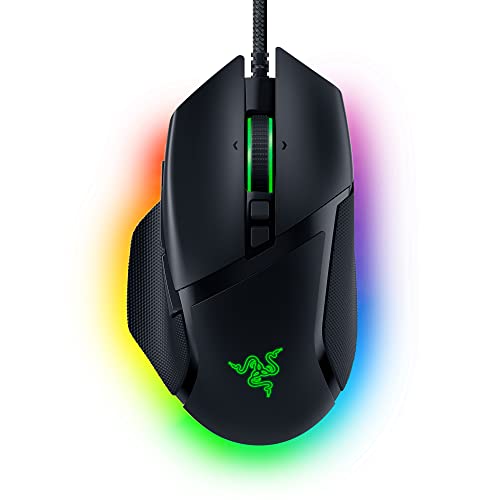
Your mouse is the first link in the input chain, and a laggy or low-polling-rate mouse undermines everything downstream. A quality wired or low-latency wireless gaming mouse with a high polling rate keeps input delay minimal. Popular low-latency options include the Logitech G305 Lightspeed, the wired Logitech G502 Hero, and the Razer Basilisk V3, all of which deliver fast, consistent response. For the absolute lowest latency, wired mice like the Razer DeathAdder Essential remove any wireless variable entirely.
Turn On High Refresh and Disable V-Sync
Your monitor and sync settings have a huge effect on responsiveness. A high refresh rate shows new frames sooner, cutting perceived lag. Traditional V-Sync, on the other hand, adds noticeable latency by holding frames back, so competitive players usually turn it off and instead rely on adaptive sync (FreeSync or G-Sync Compatible) plus a frame cap. This keeps tearing under control without the input penalty of full V-Sync.
Optimize In-Game Settings
- Cap your frame rate a few frames below your monitor’s refresh rate to keep latency low and consistent.
- Enable low-latency modes such as NVIDIA Reflex or the AMD equivalent where supported.
- Lower graphics settings if your GPU is maxed out, since a GPU running at 100% load adds render latency.
Reduce System and USB Latency
Background processes, power-saving modes, and USB settings can all quietly add lag. Set Windows to the high-performance power plan, close unnecessary background apps, and plug your mouse and keyboard directly into rear USB ports rather than a hub. Raising your mouse polling rate to 1000Hz (or higher on mice that support it, like the Razer Basilisk V3 X HyperSpeed) ensures the system samples your movement as often as possible for the smoothest tracking.
Check Your Cables and Display Mode
Small details in your connection can undo your other efforts. Use a DisplayPort cable to reach your monitor’s full refresh rate, and make sure the display is actually set to its highest Hz in Windows. Turn off any monitor image processing or “eco” modes and enable the panel’s game or low-latency mode, which bypasses extra processing. Running games in exclusive fullscreen rather than windowed mode also tends to lower latency on many systems.
Tips
- Use a low-latency gaming mouse at a 1000Hz polling rate for the most responsive tracking.
- Disable V-Sync and instead pair adaptive sync with an in-game frame cap.
- Enable NVIDIA Reflex or your GPU’s low-latency mode in supported games.
- Set Windows to high-performance power mode and enable your monitor’s game mode.
Frequently Asked Questions
Does a wireless mouse add input lag?
Modern low-latency wireless mice like the Logitech G305 Lightspeed have closed the gap so much that most players cannot feel a difference from wired. Cheap generic wireless mice can lag, but a proper gaming wireless mouse is effectively as fast as wired for the vast majority of players.
Should I turn V-Sync on or off for low lag?
For the lowest input lag, turn traditional V-Sync off. It reduces tearing but adds latency by holding frames. A better approach is adaptive sync (FreeSync or G-Sync Compatible) combined with a frame rate cap just below your refresh rate.
Does frame rate affect input lag?
Yes. Higher and more stable frame rates generally mean lower input latency, because frames are produced and displayed more often. That is why capping and stabilizing your frame rate, rather than letting it swing wildly, helps a game feel more responsive.
Will a better mouse alone fix input lag?
It helps, but input lag comes from the whole chain. A fast mouse, high refresh monitor, sync and in-game settings, and system tweaks all contribute. Address them together for the biggest improvement rather than expecting one upgrade to solve everything.
Conclusion
Reducing input lag is about trimming delay from every stage: a responsive gaming mouse, a high-refresh monitor with adaptive sync instead of V-Sync, optimized in-game low-latency settings, and a tuned system. Work through the checklist above and your games will feel noticeably tighter and more immediate, giving you every advantage the hardware can offer.