Key takeaways
- Real dual-screen productivity anywhere you take your laptop.
- Folds flat and travels as one unit with the laptop.
- Useful extras like 360-degree rotation and built-in speakers.
- Sharp FHD IPS panels with wide viewing angles.
Turning your single-screen laptop into a two-display machine is one of the most effective productivity upgrades available, and lid-mounted screen extenders make it possible without a bulky external monitor. These clip-on panels give you a genuine second (or third) display that folds away and travels with your laptop.
This review evaluates the best two-display laptop extenders on the market, comparing weight, connectivity, and screen options, so you can find the setup that fits your workflow and makes multitasking effortless wherever you work.
Our top picks




As an Amazon Associate we earn from qualifying purchases at no extra cost to you. Ratings are shown as listed on Amazon.
🎮 Get More From Your Setup — Free
Prime Gaming gives you free PC games every month, in-game loot, and a free Twitch channel sub — plus fast free shipping on all the gear above. New members get a 30-day free trial.
Watch: Two Display Laptop: Review & Buyer’s Guide — Video Review
Design & Build
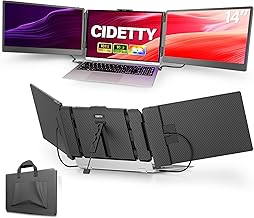
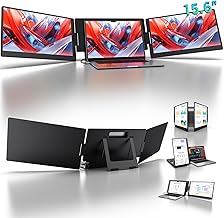
Two-display laptop extenders attach to your laptop lid and swing a second FHD IPS panel out to the side. The 15.6-inch and 14-inch triple-capable models offer dual or triple configurations, folding flat for transport and mounting on 12-to-17-inch laptops. Designs like the CIDETTY 14-inch add built-in speakers and ultra-thin profiles, while the KYY X90D features 360-degree rotation and a kickstand for flexible positioning. Most use slim-bezel 1080p IPS panels with two-cable USB-C/HDMI or single-cable USB-C connections. The ultra-thin 0.16-inch extenders are impressively svelte, though larger triple models add more weight to the hinge. Build quality is generally solid aluminum or reinforced plastic.
Performance
These extenders deliver crisp, color-accurate FHD IPS visuals that make working across two screens comfortable and natural. Connectivity is the main variable: single-cable USB-C models are the cleanest on compatible laptops, while two-cable USB-C/HDMI designs offer broader compatibility at the cost of an extra wire. The KYY’s 360-degree rotation is genuinely useful for sharing your screen with someone across the table, and the ultra-thin models keep the whole assembly light. Refresh rates sit at 60Hz, perfect for documents, spreadsheets, coding, and research though not for gaming. Once connected, extending your desktop is instant, and the productivity boost from a true dual-screen layout is immediately obvious.
Pros & Cons
- Real dual-screen productivity anywhere you take your laptop.
- Folds flat and travels as one unit with the laptop.
- Useful extras like 360-degree rotation and built-in speakers.
- Sharp FHD IPS panels with wide viewing angles.
- Adds weight to the lid, more so on triple-screen models.
- Some require two cables or a driver for full functionality.
Alternatives to Consider
If simplicity is your priority, a single-cable USB-C dual extender is the smoothest experience. For flexible viewing angles, the KYY with 360-degree rotation stands out. Users who want maximum workspace should choose a triple-screen model, while those who value minimal weight should look at the ultra-thin 0.16-inch designs. Anyone working mostly at a fixed desk could get a larger, cheaper display from a standard external monitor instead of a lid-mounted extender.
Frequently Asked Questions
How do I set up a two-display laptop?
Attach the extender to your laptop lid, connect it via USB-C or HDMI, and enable extend mode in your display settings. Single-cable USB-C models with DisplayPort Alt Mode do it with one connection.
Will it work with my laptop?
Most extenders support 12-to-17-inch laptops across Windows, macOS, and Android. Single-cable USB-C operation requires a port that supports video output, so verify your laptop’s ports.
Does a second screen slow down my laptop?
Driving an extra 1080p panel uses some GPU and battery, but modern laptops handle it easily for office and browsing tasks. The main cost is faster battery drain on the road.
Can I rotate or reposition the second screen?
Some models, like the KYY with 360-degree rotation, allow flexible positioning and screen sharing. Others fold to a fixed side angle, so choose based on how you want to view it.
Verdict
A two-display laptop extender is a superb, portable way to double your screen space. For most people a single-cable USB-C dual model offers the best balance of simplicity and productivity, while rotating and triple-screen options serve specific needs. Confirm your laptop’s port compatibility, pick the weight and features that suit you, and enjoy desktop-class multitasking wherever you go.