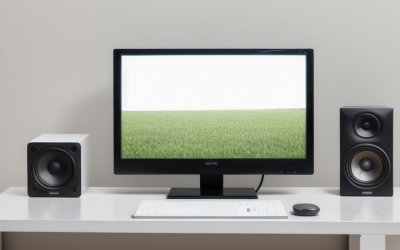
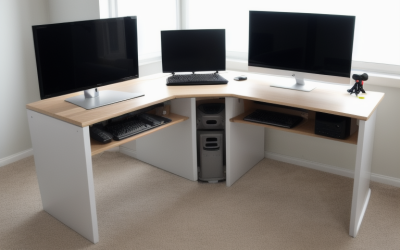
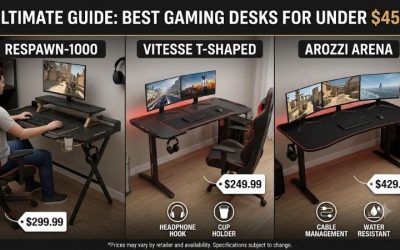
A computer monitor displays the visual output of a computer so you can read, work, play, and see what happens when you interact with an app. If you’re asking what is the computer monitor used for, think of what you see when you open a document, move your mouse, join a video call, or launch a game. A desktop usually uses a separate monitor as its main screen. A laptop already has a built-in display, but you can connect a monitor for a larger view, additional workspace, or a screen you can position separately.
What is the computer monitor used for in everyday life?
A monitor gives you a place to see and work with the information your computer produces. For simple tasks, it shows text, images, and controls. For multitasking, it lets you arrange several windows so you can read one source while working in another. The benefit depends on what you need to see at the same time.
| Activity | What the monitor displays | What matters for that use |
|---|---|---|
| Office work | Documents, spreadsheets, email, and dashboards | Readable text and room for the windows you use together |
| School and online learning | Course material, lectures, slides, and assignments | Enough usable space to keep notes beside the lesson |
| Video calls | Participants, shared screens, and meeting controls | A layout that leaves room for notes or shared material |
| Gaming | The game world, menus, and player information | A resolution and refresh rate suited to the games and hardware |
| Photo and video editing | Image previews, timelines, and editing tools | Suitable color accuracy and room for controls around the preview |
| Programming and technical work | Code, a terminal, documentation, and app previews | Enough space to keep reference material visible while you work |
How a monitor helps with work and school
A larger display can make a common task like comparing two documents easier. You can keep the original on the left and edit a copy on the right. In a spreadsheet, you might use extra width to keep the row labels visible while reviewing values farther across the sheet. The advantage is seeing related information without interrupting the task to switch windows.
Screen size, resolution, and display scaling work together. At the same resolution and scaling, a larger panel can make on-screen elements physically bigger while showing roughly the same amount of content. A higher-resolution display can give you more room for windows, depending on the scale you choose. If you enlarge text and controls for readability, you use some of that extra workspace.
How a monitor helps with gaming and creative work
For gaming, the monitor shows the frames provided by the computer. Refresh rate, measured in hertz, describes how many times per second the display can update. A higher refresh rate can make motion look smoother when the computer delivers frames quickly enough. A higher-resolution display can show finer detail, though rendering a game at that resolution can require more graphics processing.
For creative work, the priorities can shift. A photographer working on skin tones might care more about reliable color than a high refresh rate. A video editor can use the extra screen area to keep the preview, timeline, and audio meters open at once. If the work will appear in print or needs to meet a specific delivery standard, the monitor’s color accuracy and calibration matter more than how vivid the image looks at first glance.
How does a computer monitor work?
The computer creates the image you see. Its graphics hardware sends a video signal to the display, and the monitor uses that signal to control the pixels on its screen. When you move a window or type a letter, the computer processes the input and updates the image. A standard monitor handles the visual output. A touchscreen monitor can also send touch input back to the computer when connected and configured for that feature.
What the cable and ports do
HDMI and DisplayPort are common ways to send video from a computer to a monitor. USB-C can also carry video when the computer port, cable, and receiving device support a compatible display connection. Two USB-C ports can look identical while supporting different functions, so check the computer’s port specifications before buying a cable or adapter.
If the screen shows “No signal,” check whether the monitor is set to the input you plugged into. For example, a cable connected to HDMI 2 may produce a blank screen while the monitor is set to DisplayPort. The monitor usually needs its own power connection, although some portable models can draw power over USB-C when the host and cable support it.
How a monitor fits into a desktop or laptop setup
A desktop monitor typically serves as the main display. With a laptop, an external monitor can extend your workspace, mirror your built-in screen, or serve as your only active display. The useful choice comes down to whether the two screens should show different information or share the same view.
What is the computer monitor used for when you already have a laptop screen?
An external monitor lets you give the two screens different jobs. You might edit a report on the larger screen while keeping a video call or reference document on the laptop. That setup uses Extend mode, which treats the screens as parts of one workspace. With Duplicate mode, both screens show the same content, which is useful when someone else needs to follow along.
You can also use only the external monitor at your desk. That arrangement makes sense if you prefer one central screen and use a separate keyboard and mouse. With two active screens, arrange them in your display settings to match their physical positions. Then moving the pointer off the right edge of the left screen takes it to the screen on your right.
Frequently asked questions
Can a computer monitor work without a computer?
A typical monitor can turn on and show its settings menu without a computer. It needs a compatible source, such as a game console or streaming device, to show that device’s picture. Some smart monitors also run their own apps. Check the specifications if you need features such as built-in streaming, Wi-Fi, or speakers.
Does a computer monitor play sound?
Some monitors have built-in speakers, some provide a headphone output, and some offer neither. HDMI and DisplayPort can carry audio along with video, but playback depends on the hardware and the selected audio output. During a call, the monitor can show the meeting while a headset handles the audio and a separate webcam captures your picture.
Conclusion
A computer monitor makes the computer’s visual output usable. On a desktop, it is usually your main screen. On a laptop, an external monitor can add room for another app, mirror an image for someone sitting nearby, or become the main screen at your desk. Think about the task you do most often when deciding how to use one. Reading and office work benefit from clear text and a layout that keeps related windows visible. Gaming puts more weight on resolution and refresh rate, while color-sensitive work calls for a display suited to the intended output.
More from Amazon
Programs that pair well with the guide above. Offers and eligibility are set by Amazon and may change.
Set up recurring deliveries of everyday items on eligible products. Terms and savings are set by Amazon.
Explore Subscribe & SaveFree shipping on eligible items, Prime Video and more. Eligible new members can start with a free trial.
Start a Prime free trialA Prime membership for ages 18-24 with a trial period. Eligibility is set by Amazon.
See Prime for Young AdultsAudiobooks and podcasts to listen to on the go. Eligible new members can start with a free trial.
Try Audible freeAs an Amazon Associate we earn from qualifying purchases.