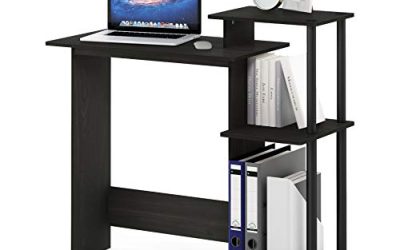
Learning how to choose a computer table for gaming starts with measuring your room, your equipment, and your seated position. The right table gives your keyboard and mouse enough usable space, places the screen at a comfortable distance, and supports your setup without interfering with your legs or accessories. Gaming branding, RGB lighting, and oversized weight-capacity claims cannot establish that fit. This guide walks you through a practical selection process, from mocking up the desktop to checking monitor-arm compatibility and inspecting the assembled table. You will finish with measurements and pass-or-fail requirements you can use to compare actual products.
Plan how to choose a computer table for gaming around your setup
Before browsing, gather a tape measure, painter’s tape, your chair, and the dimensions of the equipment you intend to keep. Include monitor stands, speakers, microphone mounts, and the computer case if it will sit on the desktop.
Create a short requirements sheet:
- Available room width and depth.
- Required usable desktop width and depth.
- Comfortable keyboard height.
- Space needed beneath the table.
- Equipment weight and mounting requirements.
- Assembly access and delivery restrictions.
Separate essentials from preferences. A table that cannot accommodate your chair or monitor mount fails an essential requirement. A missing headphone hook is usually a preference you can address later.
Define what happens at the table
Your setup should reflect how you actually play. A controller-focused arrangement may need little mouse space, while low-sensitivity mouse aiming requires a larger unobstructed movement area. Streaming can add a microphone arm, lighting, and controls that compete for the same edges used by monitor mounts.
Also account for non-gaming tasks. If you work at the same table, test the position used for typing rather than evaluating only a relaxed controller posture. If you use a steering wheel, include the wheelbase clamp, pedal position, and equipment manufacturer’s mounting requirements.
The goal is a layout that accommodates your most demanding regular activity. Occasional accessories can be stored elsewhere instead of permanently enlarging the desk around them.
Measure the room and mock up the footprint
Mark the proposed tabletop outline on the floor with painter’s tape. Place your chair where you would sit, then check whether you can pull it back, stand up, and walk through the room.
Account for door swings, drawers, nearby furniture, and access to outlets. A tabletop fitting between two walls does not establish that the assembled setup will function there.
Check the delivery route as well. Compare packaged dimensions with doorways, stairs, and tight turns, particularly for a large one-piece desktop.
Reserve space behind and beneath the tabletop
A desk pushed against a wall may leave insufficient room for cable connectors or a monitor arm’s movement. Use the actual accessory dimensions to establish the required rear gap.
Underneath, examine the location of legs, crossbars, drawers, and cable trays. Outside dimensions can conceal a narrow seating opening. A wide tabletop with a central drawer may provide less useful clearance than a simpler design.
Keep the central leg area available for movement. If the computer case will sit nearby, position it outside that space and follow its manufacturer’s ventilation requirements. Do not solve a desktop-space problem by creating an obstruction beneath your knees.
Determine usable width and depth with your equipment
Use an existing table or a taped outline to arrange the keyboard, mouse pad, monitor stand, and other essentials. Measure the resulting layout rather than adding together advertised screen sizes.
Monitor diagonals are especially misleading for this task. They do not tell you the screen’s overall width or the footprint of its stand. Measure those dimensions separately.
| Dimension to record | How to establish it | What can make it misleading |
|---|---|---|
| Usable width | Arrange equipment with your normal mouse movement area | Cup holders, raised edges, and desktop towers occupy space |
| Usable depth | Position the keyboard and screen together | Large stands or rear shelves may push the screen forward |
| Seating opening | Measure between actual obstructions | Drawers, legs, and crossbars reduce clearance |
| Rear clearance | Check connectors and monitor-arm movement | The tabletop may fit while the accessories hit the wall |
| Mounting area | Inspect above and below each intended clamp location | Cable trays, bevels, and frame rails can block installation |
Give mouse movement a real test
Place your keyboard at the angle you normally use, then move the mouse through the range required in your games. Include the space needed to lift and reposition it.
Do this before allocating space to speakers, decorative items, or a desktop computer. A layout that looks balanced in a photograph can leave the mouse trapped between a keyboard and a tower.
For an illustrative calculation, suppose your measured keyboard-and-mouse area occupies 32 inches of width and your case occupies another 10 inches. That already uses 42 inches before adding separation or other equipment. Those figures are an example, not recommended dimensions for every setup.
Check screen distance separately from desktop depth
OSHA’s general workstation guidance identifies approximately 20–40 inches between your eyes and the screen as a preferred viewing range. Your comfortable position also depends on screen size, text readability, and how the display is used.
Desktop depth and viewing distance are different measurements. Your eyes sit behind the front edge, while the screen may sit well forward of the rear edge because of its stand.
Mock up the intended arrangement while seated. If you must lean forward to read, consider text scaling and screen placement. If the screen feels crowded, a deeper desktop or a compatible mount may provide more flexibility. Verify the mount’s actual positioning range before assuming it solves the problem.
Match the working height to your chair and keyboard
Adjust your chair first so your back and feet are supported. Then position the keyboard with relaxed shoulders, elbows near your sides, and wrists approximately straight. OSHA recommends keyboard placement around elbow height.
Measure from the floor to the surface supporting the keyboard in that position. Account for keyboard thickness: the tabletop and the keys are not at the same height.
Avoid choosing height solely from a general recommendation or your standing height. Your chair, body proportions, keyboard, and preferred working position all affect the result.
Compare fixed-height and adjustable designs
A fixed-height table can work when its height matches your seated setup. If it is too high, raising the chair may require a footrest; a suitable keyboard tray may offer another adjustment, provided it leaves adequate leg clearance and room for both keyboard and mouse.
An adjustable desk provides more flexibility, but check its actual minimum height with the desktop installed. A model marketed for sitting and standing can still be too tall at its lowest setting.
For standing use, repeat the keyboard-position measurement while standing comfortably. Compare both measurements with the manufacturer’s specified range instead of assuming that a larger adjustment range automatically fits you.
Verify stability, load limits, and mounting compatibility
Read the specifications and assembly instructions for the exact size and frame configuration you are considering. Confirm what the load rating includes and whether the manufacturer distinguishes lifting capacity from static capacity.
Add up the equipment the desk will support, including monitor arms and attached accessories. Some manufacturers count desktop weight within the lifting limit, so clarify the definition before calculating the remaining capacity.
A load rating does not establish how much a screen will shake during typing or mouse movement. Stability is a separate purchasing question.
Evaluate movement at the height you will use
If you can inspect the desk in person, try ordinary typing and mouse movements at your intended height. Observe the tabletop and monitor rather than judging the frame only by appearance.
For online purchases, prioritize transparent demonstrations or independent testing of the same frame and desktop size. Pay attention to test height, load, flooring, and assembly conditions. A result from another configuration may not transfer directly.
After assembly, follow the instructions for fastener tightening and leveling. If movement remains excessive, determine whether it comes from the floor contact, frame, desktop attachment, or monitor mount. Do not assume that buying a heavier tabletop will fix every source of movement.
Check the desktop and monitor arm together
A compatible clamp requires more than the correct tabletop thickness. It needs an appropriate bearing surface and sufficient clearance underneath. A rear frame rail or cable tray can prevent installation even when the published thickness appears suitable.
Check all of the following:
- Monitor weight without its original stand.
- Monitor mounting pattern.
- Arm weight range and any display-depth restrictions.
- Clamp thickness range and required installation space.
- Desktop construction and the desk manufacturer’s mounting guidance.
Do not infer clamp compatibility from the desk’s overall weight capacity. A concentrated mounting load presents a different question from equipment distributed across the surface. If compatibility remains unclear, obtain confirmation before purchasing or drilling.
Compare materials, shape, and total cost
Choose the surface by its documented construction, finish, and intended use. A material label alone cannot establish stiffness, resistance to damage, or suitability for a clamp.
Inspect the front edge, where your forearms may contact the desk, and consider reflections from room lighting. Check cleaning instructions and whether a replacement mat or accessory would be required for your setup.
For a split desktop, locate the seam relative to your keyboard and mouse area. A mat may cover the joint, but it cannot correct uneven assembly or an unsuitable mounting location.
Choose the shape for access rather than appearance
A straight table makes the main gaming position straightforward to arrange. An L-shaped design can provide a separate work or accessory area, but check whether the return interferes with chair movement or forces you to reach around equipment.
A corner layout is useful only when its usable space matches your needs. Measure the position where you will actually sit rather than treating the combined lengths of both sides as one continuous gaming surface.
Compare the complete purchase cost, including shipping, assembly, necessary mounting accessories, and return expenses. Optional lighting and storage should come after fit, structural suitability, and practical access.
Use a final acceptance test before keeping the table
Assemble the desk according to its instructions and inspect it before loading expensive equipment. Check for damaged parts, uneven joints, missing hardware, and unstable floor contact.
Then evaluate the complete setup during the applicable return period:
- Sit in your normal position and confirm the working height.
- Move the mouse through your usual range without hitting equipment.
- Check that the primary screen is readable without persistent leaning.
- Move your legs and chair without contacting obstructions.
- Verify mounts against both accessory and desk instructions.
- Check stability during ordinary use.
- For an adjustable desk, move through the intended range while watching cable slack and clearance.
Keep packaging until you understand the return requirements and have completed these checks.
Correct common fit problems before accepting a compromise
| Problem | First adjustment to consider | When to reconsider the desk |
|---|---|---|
| Keyboard feels too high | Review chair, foot support, and tray options | A suitable working height remains unavailable |
| Mouse repeatedly hits equipment | Rearrange secondary items and tower placement | Your required movement area still does not fit |
| Monitor sits too close | Reposition its stand or assess a compatible mount | Depth remains inadequate for the intended screen position |
| Knees contact hardware | Check permitted accessory placement | Fixed frame parts or drawers obstruct normal use |
| Monitor shakes during ordinary input | Check assembly, leveling, and mount installation | Movement remains unacceptable after correct setup |
| Clamp will not fit securely | Compare installation geometry and instructions | No approved mounting arrangement is available |
The acceptance test should identify whether adjustments solve the problem or merely move it elsewhere. A cable tray relocation may resolve a clamp conflict; replacing a correctly positioned chair with an awkward seating position does not resolve a height mismatch.
Frequently asked questions
How to choose a computer table for gaming in a small room?
Start with the smallest measured layout that accommodates your essential controls and screen position. Move occasional-use accessories elsewhere, then test the chair’s movement inside the remaining room footprint.
Prioritize usable depth and legroom alongside width. A narrow table that forces the monitor too close or blocks your chair can be a worse fit than a different room arrangement. Choose accessories only after verifying that they reduce the specific space constraint.
Do you need a desk marketed specifically for gaming?
No. Evaluate a general-purpose desk using the same fit, stability, and mounting checks. Gaming-specific features are useful when they solve a requirement you actually have.
For example, integrated cable management may simplify your arrangement, while a raised shelf may conflict with your preferred monitor position. Assess the feature’s effect on the layout rather than treating the category label as evidence of suitability.
Should you choose a standing desk for gaming?
Choose one if you expect to use the adjustment and its seated height also fits. It can support position changes, but standing capability does not compensate for insufficient mouse space or an unsuitable mounting surface.
Consider whether you will comfortably reach the controls in both positions and whether every cable accommodates the movement. Neither sitting nor standing equipment removes the need to change position periodically.
Conclusion
Choose a gaming table by testing the fit before comparing decorative features. Measure the room, arrange your actual equipment, establish a suitable keyboard height, and verify the space left for your chair and legs. Then check stability, load definitions, and mounting compatibility for the exact configuration you plan to buy. A fixed-height table can be suitable when it fits; an adjustable design earns its extra complexity when you will use the range. Finish with an assembled acceptance test so that dimensions on a product page become a setup that works in your room.