Our Top Picks
 Logitech H390 Wired Headset PC/Laptop Stereo Headphones1 Pack3.23 x 8.35 x 10.24 inches0.44 poundsCheck on Amazon
To connect a headset to a PC, match the plug to the port: plug a USB headset into any USB port, a single 3.5 mm combo plug into a combo jack, a two-plug headset into the green and pink jacks, or pair a wireless model by Bluetooth or its USB dongle. Then pick the headset as both the output and input device in Windows Sound settings.
Step 1: Identify Your Headset Connection
PC headsets generally use one of four connection types, as described by headset makers and guides such as those from Turtle Beach and Cyber Acoustics.
Logitech H390 Wired Headset PC/Laptop Stereo Headphones, USB-A, Black | For PC/Laptop, stereo headphones, microphone, in-line controls, works with Chromebook
Chosen because it specifies USB-A and Black.
View on Amazon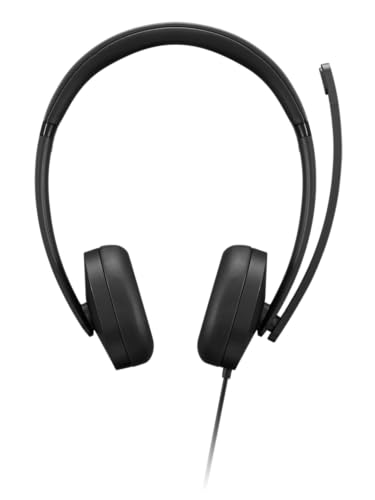
Lenovo USB-A Wired Stereo Headset for PC/Laptop, AI Noise Canceling via APP, 140g Lightweight, Replaceable Earcups, Double-Sided Boom Mic, in-line Controls with Mute for Call. Work with Teams/Zoom
Chosen because it specifies AI Noise Canceling via APP and 140g Lightweight.
View on Amazon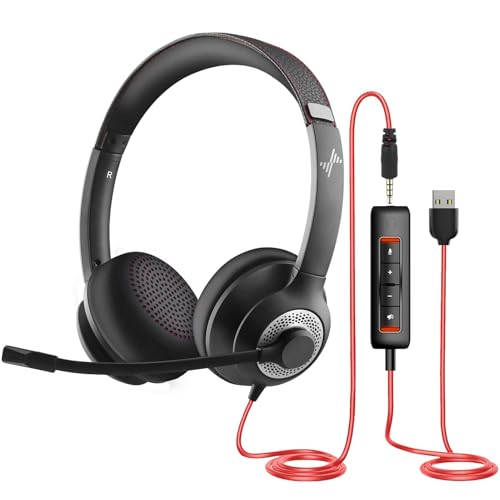
JIAMQISHI USB Headset with Microphone for PC, On-Ear Computer Laptop Headphones with Noise Cancelling Microphone in-line Control for Home Office Online Class Skype Zoom (USB+3.5mm, Black)
Chosen because it specifies Black).
View on Amazon
Poly Blackwire 3210 Wired Headset (Plantronics) - Noise-Canceling Mic - Single-Ear Design - Connect to PC/Mac via USB-C or USB-A - Works w/Teams, Zoom - Amazon Exclusive
Chosen because it specifies Noise-Canceling Mic and Single-Ear Design.
View on Amazon| Headset type | Plug or link | PC port needed | Notes |
|---|---|---|---|
| 3.5 mm, two plugs | Green (audio) and pink (mic) | Separate headphone and mic jacks | Common on desktop motherboards |
| 3.5 mm, one plug (TRRS) | Single combo plug with four contacts | Combo headset jack | Common on laptops |
| USB wired | USB-A or USB-C | USB port | Has its own built-in sound hardware |
| 2.4 GHz wireless dongle | USB receiver | USB port | Pairing is usually pre-set by the maker |
| Bluetooth | Wireless pairing | Bluetooth adapter or built-in Bluetooth | Check mic quality and latency for gaming |
Step 2: Connect It
Wired 3.5 mm headset with two plugs
- Turn the PC on. Plugging in while on is fine for analog headsets.
- Locate the audio jacks on the motherboard’s rear panel or the case’s front panel. Many boards color them green for headphones or speakers and pink for the microphone, though the colors depend on the board, so consult the motherboard manual.
- Plug the green plug into the headphone jack and the pink plug into the microphone jack.
- If a pop-up appears asking what you plugged in, choose headphones for the green jack and microphone for the pink jack.
Wired 3.5 mm headset with one combo plug
- If your PC has a combo headset jack (often with a headset icon), plug it in directly.
- If your PC has only separate jacks, you need a headset splitter adapter (TRRS to separate headphone and microphone plugs). One guide warns that a plain stereo splitter will give sound but no microphone, so use an adapter made for headsets.
- If the jack on your PC is the wrong type, a USB audio adapter is an alternative; Windows usually recognizes it automatically.
USB headset
- Plug the USB connector into a free USB port. Rear motherboard ports are usually more reliable than front-panel ports or unpowered hubs.
- Wait a few seconds while Windows installs the audio driver automatically.
- If the maker provides software, install it from the maker’s support page for surround or equalizer features.
Wireless USB dongle headset
- Plug the dongle into a USB port, preferably one with a clear line of sight, using a short extension if the PC is under a desk.
- Turn the headset on. Most models pair with their own dongle without extra steps.
- If the connection indicator does not settle, follow the maker’s pairing instructions in the manual.
Bluetooth headset
- Put the headset in pairing mode as described in its manual.
- On Windows 11 open Settings, then Bluetooth and devices, then Add device, and choose Bluetooth.
- Select the headset from the list and wait for “Connected.”
- Note that Bluetooth headsets may switch to a lower-quality call mode when the microphone is active, which can reduce audio quality in games.
Step 3: Choose the Headset in Windows Sound Settings
- Right-click the speaker icon in the taskbar and choose Sound settings, or press Windows key + I and go to System, then Sound.
- Under Output, select your headset or headphones.
- Under Input, select the headset microphone.
- Open the input device’s Properties and use the Start test option to confirm that the volume bar moves when you speak.
- In game or chat apps such as Discord, also set the input and output devices inside the app, because apps can ignore the Windows default. In the Volume mixer you can set a different output device for each app.
What You Should See When It Works
- The headset name appears in the Output and Input lists.
- The volume slider changes the sound in your ears, and the mic level bar moves when you talk.
- Speakers or monitor audio switch off if you chose the headset as default.
Quick Settings Reference
| Setting | Location (Windows 11) | Recommended value |
|---|---|---|
| Output device | Settings, System, Sound, Output | Your headset |
| Input device | Settings, System, Sound, Input | Your headset microphone |
| Mic test | Input device Properties, Start test | Bar moves when you speak |
| App-specific output | Sound, Volume mixer | Match the headset |
| Audio enhancements | Device Properties, Advanced / More sound settings | Turn off if sound is distorted or silent |
| Bluetooth pairing | Settings, Bluetooth and devices, Add device | Headset shows Connected |
Common Mistakes
- Using a stereo splitter instead of a headset adapter. You get audio but no mic.
- Plugging into the wrong jack. The microphone plug in the headphone jack gives silence or very quiet sound.
- Not selecting the headset in the app. Windows may be set correctly while a game or chat app still uses the speakers.
- Muted hardware. Many headsets have an inline mute switch or a mute button on the earcup.
- Using front-panel jacks that were never connected to the motherboard header. Try the rear ports.
- Leaving enhancements on. Guides report that audio enhancements can cause silent, distorted or unreliable analog output on some systems.
If Something Does Not Work
- Unplug and reconnect the headset firmly, then try another port.
- Restart the PC or the Bluetooth service.
- Check the Windows Output and Input lists for a disabled device, and enable it if needed.
- Update the audio driver from the motherboard or PC maker’s support page.
- Test the headset on another device to rule out a hardware fault.
- Contact the headset maker if the problem follows the headset.
When working with rear-panel jacks, power the PC off and unplug it before moving cables inside the case. Never open a power supply.
When Not to Use a Certain Connection
- Avoid Bluetooth for competitive gaming if low latency matters; a 2.4 GHz dongle or a cable is usually more consistent.
- Avoid cheap splitters for high-quality microphones, since they can add noise.
- Avoid unpowered USB hubs for USB headsets with lighting or surround processing.
Frequently Asked Questions
Why does my headset have sound but no microphone?
Common causes are a stereo splitter in place of a headset adapter, the wrong jack, a muted mic switch or the wrong input device selected in Windows. Check each in turn.
Can I use a console headset on a PC?
Often yes if it connects by 3.5 mm or USB, but some wireless console headsets need a console-specific dongle. Read the maker’s compatibility notes.
Do I need drivers for a USB headset?
Windows usually installs a generic driver automatically. Maker software is optional and adds features such as equalizers or surround modes.
How do I use two headsets at once?
Windows does not natively mix output to two headsets in a simple way. A headphone splitter or an audio interface is the usual route for analog headsets, and results depend on the hardware.
Why is my Bluetooth headset sound worse when I talk?
Many Bluetooth headsets switch to a hands-free profile when the mic is active, which lowers audio quality. A headset with a USB dongle or a separate microphone avoids this.