Our Top Picks
 Logitech MK345 Full Size Wireless Keyboard and Mouse1 Pack20 x 7.52 x 1.7 Inches1.1 poundsCheck on Amazon
The fastest fix for wireless keyboard lag is to move the 2.4 GHz receiver to a USB 2.0 port on the front or back of the PC, or on a short extension cable, so it sits close to the keyboard and away from USB 3.0 devices and large metal surfaces. If you are on Bluetooth, charge the keyboard and switch to the maker’s 2.4 GHz dongle if one is included.
What Wireless Keyboard Lag Looks Like
- Letters appear late or in bursts after a pause.
- Keys feel unresponsive in games, especially movement keys.
- The keyboard works fine up close but stutters from a normal sitting distance.
- Typing lags only when other devices are active, such as when a file transfers to an external drive.
- The keyboard disconnects and reconnects, or the first keypress after idle is dropped.
Likely Causes, Ranked
- Receiver placement. A dongle behind a case, blocked by metal or far from the keyboard weakens the signal.
- USB 3.0 interference. Technical sources note that USB 3.0 ports and devices emit radio noise that overlaps the 2.4 GHz band the dongle uses.
- Crowded 2.4 GHz spectrum. WiFi routers, wireless mice, headsets and other dongles share the same frequency range.
- Low battery. Some keyboards reduce power or polling behavior when the battery is low.
- Bluetooth limits. Bluetooth connections generally have higher and more variable latency than a dedicated 2.4 GHz link.
- Power saving. Windows can suspend USB ports or the Bluetooth adapter to save power, causing delays when waking.
- Drivers and firmware. Outdated Bluetooth drivers or keyboard firmware can cause stutters.
- Software load. Heavy background tasks or conflicting keyboard utilities can add delay that is not wireless at all.
Symptom, Cause and Fix Table
| Symptom | Likely cause | Fix |
|---|---|---|
| Lag from normal distance, fine up close | Weak signal or poor receiver placement | Move dongle to a front USB 2.0 port or use an extension cable |
| Lag when external drive is busy | USB 3.0 interference | Use a USB 2.0 port or extension; move the drive away |
| Lag in busy apartment or office | 2.4 GHz congestion | Move the router to 5 GHz, change dongle position |
| Bluetooth stutter | Driver, power saving or distance | Update driver, turn off adapter power saving, try the dongle |
| Lag after idle | Keyboard sleep or USB suspend | Disable USB selective suspend; wake keyboard before gaming |
| Lag with low battery | Weak power | Charge or replace batteries |
| Lag in wired mode too | Software or system load | Close background apps, update keyboard software |
Step-by-Step Fixes, Easiest First
- Charge or replace the batteries. Do this first, since a weak battery can affect signal strength or behavior on some keyboards.
- Move the receiver closer. Plug it into a USB port on the front of the case or use a short USB extension cable so the dongle sits on the desk near the keyboard. Reviewers often suggest testing with the dongle within about 30 cm of the keyboard.
- Switch to a USB 2.0 port. USB 2.0 ports are often black rather than blue. Avoid ports directly beside USB 3.0 drives or hubs.
- Remove hubs and docks from the path. Plug the dongle directly into the PC as a test. If the lag disappears, the hub was the cause.
- Reduce 2.4 GHz neighbors. Move wireless mice dongles, headsets and other receivers a few centimeters away. If your router can use 5 GHz for your PC, switch to it.
- Use the dongle instead of Bluetooth. If the keyboard has both modes, the dedicated 2.4 GHz receiver usually responds faster for gaming.
- Turn off power saving. In Windows power options, advanced settings, USB settings, disable USB selective suspend. In Device Manager, open the Bluetooth adapter properties and clear the option that lets the computer turn the device off to save power. Menu names can differ between Windows versions.
- Update drivers and firmware. Update Bluetooth drivers from the PC or motherboard maker. Update the keyboard and receiver firmware using the maker’s utility, following its instructions and never disconnecting during an update.
- Re-pair the keyboard. Remove it from Bluetooth settings and pair again, or use the maker’s pairing tool for the dongle.
- Test wired mode. If the keyboard has a USB cable mode, use it. If lag disappears, the wireless link is the issue. If lag remains, look at software, game settings or system load.
- Check polling rate settings. Some keyboard utilities let you change the polling rate. Reset to the maker’s default if you changed it.
Safety and System Notes
Most of these steps are software or cable changes. If you open the PC to use an internal port, shut it down and unplug it first. Never open a power supply. If a BIOS change is needed for USB settings, make small changes only, because BIOS changes can cause instability and may void warranties. Follow the motherboard manual for menu names, which vary by maker. Do not use damaged batteries; if a rechargeable battery is swollen, stop using the keyboard and contact the maker.

Wireless Keyboard and Mouse Combo, Full Size Silent Ergonomic Keyboard and Mouse, Long Battery Life, Optical Mouse, 2.4G Lag-Free Cordless Mice Keyboard for Computer, Mac, Laptop, PC, Windows
Chosen because it specifies Full Size Silent Ergonomic Keyboard and Mouse and Long Battery Life.
View on Amazon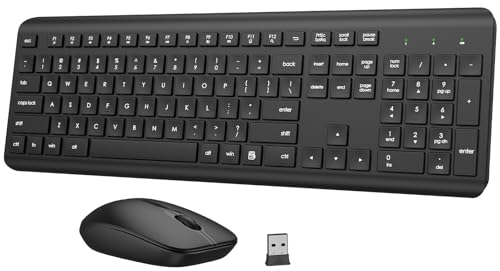
Wireless Keyboard and Mouse Combo, Full-Size Silent Ergonomic Keyboard and Optical Mouse, Long Battery Life, 2.4GHz Lag-Free Cordless Mice Keyboard for Computer, Mac, Laptop, PC, Windows
Chosen because it specifies Full-Size Silent Ergonomic Keyboard and Optical Mouse and Long Battery Life.
View on AmazonLogitech MK345 Full Size Wireless Keyboard and Mouse Combo - Black | Full size keyboard with integrated palm rest, compact right handed mouse, connect via single included USB-A Nano Receiver
Chosen because it specifies Black and Full size keyboard with integrated palm rest.
View on Amazon
TECKNET Wireless Keyboard and Mouse Combo, 2.4G Mini Cordless Computer Keyboard and Mouse Set, Silent Adjustable 1600 DPI, Quiet Click, Lag-Free for Computer, Laptop, PC, Windows, Mac, Chrome OS
Chosen because it specifies 2.4G Mini Cordless Computer Keyboard and Mouse Set and Silent Adjustable 1600 DPI.
View on AmazonWhen to Stop and Contact the Maker
- The keyboard lags even at close range with new batteries and the dongle on a direct USB 2.0 port.
- Keys register in wired mode only.
- The receiver or keyboard is physically damaged or the battery is swollen.
- The problem started right after a firmware update.
The maker support team can confirm whether a replacement receiver or firmware recovery is needed. If the lag affects several devices, a technician can check the USB controller or motherboard.
Prevention Tips
- Keep the receiver within a short, clear line of sight.
- Use an extension cable for desktops with rear-mounted ports.
- Separate 2.4 GHz devices by a few centimeters.
- Keep batteries charged and use the maker’s charger.
- Update firmware occasionally, using the official tool.
- For competitive play, consider a wired keyboard or one with a low-latency wireless mode designed for gaming.
Testing Whether the Keyboard Is Really the Problem
Before changing hardware, separate the keyboard from the rest of the system. Open a plain text editor and type quickly; if characters appear promptly there but lag in a game, the cause is more likely frame rate, game settings or background load than the wireless link. Check that the game is not running at a low frame rate, since a slow frame time feels like input delay. Close overlays and capture tools one at a time to see if the delay changes. Compare the same keyboard on a second computer if one is available. If the keyboard is fine elsewhere, the issue is on the original PC, such as USB controller settings or interference near the desk. Keep notes on each change so you can undo anything that does not help.
Frequently Asked Questions
Is Bluetooth worse than a 2.4 GHz dongle for gaming?
Generally, yes. Reviewers report that a dedicated 2.4 GHz link has lower and steadier latency than Bluetooth. Bluetooth can still be fine for typing and office work.
Why does my keyboard lag only when I use a USB 3.0 drive?
USB 3.0 devices and cables can emit radio noise that overlaps with 2.4 GHz wireless links. Move the dongle to a USB 2.0 port or use an extension cable to separate it from the drive.
Does my WiFi router affect my wireless keyboard?
It can if the router uses the 2.4 GHz band. Moving your PC and other devices to 5 GHz reduces the crowding around the keyboard dongle.
Could the lag be my game rather than the keyboard?
Yes. Test the keyboard in a text editor or the maker’s utility. If typing there is fine, check game settings, frame rate and background programs.
Will a new keyboard fix it?
Only if the keyboard is the cause. Try wired mode and the dongle placement steps first, since interference is a more common reason for lag.