Key takeaways
- To check PC component compatibility, match the processor socket and chipset to the motherboard, then confirm memory type, case clearances.
To check PC component compatibility, match the processor socket and chipset to the motherboard, then confirm memory type, case clearances, power supply capacity and connectors, and storage interfaces against each part’s specification sheet. Working through those links one at a time catches nearly every mismatch before an order ships.
A compatibility check does not need special software, only a methodical pass through spec pages and a small checklist. This guide gives you the order to follow, the numbers to compare and the mistakes that trip up first-time builders heading into 2026.
Start With the Parts That Set the Rules
Every build has a few parts that determine what else can be chosen. The processor and motherboard decide the platform, the case decides physical limits and the power supply decides electrical headroom. Pick or confirm those first, then verify everything else against them.
Open the manufacturer’s product page for each part, not a retailer summary, because retailer listings can contain errors. Keep the specification pages open in tabs so you can compare numbers directly.
The Compatibility Chain, Step by Step
Processor and Motherboard
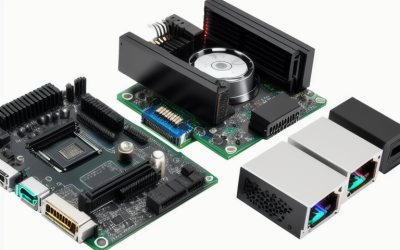
The processor socket must match the motherboard socket exactly. Beyond socket, the motherboard needs chipset support for the specific processor generation, and some boards require a firmware update before they will recognize newer chips. The motherboard support page usually has a processor support list that shows which models work and the minimum firmware version needed.
Memory and Motherboard
Memory must be the generation the board supports, since different generations are not physically or electrically interchangeable. Check the board’s memory support list for supported speeds and capacities, and note the maximum capacity per slot. Kits sold as matched pairs are usually the simplest way to avoid mixing issues.
Graphics Card and Case
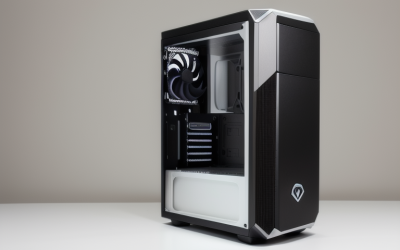
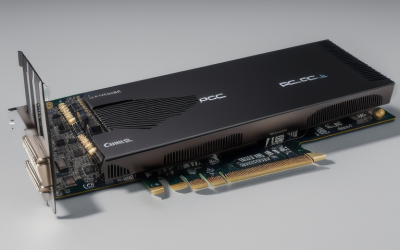
Graphics cards vary widely in length, thickness and power connector layout. Compare card length against the maximum card length in the case specification, and check the number of slots the card occupies against what the case and motherboard layout allow. Also note the power connectors the card requires.
Cooler, Case and RAM Height
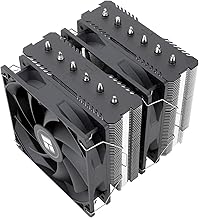
Air coolers have a maximum height that must fit under the side panel, and liquid radiators need supported mounting positions and enough room for tubes and fans. Tall memory modules can collide with large coolers, so compare memory height with cooler clearance listed in the cooler specifications.
Power Supply and Connectors
Add the rated power draw of the processor and graphics card and compare against the supply’s wattage with room to spare. Then check connectors: the processor power cables, graphics card power cables and the motherboard connector. Cable counts and types vary by supply, and modular supplies still ship a defined set of cables.
Storage and Interfaces
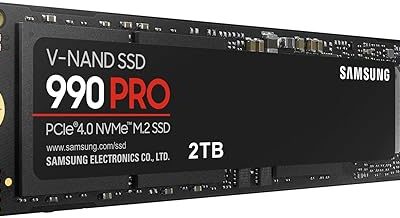
M.2 drives come in different lengths and use different interfaces, and some slots share bandwidth with SATA ports. The motherboard manual explains which combinations disable certain ports. Check that the slot supports the drive type you want, including length support and any heatsink clearance.
A Quick Reference Table
| Link in the Chain | What to Compare | Where to Find It |
|---|---|---|
| CPU to motherboard | Socket, chipset, firmware version | Board support list |
| Memory to motherboard | Generation, speed, capacity per slot | Memory support list |
| Graphics card to case | Length, thickness, slot count | Case specification |
| Cooler to case | Height or radiator size, mounting spots | Cooler and case specs |
| Power supply to parts | Wattage, connector types and counts | PSU and component specs |
| Storage to motherboard | Slot interface, length, shared lanes | Board manual |
| Board to case | Form factor, standoffs, I/O layout | Case specification |
Tools That Make the Job Easier
Online parts-picker sites can flag obvious socket and form factor mismatches, and they are handy for building a list. Treat their warnings as a starting point, not a guarantee, because databases can lag behind new releases and may miss subtle issues like cooler height or firmware requirements.
The most reliable sources are the manufacturers’ own pages and manuals. Skim the manual of the motherboard and case before purchase, since many of them list supported parts, slot sharing rules and clearance dimensions in plain tables.
A Worked Example of the Process
Imagine you are planning a mid-range gaming build and have a short list of parts. Start by writing down the processor model and open the motherboard maker’s support page. Look for your processor in the support list and note the firmware version required. If the list says a firmware update is needed and the board shipped earlier, plan for how you will update it, since some boards offer a way to update without an installed processor and others do not.
Next, open the memory section of the board’s page. Confirm the memory generation, then check the qualified vendor list for your kit. Not every kit appears on that list, but a listed kit is the lowest-risk option. Note the number of slots and the maximum speed supported at full population, since some boards run memory slower when all slots are filled.
Then move to the case page. Write down the maximum graphics card length, the maximum cooler height, the supported board sizes and the number of drive bays. Compare each against the dimensions of your graphics card, cooler and drives. Finally, check the power supply format against the case, because small cases may accept only a compact supply format, and confirm the cable list on the supply page covers your graphics card connectors.
If any line fails, change that one part and re-run the chain from that point. Fixing a mismatch on paper takes minutes, while fixing it after parts arrive can cost days and return shipping.
Signs a Mismatch Slipped Through
Even careful planning can miss something. Typical symptoms include a board that powers on but shows no display until a firmware update, memory that runs below its rated speed, a graphics card that blocks a drive slot, or a cooler that will not let the side panel close. Most of these are fixable by adjusting settings, swapping a single part or rerouting cables, but they are easier to avoid with a complete pre-purchase check.
Common Mistakes to Avoid
- Assuming that a socket match alone means a processor works, without checking chipset and firmware support.
- Ignoring graphics card thickness, which can block the next slot or collide with storage cages.
- Buying memory of the wrong generation because the module looks similar.
- Choosing a power supply by wattage alone and forgetting connector counts.
- Forgetting radiator or cooler clearance when picking a compact case.
Keep a Compatibility Log
A simple spreadsheet or notes file saves headaches. List each part, its exact model name, the key numbers you checked and the page where you found them. When you swap one part later, you can re-run only the affected links. The log is also handy when you ask for help on a forum, since other builders can see your parts and numbers at a glance.
Before You Click Buy
- List every part with its exact model name in one document.
- Check the CPU support list for the chosen board and firmware.
- Confirm memory generation and capacity against the board.
- Compare graphics card, cooler and memory dimensions with case limits.
- Add up power needs and confirm every cable connector is available.
- Check the return policy for each part in case something does not fit.
Related guides
- Aio Liquid Coolers For High Performance Gaming
- Gaming Chair Accessories And Replacement Parts
- Video Doorbell Cameras Without Subscription
Frequently Asked Questions
Can I rely on a parts-picker website alone?
It is a useful first filter, but it is not a replacement for reading manufacturer specifications. Databases may miss new releases, firmware requirements or tight physical clearances.
What if my board does not recognize my processor?
A firmware update is often the cause when a newer processor is paired with an older board revision. Check the board’s support page for the minimum firmware version before buying, and contact the manufacturer if the board will not start.
Do all graphics cards fit all cases?
No. Length, thickness and cooler design differ, and cases list maximum supported dimensions. Always compare the card’s published measurements with the case limits.
How much power supply headroom is enough?
Many builders leave a comfortable margin above the combined rated draw of the major parts, since efficiency and transient spikes vary. Check the graphics card manufacturer’s recommended supply wattage as a starting point.
FAQ
Can I rely on a parts-picker website alone?
What if my board does not recognize my processor?
Do all graphics cards fit all cases?
How much power supply headroom is enough?
More from Amazon
Programs that pair well with the guide above. Offers and eligibility are set by Amazon and may change.
Set up recurring deliveries of everyday items on eligible products. Terms and savings are set by Amazon.
Explore Subscribe & SaveFree shipping on eligible items, Prime Video and more. Eligible new members can start with a free trial.
Start a Prime free trialA Prime membership for ages 18-24 with a trial period. Eligibility is set by Amazon.
See Prime for Young AdultsAudiobooks and podcasts to listen to on the go. Eligible new members can start with a free trial.
Try Audible freeAs an Amazon Associate we earn from qualifying purchases.