Key takeaways
- Only update for a reason: If your PC is stable, a new BIOS may add nothing; update for CPU support, bug fixes or security, not for its own sake.
- Use a stable power source: Flash on a desktop with reliable power or a UPS; never update during a storm or on a low laptop battery.
- Format USB as FAT32: Most BIOS updaters and Flashback only read FAT32 drives, so reformat before copying the file.
- Keep the old version handy: Note your previous BIOS version in case a new one introduces a regression and you need to roll back.
Updating your motherboard BIOS sounds intimidating, but it’s a routine maintenance task that can fix boot problems, add support for newer CPUs, improve memory stability and patch security vulnerabilities. Modern boards make it safer than ever with tools like BIOS Flashback, which can update firmware even without a CPU installed. The golden rule is simple: never interrupt the process, because a failed flash can leave the board unbootable.
This guide walks you through checking your current version, downloading the correct file, and flashing it via the in-BIOS updater or a Flashback button. We’ll also cover when you should update and when to leave a stable system alone. Whether you’re prepping a board like an ASUS TUF B550-PLUS or an ASRock B860 for a new chip, follow these steps carefully and the update is straightforward.
Our top picks
 ASRock B860M Pro A DDR5 8666 MHz
- 10+1+1+1+1 Power Phase, Dr.MOS for VCore+GT+SA
- 4 x DDR5 DIMMs Supports Dual Channel, up…
- Graphics Output Options: 1 HDMI, 1 DisplayPort
 ASUS TUF Gaming B550-PLUS WiFi II AMD
- AMD AM4 Socket and PCIe 4.0: The perfect…
- Robust Power Design: 8+2 DrMOS power stages with…
- Optimized Thermal Solution: Fanless VRM and PCH heatsink,…
 ASRock B860 Pro A WiFi 6E Intel
- 10+1+1+1+1 Power Phase, Dr.MOS for VCore+GT+SA
- 4 x DDR5 DIMMs Supports Dual Channel, up…
- Graphics Output Options: 1 HDMI, 1 DisplayPort
| Product | Key specs | |
|---|---|---|
| ASRock B860M Pro A DDR5 8666 MHz | 10+1+1+1+1 Power Phase, Dr.MOS for VCore+GT+SA 4 x DDR5 DIMMs Supports Dual Channel, up… Graphics Output Options: 1 HDMI, 1 DisplayPort | Check price |
| ASUS TUF Gaming B550-PLUS WiFi II AMD | AMD AM4 Socket and PCIe 4.0: The perfect… Robust Power Design: 8+2 DrMOS power stages with… Optimized Thermal Solution: Fanless VRM and PCH heatsink,… | Check price |
| ASRock B860 Pro A WiFi 6E Intel | 10+1+1+1+1 Power Phase, Dr.MOS for VCore+GT+SA 4 x DDR5 DIMMs Supports Dual Channel, up… Graphics Output Options: 1 HDMI, 1 DisplayPort | Check price |
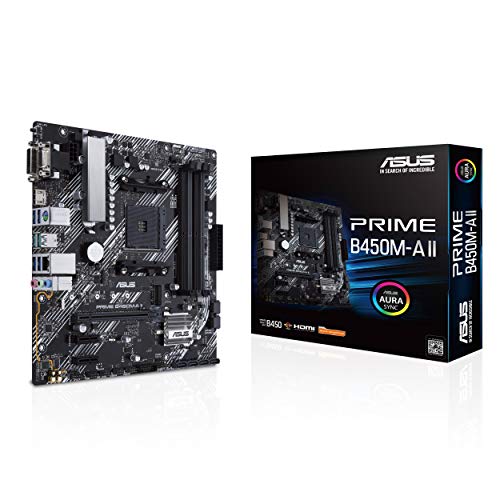 ASUS Prime B450M-A II AMD AM4 ASUS Prime B450M-A II AMD AM4 | AMD AM4 Socket : Compatible to Ryzen 5000,… Designed for Productivity: USB 3.2 Gen 2 with… Optimized Cooling: VRM and PCH heatsink with extensive… | Check price |
 ASRock B860M Pro A WiFi 6E Intel ASRock B860M Pro A WiFi 6E Intel | ***Not compatible with all built-in computers or systems Supports Intel Core Ultra Processors (Series 2)(LGA1851) 10+1+1+1+1 Power Phase, Dr.MOS for VCore+GT+SA | Check price |
 Anu Limen TPM 1.2 Security Module 20-Pin Anu Limen TPM 1.2 Security Module 20-Pin | Enhanced PC Security: This TPM 1.2 module provides… Standalone Encryption Processor: Featuring an independent 20-pin LPC… Broad Motherboard Compatibility: Designed for motherboards with a… | Check price |
 BAFOVY PC Diagnostic Card 4 Digit Post BAFOVY PC Diagnostic Card 4 Digit Post | Dual PCI ISA Interface: Works with both PCI… Clear POST Code Readout: Shows current and previous… Built for Repair Shops: SMD components and durable… | Check price |
 SOP8 Clip for Wide and Narrow Body SOP8 Clip for Wide and Narrow Body | Perfectly for Motherboards BIOS updates, chip debugging, and… Enhanceds your toolkit with indispensables component, ensuring efficient… connectivitys with SOP8 Eight Pin BIOS Clip, for… | Check price |
As an Amazon Associate we earn from qualifying purchases at no extra cost to you.
⚡ Save on Your Next PC — Amazon Prime
Prime members get fast free shipping on the systems above, plus early access to Prime Day & Black Friday PC deals. New members get a 30-day free trial.
Watch: How to Update Your Motherboard BIOS — Video Review
Check Your Current BIOS Version
Before anything, note what you have. Press the Del or F2 key at boot to enter BIOS and read the version on the main page, or in Windows type “msinfo32” and check the BIOS Version/Date field. Write down the exact motherboard model and revision from the board’s silkscreen or box, since the wrong file can brick the board.
Download the Correct File
Go to your motherboard maker’s official support page, not a third-party mirror, and find the BIOS section for your exact model. Download the latest stable version, read its release notes to confirm it addresses your need, and extract it to a FAT32-formatted USB stick. Some boards require you to rename the file for Flashback, so follow the maker’s instructions exactly.
Flash via BIOS or Flashback
The safest in-BIOS method is the built-in updater, often called EZ Flash, M-Flash or Instant Flash, which reads the file from your USB drive. If your board has BIOS Flashback, plug the USB into the labeled port, press the Flashback button, and wait for the blinking light to stop, this works even with no CPU or RAM. A diagnostic post-code card can help if the board won’t boot afterward.
Do Not Interrupt the Process
A BIOS flash takes one to five minutes. During that time, do not restart, cut power, or remove the USB drive. A brief power loss can corrupt the firmware and leave the board dead, so use a stable outlet or a UPS. Once it completes, the board reboots on its own into the new firmware.
Reconfigure Settings Afterward
A BIOS update usually resets everything to defaults, so your XMP/EXPO profile, boot order and fan curves will be off. Re-enter BIOS, reapply your memory profile, set the correct boot drive, and confirm the board detects your CPU and RAM correctly. Save and exit, then verify Windows boots normally.
Tips
- Only update for a reason: If your PC is stable, a new BIOS may add nothing; update for CPU support, bug fixes or security, not for its own sake.
- Use a stable power source: Flash on a desktop with reliable power or a UPS; never update during a storm or on a low laptop battery.
- Format USB as FAT32: Most BIOS updaters and Flashback only read FAT32 drives, so reformat before copying the file.
- Keep the old version handy: Note your previous BIOS version in case a new one introduces a regression and you need to roll back.
Frequently Asked Questions
Do I really need to update my BIOS?
Only if you need new CPU support, a specific bug fix, better memory compatibility or a security patch. A stable system running fine often doesn’t need an update.
Can updating the BIOS brick my motherboard?
It can if the process is interrupted by a power loss or the wrong file. Using the correct file and stable power makes bricking very unlikely, and Flashback adds a recovery path.
What is BIOS Flashback?
It’s a feature that flashes firmware from a USB drive using a dedicated button, even without a CPU, RAM or GPU installed. It’s the safest way to update or recover a board.
Will a BIOS update delete my files?
No, it doesn’t touch your storage drives or Windows. It only resets BIOS settings to defaults, which you’ll reconfigure afterward.
Conclusion
Updating your BIOS is safe when you use the exact file for your board, flash from a FAT32 USB, and never interrupt the process. Check your version, update only when there’s a clear benefit, and reapply your settings afterward. Done carefully, it can unlock new CPU support and squash bugs that no software fix could reach.