Key takeaways
- Update the motherboard BIOS: A newer BIOS often adds support and stability for recent GPUs that an old version can’t detect.
- Do a clean driver install: Leftover old drivers cause detection conflicts; wipe them fully before installing new ones.
- Support heavy cards: An anti-sag bracket keeps the connector fully seated over time, preventing intermittent detection loss.
- Test in another system: If nothing works, trying the card in a friend’s PC quickly confirms whether it’s the card or your system.
You built the rig, plugged in the monitor, and Windows insists you’re running on integrated graphics, or worse, gives you no display at all. A GPU that isn’t detected is one of the most common post-build headaches, and it’s usually a seating, power, or driver problem rather than a dead card. Before you RMA anything, a systematic check of the slot, the cables, and the software resolves the large majority of cases.
This guide walks through the fixes in order of likelihood, from the physical seating of the card to BIOS settings and driver cleanup. A GPU support bracket like the California JOS anti-sag holder can even be part of the cure when a heavy card droops out of full contact with the slot over time, so we’ll cover prevention too.
Our top picks
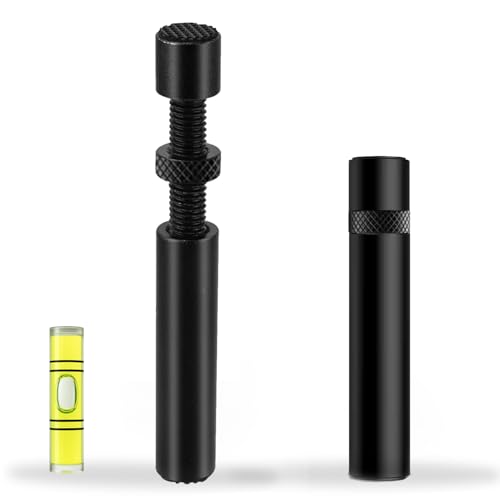 California JOS California JOS GPU Support Bracket
- ✅ Package Includes: 1 PCS Large Black GPU…
- ✅Prevents GPU Sag and Damage
- ✅Durable All-Aluminum Build
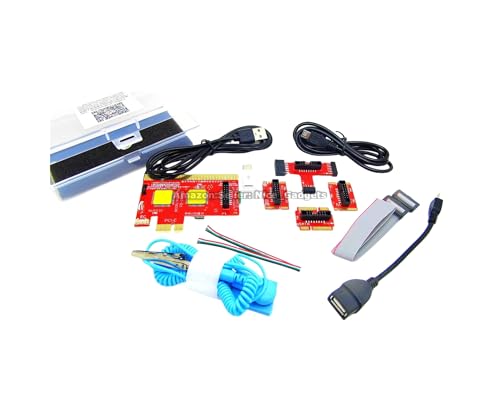 New USB PCIe Motherboard Diagnostic Tester Kit
- Please DO study the listing page the "Product…
- Easy To Use Unique USB Diagnosis with Videos…
- USB Diagnosis Unique Feature - Save hassles of…
 greenDracaena Dracaena.io 2-Pack PCIe Riser Adapter Card
- PCIe 16X to 1X riser card links GPUs…
- Powered by 6-pin, MOLEX or SATA input for…
- Built for multi-GPU mining rigs and expansion builds
| Product | Key specs | |
|---|---|---|
| California JOS California JOS GPU Support Bracket | ✅ Package Includes: 1 PCS Large Black GPU… ✅Prevents GPU Sag and Damage ✅Durable All-Aluminum Build | Check price |
| New USB PCIe Motherboard Diagnostic Tester Kit | Please DO study the listing page the "Product… Easy To Use Unique USB Diagnosis with Videos… USB Diagnosis Unique Feature - Save hassles of… | Check price |
| greenDracaena Dracaena.io 2-Pack PCIe Riser Adapter Card | PCIe 16X to 1X riser card links GPUs… Powered by 6-pin, MOLEX or SATA input for… Built for multi-GPU mining rigs and expansion builds | Check price |
 Pilipane Pilipane Graphics Card Virtual Display Emulator Pilipane Pilipane Graphics Card Virtual Display Emulator | [MINING STABILITY SOLUTION] : Tackle mining interruptions effortlessly [COMPACT DESIGN , LOW POWER] : With a… [HIGH RESOLUTION SPOOFING] : Simulate 4K resolutions like… | Check price |
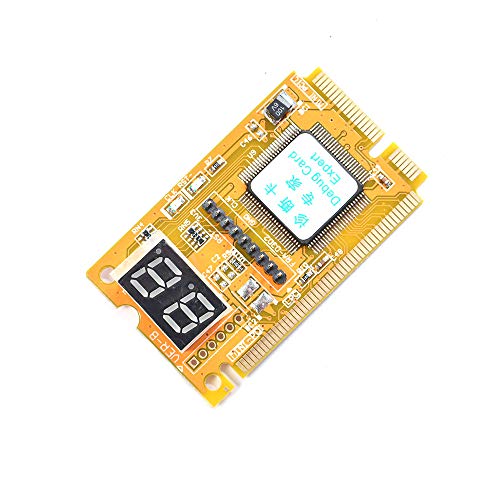 Comimark Comimark 1Pcs Mini 3 in1 PC Comimark Comimark 1Pcs Mini 3 in1 PC | 3 in 1 tester. For PCI, PCI-E, and LPC. Diagnostic post-test card. | Check price |
 Wisoqu Computer Accessory Graphics Card Tester with Wisoqu Computer Accessory Graphics Card Tester with | High Efficiency: The computer graphics card tester can… Versatile Testing Capabilities: The graphics card tester diagnostic… Comprehensive Fault Diagnosis: When troubleshooting computer graphics card… | Check price |
 Hilitand Computer Graphics Card Tester Hilitand Computer Graphics Card Tester | [Quick Fault Detection] The graphics card tester quickly… [ Design] The graphics card tester with indicator… [Comprehensive Testing] Specifically designed to test data bus… | Check price |
| Masyrt Purpose AGP PCI E Graphics Card | High Efficiency: The computer graphics card tester can… Versatile Testing Capabilities: The graphics card tester diagnostic… Comprehensive Fault Diagnosis: When troubleshooting computer graphics card… | Check price |
As an Amazon Associate we earn from qualifying purchases at no extra cost to you.
⚡ Save on Your Next PC — Amazon Prime
Prime members get fast free shipping on the systems above, plus early access to Prime Day & Black Friday PC deals. New members get a 30-day free trial.
Watch: Why Is My GPU Not Being Detected? (2026 Fixes) — Video Review
Reseat the Card and Check the Slot
The number one fix is also the simplest: the card isn’t fully seated. Power down, unclip the retention latch at the end of the PCIe slot, remove the GPU, and firmly reinstall it until you hear the latch click. Heavy modern cards sag over months and can lose contact at the rear of the slot, which is exactly what an anti-sag support bracket prevents. If you have a second PCIe x16 slot, try the card there to rule out a faulty primary slot.
Confirm the Power Connectors
A GPU with missing or partial power often spins its fans but never initializes. Make sure every PCIe power connector, whether dual 8-pin or the newer 12VHPWR, is fully clicked in at both the card and the PSU. Do not use a single daisy-chained cable for a high-draw card if separate cables are available. A card that’s detected but crashes under load is frequently a power-delivery problem rather than a detection one.
Plug the Monitor Into the Right Port
This one catches almost every first-time builder: the monitor cable must go into the graphics card’s ports, not the motherboard’s. If your display is plugged into the motherboard HDMI while a dedicated GPU is installed, you’ll be running on integrated graphics or get no signal at all. Move the cable to the card’s DisplayPort or HDMI output and the GPU usually springs to life.
Handle BIOS and Driver Issues
If the hardware is sound, check the BIOS. Ensure the primary display output is set to PCIe rather than integrated, and enable Resizable BAR if available for better performance. In Windows, open Device Manager to see if the card appears with a warning; if so, do a clean driver reinstall using a display driver uninstaller in safe mode, then install the latest driver fresh. A diagnostic post-test card can help pinpoint a genuine hardware fault if software fixes fail, and a PCIe riser adapter is worth testing if you suspect a bad slot.
Tips
- Update the motherboard BIOS: A newer BIOS often adds support and stability for recent GPUs that an old version can’t detect.
- Do a clean driver install: Leftover old drivers cause detection conflicts; wipe them fully before installing new ones.
- Support heavy cards: An anti-sag bracket keeps the connector fully seated over time, preventing intermittent detection loss.
- Test in another system: If nothing works, trying the card in a friend’s PC quickly confirms whether it’s the card or your system.
Frequently Asked Questions
Why does my PC only show integrated graphics?
Almost always the monitor is plugged into the motherboard instead of the GPU, or the BIOS primary display is set to integrated. Move the cable to the card and switch the BIOS setting to PCIe.
My GPU fans spin but there’s no display. Now what?
Spinning fans only mean it has power, not that it’s initialized. Reseat the card, confirm power cables are fully clicked in, and make sure the monitor is on the card’s output.
Can a bad PCIe slot cause this?
Yes. Test the card in a second x16 slot or via a PCIe riser adapter. If it works elsewhere, the original slot is faulty; if it fails everywhere, suspect the card or power.
Do I need to reinstall drivers after swapping GPUs?
Ideally yes. A clean uninstall of the old driver followed by a fresh install of the new one prevents conflicts that can leave the new card undetected or unstable.
Conclusion
A GPU that won’t show up is usually a five-minute fix: reseat the card, confirm its power connectors, plug the monitor into the card rather than the board, and set the BIOS to prefer PCIe. Add a clean driver install and, for heavy cards, an anti-sag bracket, and detection problems rarely come back. Save the RMA for when the card genuinely fails in a second system.