Key takeaways
- CPU or GPU temperatures climb quickly under load and settle at high values.
- Fans ramp to full speed in short bursts, then drop, then ramp again.
- Performance drops during long gaming sessions (thermal throttling).
- The top panel, rear exhaust or the area near the graphics card feels very warm to the touch.
- Drive and motherboard chipset temperatures are higher than usual.
- Idle temperatures are fine, but loaded temperatures far exceed what reviewers report for the same parts.
The fastest fix for bad PC case airflow is to make sure front and bottom fans blow air in, rear and top fans blow air out, and total intake airflow is equal to or slightly higher than exhaust. If that is already correct, clear dust, cables and blocked panels before spending anything on new parts.
Symptoms of Bad Case Airflow
- CPU or GPU temperatures climb quickly under load and settle at high values.
- Fans ramp to full speed in short bursts, then drop, then ramp again.
- Performance drops during long gaming sessions (thermal throttling).
- The top panel, rear exhaust or the area near the graphics card feels very warm to the touch.
- Drive and motherboard chipset temperatures are higher than usual.
- Idle temperatures are fine, but loaded temperatures far exceed what reviewers report for the same parts.
Sustained temperatures above roughly the mid-80s Celsius on a CPU are commonly treated as a warning sign by cooling guides, though each chip maker publishes its own maximum, so consult the processor maker’s specification page for your exact model.
Likely Causes, Ranked
- Fans pointing the wrong way. A reversed front fan or an all-exhaust layout recirculates hot air. One guide reports GPU temperatures rising 10 to 15 degrees Celsius in all-exhaust setups.
- Dust-clogged filters, fans and heatsinks. Dust is the most common slow-building cause.
- Restrictive front panel. Solid or tightly meshed fronts starve intake fans.
- Too few fans or poor placement. A case with only one rear fan has little air movement.
- Cable clutter blocking the path between intake and the GPU or CPU cooler.
- Case placed in a cabinet, against a wall or on carpet that blocks vents.
- Fan curves set too low in BIOS or software.
- Dried thermal paste or poor cooler mounting (a heat transfer problem, not an airflow one).
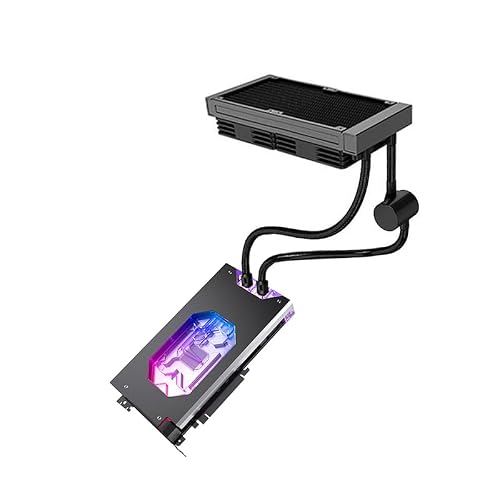
- Radiator placement that dumps hot liquid-cooler air into the case.
Quick-Reference Table
| Symptom | Likely cause | Fix |
|---|---|---|
| GPU hot, case feels hot inside | Not enough intake or reversed fans | Set front and bottom fans to intake, rear and top to exhaust |
| Temperatures slowly rising over months | Dust on filters and heatsinks | Power down, unplug, clean filters and fins with short bursts of compressed air |
| Loud fans, still hot | Restrictive front panel or clogged filter | Clean the filter, open the front panel or add higher static-pressure fans |
| CPU fine, GPU hot | Poor air path to the graphics card | Add or reposition a front or bottom intake fan; tidy cables |
| Hot air rising from top | Top radiator or top exhaust fighting rear exhaust | Review radiator direction and fan roles |
| Dust everywhere inside | Strong negative pressure | Balance intake and exhaust, keep filters on every intake |
| Fans always at idle speed under load | Fan curve too passive | Raise fan curve conservatively in BIOS or the board maker’s software |
Step-by-Step Fixes, Easiest to Hardest
Safety first
Shut the PC down, switch off the power supply at the back and unplug the power cable before touching anything inside. Never open a power supply; its internal capacitors can hold a charge. If your graphics card uses a 12VHPWR or 12V-2×6 connector, follow the graphics card and power supply makers’ guidance for seating it fully, and stop using the card if you see heat damage or discoloration, then contact the maker.
- Move the case. Keep several centimeters of open space around intake and exhaust vents. Take it out of closed cabinets and off thick carpet.
- Confirm fan direction. Most fans have arrows on the frame showing airflow direction. Front and bottom should pull air in; rear and top should push air out. Many fans also have a flat side that normally faces the airflow exit; follow the fan maker’s markings.
- Clean the dust filters. Remove them, wash or brush them as the case maker advises, dry them completely and refit them.
- Blow out dust. Hold fan blades still so they do not over-spin, and use short bursts of compressed air on the CPU cooler, GPU shroud and radiator fins. Work outdoors or in a ventilated space.
- Aim for balanced or slightly positive pressure. Positive pressure means total intake airflow is a little higher than exhaust. Several guides suggest layouts such as two front intakes and one rear exhaust. Negative pressure can sometimes lower temperatures with restrictive fronts, but it pulls dust through gaps.
- Manage cables. Route cables behind the motherboard tray and use ties so the front-to-back air path is clear.
- Adjust fan curves. In the BIOS or the motherboard maker’s utility, set a gentler curve that ramps earlier. The menu names vary by maker, so use the board manual. BIOS changes can cause instability and may affect warranty if misapplied, so change one setting at a time.
- Add or upgrade fans. Use fans suited to filtered intake positions, since higher static pressure helps against filters and mesh.
- Check radiator and cooler orientation. Make sure a liquid cooler’s radiator is not exhausting heat into a spot where intake fans will pull it back in.
- Reseat the cooler and refresh thermal paste. This is a hardware task; follow the cooler maker’s instructions and note that opening or modifying parts may affect warranty on some products.
- Consider a different case. If a case has a solid front and little ventilation, no fan tweak will fully fix it.
How to Measure Whether It Worked
Run a monitoring tool such as HWiNFO or HWMonitor, play a demanding game or run a stress test for 15 to 20 minutes, and note the peak CPU and GPU temperatures and fan speeds. Make one change at a time and repeat the same test. One retailer guide claims many builds gain 5 to 15 degrees Celsius from correcting fan direction and pressure; treat that as a rough estimate, since results depend on the case, parts and room temperature. Keep the room conditions similar between tests, because a warm room alone can shift results by several degrees.
When to Stop and Get Help
- You smell burning, see melted plastic, or notice discolored connectors, especially on a high-power GPU cable.
- The PC shuts down unexpectedly even after cleaning and fan changes.
- Temperatures stay extremely high with all fans spinning and filters clean, which may point to a failed pump, bad mounting or a faulty cooler.
- You suspect a power supply fault. Do not open it; contact the maker or a qualified technician.
- Your system is under warranty and you are unsure whether opening it is allowed. Contact the maker first.
Prevention Tips
- Clean filters every month or two, depending on your home (pets and carpet increase dust).
- Do a full internal clean every few months.
- Choose cases with mesh fronts and room for several fans if you run a high-power GPU.
- Keep filters on every intake position, especially if you run negative pressure.
- Re-check temperatures after adding new parts, since new GPUs and storage change heat patterns.
Frequently Asked Questions
Should the rear fan be intake or exhaust?
The rear fan is normally an exhaust. Making it an intake pushes air against the front intakes, creating turbulence and lowering efficiency, according to several airflow guides.
Is positive or negative pressure better?
Positive pressure keeps dust out because air leaves through filtered intakes first. Negative pressure can give slightly lower temperatures in some cases but pulls dust through every gap. Most guides suggest a slightly positive balance for everyday use.
How many case fans do I need?
There is no single number. Many gaming builds use two or three front intakes and one rear exhaust, plus a top exhaust if the case allows. The right amount depends on the case design and the heat your parts produce.
Will opening the side panel fix hot temperatures?
It may lower temperatures briefly, but it disrupts the designed airflow path and lets dust in. It is useful as a diagnostic step only.
Can a bad airflow case damage my parts?
Components throttle or shut down to protect themselves, but long periods of high heat can shorten lifespan and cause instability. If your PC regularly reaches throttling temperatures, fix the airflow rather than ignoring it.