Key takeaways
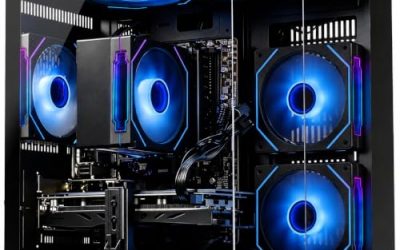
- Tower allowance: $1,000
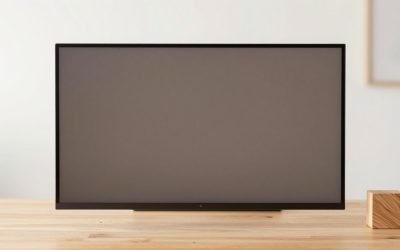
- Monitor allowance: $200
- Keyboard, mouse, and audio allowance: $100
- Planning subtotal: $1,300 before tax and any other charges
For a new gaming desktop in the US, a practical starting budget is roughly $850–$1,300 for the tower, with more room needed for demanding games or higher-resolution goals. But how much would a decent gaming pc cost if you also need a monitor, accessories, and software? Your total depends on what you already own and what “decent” means for your games. This guide separates planning estimates from observed retail prices, explains where extra spending helps, and shows why a balanced computer matters more than an expensive processor or a case full of lights.
How much would a decent gaming pc cost for the tower alone?
For someone buying a new desktop rather than upgrading an existing computer, $850–$1,300 is a useful starting range to investigate. It is a shopping allowance, not a promise that every computer in that range is well configured.
A higher allowance of approximately $1,400–$2,000 gives you more scope to compare stronger graphics hardware, additional memory, and better supporting components. Spending above that can make sense for demanding requirements, but it is not necessary simply to own a capable gaming computer.
These ranges are editorial planning estimates informed by US listings checked on October 31, 2026. They exclude sales tax, a monitor, separately purchased accessories, and any shipping charges.
| Tower budget | How to interpret it | Main buying consideration |
|---|---|---|
| Below $850 | A constrained search involving promotions, used hardware, or narrower gaming requirements | Check age, condition, exact graphics hardware, and missing expenses carefully |
| About $850–$1,300 | A practical starting search range for a new mainstream gaming desktop | Prioritize a balanced configuration over branding or appearance |
| About $1,400–$2,000 | More flexibility for graphics-intensive games and higher-resolution ambitions | Verify that the extra money buys relevant hardware improvements |
| Above $2,000 | A requirements-driven purchase rather than a basic definition of “decent” | Identify the specific performance, storage, noise, or support need justifying the premium |
There is deliberate overlap between what different budgets can accomplish. A temporary promotion can place a useful configuration below a more expensive but less suitable alternative.
What current US listings reveal about the price
The retail snapshot included an ABS Cyclone Aqua configuration advertised through Walmart at $849, with an Intel Core 5 Processor 120, GeForce RTX 5060 8GB, 16GB DDR4 memory, a 1TB NVMe SSD, and Windows 11. That is evidence that this configuration appeared at that advertised price—not proof of its performance, build quality, or availability at every address.
At Newegg, a Thermaltake LCGS NE i1470-V170S R4 listing identified by model N17S-B76R-570-LCS showed $1,649.99. Its listed configuration included a Core i5-14400F, RTX 5070, 32GB DDR4, a 1TB NVMe SSD, and Windows 11.
These examples establish useful price anchors rather than recommended purchases. They also illustrate why a broad product-family name is insufficient: similarly named desktops can use different processors, memory platforms, graphics cards, and supporting components.
Always compare the exact configuration and final checkout price.
What makes a gaming PC “decent”?
A decent computer meets a defined gaming target without an obvious weakness that undermines the experience. That target should include the games you play, your display resolution, your preferred settings, and the responsiveness you expect.
A computer can be entirely satisfactory for an older strategy game and disappointing in a demanding new release. Likewise, a system bought for competitive play at reduced settings may need a different balance of components from one intended for visually detailed single-player games.
Your games and display set the performance target
Start with the games you actually expect to play. Check their published requirements, then look for testing relevant to your intended resolution and settings. Minimum requirements can establish compatibility, but they do not necessarily describe the experience you want.
A 1080p display, a conventional 1440p display, and a 4K display place different demands on graphics hardware. Ultrawide resolutions need separate attention because “1440p ultrawide” does not involve the same pixel count as standard 2560 × 1440.
Refresh rate matters too. Owning a high-refresh-rate monitor does not mean every game must run at that maximum, but buying one creates a reason to investigate whether the computer can deliver the responsiveness you expect. Choose the PC and display together rather than treating them as unrelated purchases.
A balanced configuration matters more than one impressive specification
For a mainstream new desktop, 16GB of system memory and a 1TB SSD are reasonable starting specifications to compare. Treat these as editorial shopping criteria, not universal requirements. Your games, background applications, and storage habits can justify different capacities.
The CPU and GPU require closer attention than a simple brand tier. “Core i7” or “Ryzen 7” does not identify the generation, exact model, or how well the processor suits the graphics card. A large RAM figure also cannot compensate for graphics hardware that falls short of your needs.
Check supporting components as well. The power supply, cooling, motherboard, connectivity, and case layout affect what you can connect, replace, and upgrade. A desktop with an attractive headline specification can still be an inconvenient purchase if the rest of the configuration is poorly documented.
How much more does a complete setup cost?
A tower price is only part of the answer if this is your first desktop. You may also need a monitor, keyboard, mouse, audio equipment, and a suitable connection to your network.
For initial planning, reserving another $200–$400 for a basic display and accessories is a useful editorial allowance. It is not a priced shopping cart. Premium displays, specialist controls, and higher-end audio can increase that amount substantially, while reusing suitable equipment can reduce it.
| Expense | When it belongs in your budget | What to check |
|---|---|---|
| Monitor | You do not already own a suitable display | Resolution, refresh rate, inputs, and included cables |
| Keyboard and mouse | They are absent or the included set is unsuitable | Whether the exact desktop bundle includes them |
| Headset or speakers | You need audio or voice chat | Microphone requirements and connection type |
| Operating system | The computer does not include the license you need | Included edition and legitimate transfer eligibility |
| Networking | Your location needs additional equipment | Ethernet access, included Wi-Fi, antennas, or adapters |
| Tax and shipping | Applicable to your order | Final checkout total rather than advertised subtotal |
| Games and subscriptions | Required for what you intend to play | Separate software and recurring costs |
How much would a decent gaming pc cost with everything included?
Using the starting tower allowance of $850–$1,300 and an illustrative $200–$400 display-and-accessory allowance produces a planning subtotal of $1,050–$1,700 before tax.
That calculation assumes the tower already includes any operating-system license you need. It excludes furniture, games, subscriptions, shipping charges, and additional networking equipment.
A simple hypothetical example makes the distinction clearer:
- Tower allowance: $1,000
- Monitor allowance: $200
- Keyboard, mouse, and audio allowance: $100
- Planning subtotal: $1,300 before tax and any other charges
Those figures illustrate budgeting arithmetic; they are not offers for specific products. If your entire spending limit is $1,300, buying a $1,300 tower leaves nothing for the rest of the setup.
Windows can change the comparison
A prebuilt desktop may include Windows, while a DIY parts list may omit it. Compare the two on the same basis.
Microsoft’s US store displayed Windows 11 Home Download at $139 when checked on October 31, 2026. That is a specific retail-license example, not an amount everyone must add. Your computer may already include Windows, or you may have a license eligible for transfer under its terms.
Do not assume that an existing installation can automatically move to a new machine. Confirm the license type and eligibility before counting it as a saving. Similarly, check that a prebuilt listing explicitly includes the operating system rather than assuming every “gaming PC” arrives with the same software.
Is building cheaper than buying a prebuilt?
Neither approach is automatically cheaper. A meaningful comparison uses current prices for equivalent components and includes software, assembly, delivery, and support.
A discounted prebuilt can be competitive with a separately purchased collection of parts. A DIY build can offer better control over component selection, especially when you want a particular motherboard, quieter cooling, or clearly documented upgrade options.
Compare complete costs rather than advertised starting prices
For DIY, include the CPU, graphics card, motherboard, RAM, SSD, case, power supply, cooling, and any necessary connectivity. Check whether the processor includes a cooler and whether the motherboard supplies the networking you need.
For a prebuilt, confirm the exact configuration rather than relying on a starting price attached to a product family. An upgrade selected in a configurator can change the total substantially.
Then account for the practical difference. Building takes assembly and troubleshooting time. Prebuilt support can simplify who you contact when something goes wrong, but service terms vary. Compare what is actually included, including return shipping responsibilities and warranty coverage.
Do not assume DIY saves a fixed percentage. That claim requires a matched, current parts comparison.
Reusing parts can reduce cost, but only when they fit
Reusing a monitor, storage drive, case, or other suitable hardware can lower the amount you need to spend. However, reuse is a compatibility decision rather than an automatic discount.
Check motherboard and case dimensions, CPU socket and firmware support, RAM generation, power-supply connectors, graphics-card clearance, and cooling requirements. An older case may physically accept the motherboard while still creating restrictions elsewhere.
The same caution applies to upgrading an existing office desktop. Some systems use proprietary layouts or power connections that limit otherwise straightforward upgrades. Confirm the exact machine’s service documentation before buying a graphics card or power supply for it.
Where extra spending helps most
Spend additional money on the limitation that matters for your workload. Adding cost without identifying that limitation can produce a more expensive computer without a noticeable improvement in your games.
Graphics hardware deserves priority when the workload needs it
For graphics-intensive gaming, investigate the GPU before paying for a premium processor, elaborate lighting, or decorative cooling. Higher resolutions and demanding visual settings can make graphics capability especially important.
However, the GPU model alone does not establish the performance of a complete desktop. CPU choice, cooling, memory configuration, power limits, and game settings can influence results.
When reading benchmarks, distinguish native rendering from upscaling and frame generation. A headline FPS figure using generated frames is not interchangeable with native-rendered performance or a direct measurement of input responsiveness. Compare results under matching conditions rather than selecting the largest number.
Without relevant testing, a price tier should be treated as a search category—not a guaranteed resolution-and-frame-rate package.
Memory and storage should match your actual use
More system memory can help when your workload exceeds what the computer has available. It does not mean that doubling RAM doubles gaming performance. Check the requirements of your games and the applications you intend to run alongside them before paying for a capacity upgrade.
Storage is a separate decision. A larger SSD gives you more room for installed games, recordings, and other files. It should not be presented as an automatic substitute for a faster CPU or GPU.
Before buying a small SSD with plans to expand later, check the motherboard’s available slots and the desktop’s serviceability. An inexpensive upgrade plan becomes less attractive if the system lacks a convenient expansion path.
Cooling, power, and support deserve a share of the budget
These components rarely dominate a product title, but they deserve scrutiny. Ask for the exact power-supply model where possible, check the required connectors, and verify that the cooling arrangement suits the included hardware.
A wattage figure alone does not establish power-supply quality. Likewise, liquid cooling is not automatically necessary for a decent gaming computer. The appropriate solution depends on the processor, case, noise target, and implementation.
Paying more for clearly documented components or useful support can be reasonable. The important distinction is whether the premium buys something you need rather than merely a more expensive appearance.
When a lower budget can still work
A lower allowance can be sensible if your requirements are modest or you already own usable equipment. Older games, less demanding titles, reduced settings, and a reused display can change the economics significantly.
Used and refurbished systems widen the search, but they also require a different comparison. Check the exact CPU and GPU, condition, seller, return policy, and included accessories. “Refurbished” does not by itself establish who inspected the machine or what was replaced.
Avoid buying solely because a listing uses “gaming” in the title. Decorative lights and a large memory figure reveal little about whether the graphics hardware suits your games.
If a cheaper computer needs immediate upgrades, include those costs before comparing it with a more complete alternative.
How to set your own spending limit
Use a short requirements list before browsing deals:
- Write down your main games and any non-gaming workloads.
- Identify your existing or planned display resolution.
- Decide whether reduced settings are acceptable.
- Separate the tower allowance from accessories and tax.
- Compare exact configurations within that allowance.
- Check relevant testing before accepting performance claims.
Stop increasing the budget when an upgrade no longer addresses a requirement you can explain. A more expensive desktop may offer additional capability, but that does not mean your own games will benefit enough to justify it.
If two systems look similar, compare their missing details: power supply, memory arrangement, expansion options, cooling, warranty, and return terms. Those differences can be more useful than a promotional discount percentage.
Frequently asked questions
Is $1,000 enough for a decent gaming PC?
It can be enough for the tower, depending on current offers and your expectations. The retail snapshot included a dedicated-GPU desktop below that amount, but one listing does not establish that every $1,000 machine is a good purchase. Check the exact configuration and relevant game performance. A $1,000 complete-setup limit leaves less for the tower.
Do I need to spend $2,000?
Not simply to own a decent gaming computer. That spending level should follow from specific games, display requirements, other workloads, or preferences such as noise and service. If a less expensive configuration meets your target, the additional expense needs a separate justification.
Should I buy a cheaper PC and upgrade later?
That can work when the starting computer already meets your needs and has a practical upgrade path. It is less convincing when you immediately need to replace several components. Add the initial purchase and planned upgrades together, then compare that total with a better-configured machine.
Will a more expensive PC last longer?
A higher price does not guarantee a particular useful life. Future game requirements, component reliability, repairability, and your tolerance for lower settings all matter. Buy enough capability for your current goals, but avoid paying for an unsupported promise that a machine will remain suitable for a fixed number of years.
Does a bigger power supply increase the electricity bill?
Its rated capacity is not the amount the computer continuously consumes. Actual consumption depends on the components and workload, along with power-supply efficiency. For an operating-cost estimate, use measured wall power for a relevant workload, your hours of use, and your electricity rate.
Conclusion
A practical starting allowance for a new gaming tower is about $850–$1,300, with approximately $1,400–$2,000 providing more flexibility for demanding requirements. Treat those figures as shopping ranges rather than performance guarantees. If you need a complete setup, reserve money for the monitor, accessories, tax, and any missing software before choosing the tower. Define your games and display target first, then compare exact configurations. A balanced desktop that meets those needs is a better purchase than a more expensive machine whose headline specifications do little for the way you play.