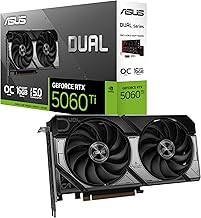
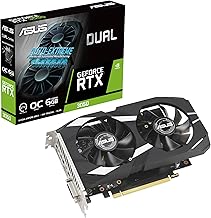
The best laptop video card for gaming depends on your screen resolution, the settings you want to use, and how much power the laptop can sustain. The GeForce RTX 5070 Ti Laptop GPU is the first option I’d compare for demanding games at 1440p or 1600p. Its 12 GB of video memory gives you more room than an 8 GB configuration without moving straight to a flagship laptop. For 1080p, start with the RTX 5060. If you regularly game on a 4K monitor, compare RTX 5080 and RTX 5090 laptops using results for the exact configurations you can buy.
Best laptop video card for gaming by resolution
For a laptop with a 2560 × 1600 display, start with the RTX 5070 Ti. Move up to the RTX 5080 if the games you play benefit from its extra graphics performance or 16 GB of video memory. For a 1920 × 1080 or 1920 × 1200 screen, the RTX 5060 is the more practical starting point.
| GeForce Laptop GPU | Best fit | Video memory | Main trade-off |
|---|---|---|---|
| RTX 5050 | Esports, older games, and lighter 1080p workloads | 8 GB GDDR7 | Less rendering headroom than the RTX 5060 even though both have 8 GB. |
| RTX 5060 | Mixed gaming at 1080p or 1200p | 8 GB GDDR7 | Demanding games may call for lower settings at 1600p. |
| RTX 5070 | A specific thin or travel-friendly laptop that meets your gaming target | 8 GB or 12 GB GDDR7 | The same GPU name covers two memory capacities. Check the exact SKU. |
| RTX 5070 Ti | Demanding games on a 1440p or 1600p display | 12 GB GDDR7 | Compare the actual cooling and power profile before paying for the upgrade. |
| RTX 5080 | High-detail 1600p gaming and regular use with a 4K monitor | 16 GB GDDR7 | The case over the 5070 Ti depends on how much the specific laptop gains at your settings. |
| RTX 5090 | Maximum graphics headroom among these six tiers, particularly for demanding 4K workloads | 24 GB GDDR7 | Extra VRAM can go unused, and the premium buys less in games limited by the CPU. |
These are mobile GPUs you select when you buy the laptop. The table describes where each tier makes sense. Actual frame rates depend on the game, settings, and laptop configuration.
How we selected the laptop GPUs
This roundup compares six GeForce RTX 50-series mobile GPUs represented in U.S. laptop listings. The selection weighs rendering performance, VRAM capacity, and how the laptop’s power and cooling affect the GPU. Each pick serves a different use case, from a machine for lighter 1080p play to one intended to spend most of its time connected to a 4K monitor.
NVIDIA’s published specifications establish the GPU names and memory capacities. Independent laptop tests inform the performance comparisons and show where whole-system differences matter. For example, a comparison between a high-power 5070 Ti laptop and a thinner 5070 laptop reflects the systems as configured, including their CPUs and power limits. The recommendations are based on published specifications and third-party testing. No detailed research was performed for this roundup.
Laptop GPU recommendations
Choose a GPU tier first, then compare laptops within it. Give extra weight to reviews that test the same chassis, CPU, GPU, and performance mode as the machine you’re considering. That matters most when you’re deciding between a thin laptop with a higher-tier GPU and a roomier model with more cooling capacity.
GeForce RTX 5050 Laptop GPU for lighter 1080p play
The RTX 5050 makes sense for esports, older titles, and games that run comfortably with moderate settings. It has 8 GB of GDDR7, the same capacity as the RTX 5060, but the 5060 has more graphics processing resources. You can feel that difference when a game’s lighting and effects become more demanding even though its textures still fit into video memory.
Compare the full laptops when deciding whether to step up. If an RTX 5050 model has a better screen or enough storage for your library, and independent tests show it can run your games at your desired settings, those advantages matter every time you use it. A higher GPU tier becomes more important if you regularly play graphically demanding releases.
Buy if your main games are relatively light, you plan to play at 1080p, and the complete laptop is meaningfully less expensive than a comparable RTX 5060 model. Skip if you want to play demanding games on a 1600p panel and rarely adjust graphics settings.
GeForce RTX 5060 Laptop GPU for mixed gaming at 1080p
The RTX 5060 is the first tier to compare for a mix of competitive games and modern single-player releases at 1080p or 1200p. Its appeal over the RTX 5050 is the extra rendering capacity. That can give you room to raise effects or improve frame rates without paying for a GPU aimed mainly at higher-resolution displays.
The 8 GB of VRAM is worth watching when you move up in resolution or use high-resolution texture packs. On a 1600p screen, you may prefer to enable quality-mode upscaling where available, lower a few demanding effects, or choose a more moderate texture setting in memory-heavy games. If the laptop’s screen is 1080p and that’s how you intend to play, you can judge the configuration against a much simpler target.
Buy if you want one laptop for a varied game library at 1080p or 1200p. Skip if your main goal is native 1600p gaming with high settings in demanding releases and the benchmarks for your games show you need more headroom.
GeForce RTX 5070 Laptop GPU for a portable configuration
The RTX 5070 has a place on the shortlist when you find a laptop you’d already want to carry. A thin machine with the right screen, keyboard, and charger size can suit someone who works away from home and games in the evening. The trade-off is that a compact cooling design or conservative power profile can reduce the benefit you expect from stepping up a GPU tier.
Check whether the exact RTX 5070 variant has 8 GB or 12 GB of GDDR7. The 12 GB version gives memory-heavy settings more space, but it still uses the RTX 5070 graphics processor. The RTX 5070 Ti also has 12 GB and offers more rendering resources and higher published memory bandwidth. A listing that shows only “RTX 5070” leaves out a detail worth confirming.
Buy if the exact laptop meets your portability needs, its memory capacity is confirmed, and tests show it can handle your games. Skip if a similarly equipped RTX 5070 Ti model is close in price and you’ll spend most of your time playing plugged in at a desk.
GeForce RTX 5070 Ti Laptop GPU for 1440p and 1600p
The RTX 5070 Ti is the main pick for playing demanding games on a 2560 × 1440 external monitor or a 2560 × 1600 built-in display. It combines 12 GB of GDDR7 with more rendering resources and memory bandwidth than the regular RTX 5070. That makes it a stronger starting point when you want to retain visual detail at higher resolutions and still have some room to tune the frame rate.
Pay attention to the laptop around it. An independent comparison of a high-power 5070 Ti machine and a lower-power 5070 machine can show what those two systems deliver, but it cannot isolate the GPU upgrade. If you’re shopping two models with different chassis, look for sustained game tests and noise measurements in the mode you’ll actually use. A louder maximum-performance mode may have little value if you’ll always switch it off.
Buy if 1440p or 1600p is your main gaming resolution and you want more texture and effects headroom than the lower tiers provide. Skip if you mostly play lighter games at 1080p, or if your priority is high-detail 4K and exact-model testing gives you a clear reason to step up.
GeForce RTX 5080 Laptop GPU for high-detail 1600p and 4K
The RTX 5080 moves up to 16 GB of GDDR7, giving it more room for memory-heavy settings than the RTX 5070 Ti. It makes particular sense when your laptop will alternate between a high-refresh 1600p panel and an external 4K display. You can use the extra graphics headroom at either resolution, although the payoff will vary by game and by how much power the laptop can sustain.
Before upgrading, look for a workload that justifies it. If a 5070 Ti laptop already reaches your target with the textures and effects you prefer, the 5080 may make little difference to your day-to-day experience. If the 5070 Ti falls short after you’ve lowered the settings you care least about, compare the 5080 at those same settings. That tells you more than comparing each laptop’s highest reported frame rate.
Buy if you play demanding titles at high detail on a 1600p panel or regularly connect a 4K monitor. Skip if your games already meet your target on a comparable 5070 Ti machine or if the 5080 configuration requires compromises on the screen or fan noise you’d notice more often.
GeForce RTX 5090 Laptop GPU for maximum graphics headroom
The RTX 5090 is the flagship among these six mobile GPUs. Its 24 GB of GDDR7 gives it the largest memory capacity here, and it has more graphics processing resources than the RTX 5080. The strongest case for it is a laptop that spends much of its time plugged in and running demanding games at high resolutions, especially when the settings you use can take advantage of the extra capacity.
The important comparison is an RTX 5090 laptop against an RTX 5080 laptop at the same resolution, ideally in the same chassis family and with comparable CPUs and performance modes. Some games will gain more than others. If the CPU is already limiting your frame rate or the game fits comfortably within 16 GB of VRAM, the 24 GB specification alone gives you little reason to pay more.
Buy if you want the most graphics headroom in this roundup and tests of the exact machine show a worthwhile gain in your demanding games. Skip if a well-configured RTX 5080 meets your targets, or if most of your play time goes to CPU-limited multiplayer games.
How to compare laptops with similar graphics specs
Once you narrow the choice to two GPU tiers, compare actual laptops as configurations. Record the panel resolution, CPU, memory capacity, stated graphics power, and cooling mode used in reviews. Then decide which compromise costs you more in everyday use, whether that’s turning down settings, carrying a bulkier charger, or living with louder fans.
Find the best laptop video card for gaming at your screen’s resolution
Check the pixel dimensions instead of relying on display labels such as “2K” or “QHD+.” A 1920 × 1200 display is closer to 1080p than to 2560 × 1600. A 2560 × 1600 display has the same width as 1440p but adds vertical pixels, which increases the rendering workload at native resolution. If you mostly game on an external display, use that monitor’s resolution when narrowing the GPU shortlist.
Decide which settings you would lower first. If your favorite games still look good with shadows set to medium, a lower GPU tier may get you to the frame rate you want. If you care about high-resolution textures, ray tracing, or playing at the panel’s native resolution, compare systems with those options enabled before you buy.
Compare graphics power and sustained performance
Check the laptop manufacturer’s graphics-power figure and whether it includes Dynamic Boost. For example, a published maximum that includes extra power reallocated from the CPU describes different conditions from a base GPU power figure. Use the product specification to understand how the system is configured, then use a sustained gaming test to see what it delivers.
Look at the mode being tested and whether the laptop was plugged in. A short benchmark in the fastest power mode may tell you little about how the laptop sounds during a long session in its balanced mode. If two models use the same GPU, a review that measures noise and frame rates together can help you choose the one you’d be comfortable using.
Check rendered performance before counting generated frames
Upscaling and frame generation solve different problems. Upscaling renders the game internally at a lower resolution and reconstructs the image for the display. Frame generation inserts additional frames between rendered ones to make motion look smoother. A frame-generation result can be worth considering for a single-player game, especially if the underlying frame rate already feels responsive.
For a useful comparison, start with results under the same settings with frame generation disabled. Then check what happens with upscaling or frame generation enabled in the games you play. For competitive shooters, prioritize consistent rendered frame rates and responsiveness. For visually demanding single-player games, look at how much image quality you retain and whether the controls feel responsive enough for that game.
Frequently asked questions
The same laptop GPU can appear in configurations that differ in memory, power, and cooling. Before purchasing, check the full model number and the screen resolution you’ll actually use. Two other questions come up often when comparing mobile GPUs with desktop cards or planning around a future upgrade.
Can you upgrade the video card in a gaming laptop?
Most gaming laptops have their dedicated GPU attached to the motherboard. Buy with the expectation that the GPU you choose will stay with the machine. A few systems use replaceable graphics modules, but you should confirm that support in the service documentation and check that a compatible module is sold for the exact model. If the manufacturer lists upgrades only for storage and system memory, plan your purchase around the installed GPU.
Is a laptop GPU the same as a desktop card with a similar name?
Compare the mobile and desktop versions as separate products. They can have different hardware configurations, video memory, and power limits. A desktop review may help you understand a graphics feature, but its frame rates are a poor basis for choosing a similarly named laptop GPU. Look for tests of the Laptop GPU first, then check whether the tested laptop resembles the machine you can buy.
Conclusion
Start with the RTX 5060 for mixed gaming at 1080p or 1200p and the RTX 5070 Ti for demanding games at 1440p or 1600p. The RTX 5050 makes sense for a lighter library when the complete laptop costs meaningfully less. The RTX 5070 earns a place on the shortlist when the laptop itself fits your travel needs and you’ve confirmed the VRAM variant. For regular 4K play, compare the RTX 5080 and RTX 5090 in the games and settings you care about. Make the final decision using the exact laptop’s sustained performance, noise, and display.
More from Amazon
Programs that pair well with the guide above. Offers and eligibility are set by Amazon and may change.
Set up recurring deliveries of everyday items on eligible products. Terms and savings are set by Amazon.
Explore Subscribe & SaveFree shipping on eligible items, Prime Video and more. Eligible new members can start with a free trial.
Start a Prime free trialA Prime membership for ages 18-24 with a trial period. Eligibility is set by Amazon.
See Prime for Young AdultsAudiobooks and podcasts to listen to on the go. Eligible new members can start with a free trial.
Try Audible freeAs an Amazon Associate we earn from qualifying purchases.