Key takeaways
- Refresh rate vs. your GPU: A 160Hz 4K panel is only worth it if your graphics card can push frames to match. If you’re running mid-range hardware, a 120Hz 4K monitor costs less and you’ll rarely notice the difference in demanding titles.
- Panel type: IPS is the safe default at this price — strong colour accuracy and wide viewing angles, with contrast that’s merely adequate. VA panels give deeper blacks and suit dark, atmospheric games, but can smear in fast motion. Avoid TN at 4K.
- Real HDR vs. badge HDR: Most sub-$500 monitors carry a DisplayHDR 400 label, which is effectively SDR with a brighter backlight. Treat HDR as a bonus, not a buying reason, unless the panel has local dimming zones.
- Connectivity: Check for DisplayPort 1.4 or better and HDMI 2.1 if you plan to connect a PS5 or Xbox Series X at 4K120. USB-C with power delivery is a genuine convenience if you also dock a laptop — but you’ll usually pay a premium for it.
- Ergonomics and warranty: A stand with height and tilt adjustment matters more day to day than a marginal refresh-rate bump. Likewise, a three-year warranty with a dead-pixel policy is worth real money on a panel you’ll keep for years.
Shopping for a 4K gaming monitor under $500 in 2026 is easier than it was a few years ago, but it’s also more confusing. Panel makers have flooded the mid-range with high-refresh 4K IPS displays, and the spec sheets have started to blur together: 160Hz here, 144Hz there, HDR badges that mean very little, and a growing pile of “dual-mode” panels that can drop to 1080p for extra frames. The result is that two monitors with nearly identical marketing copy can feel completely different on your desk.
This guide cuts through that. Below you’ll find the 4K gaming monitors we’d actually spend our own money on at this price, along with a short buying checklist, honest notes on where each display makes its compromises, and answers to the questions that come up most often. Every pick here is chosen to sit realistically inside a $500 budget — no bait-and-switch “on sale for one hour” recommendations — and each is judged on value for money rather than raw spec count.
Our top picks




As an Amazon Associate we earn from qualifying purchases at no extra cost to you. Ratings are shown as listed on Amazon.
⚡ Save on Your Next PC — Amazon Prime
Prime members get fast free shipping on the systems above, plus early access to Prime Day & Black Friday PC deals. New members get a 30-day free trial.
Watch: Best 4K Monitor Under $500 — Video Review
How to Choose 4K Monitor Under $500
- Refresh rate vs. your GPU: A 160Hz 4K panel is only worth it if your graphics card can push frames to match. If you’re running mid-range hardware, a 120Hz 4K monitor costs less and you’ll rarely notice the difference in demanding titles.
- Panel type: IPS is the safe default at this price — strong colour accuracy and wide viewing angles, with contrast that’s merely adequate. VA panels give deeper blacks and suit dark, atmospheric games, but can smear in fast motion. Avoid TN at 4K.
- Real HDR vs. badge HDR: Most sub-$500 monitors carry a DisplayHDR 400 label, which is effectively SDR with a brighter backlight. Treat HDR as a bonus, not a buying reason, unless the panel has local dimming zones.
- Connectivity: Check for DisplayPort 1.4 or better and HDMI 2.1 if you plan to connect a PS5 or Xbox Series X at 4K120. USB-C with power delivery is a genuine convenience if you also dock a laptop — but you’ll usually pay a premium for it.
- Ergonomics and warranty: A stand with height and tilt adjustment matters more day to day than a marginal refresh-rate bump. Likewise, a three-year warranty with a dead-pixel policy is worth real money on a panel you’ll keep for years.
The Best Picks Reviewed
Acer Nitro VG270K V4
The Nitro is the value benchmark here: a 27-inch 4K IPS panel at 160Hz with a dual-refresh mode that switches to 1080p at 320Hz for competitive shooters. Colour accuracy out of the box is solid for the money, and while the stand is basic and HDR is nominal, the core panel performance punches well above its price.
ASUS ROG XG27UCSR
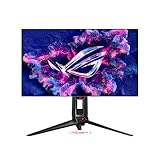
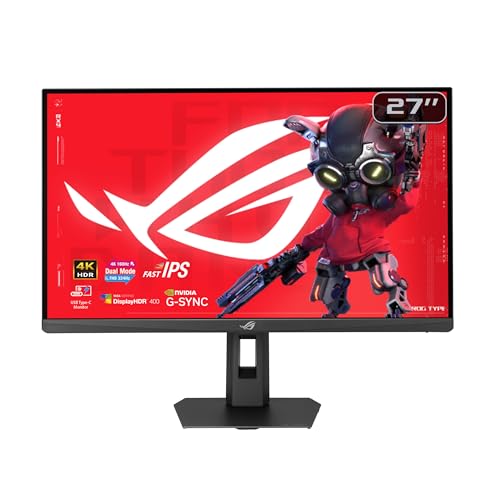
ASUS’s ROG entry is the most complete package of the group, pairing a fast 4K 162Hz IPS panel with USB-C connectivity and G-SYNC compatibility. It typically sits at the very top of the $500 bracket, so it’s the pick for buyers who want one monitor that handles gaming and laptop docking without compromise.
ASUS TUF Gaming VG27UQ1A
The TUF sibling trades USB-C for a lower price while keeping the important parts: 160Hz, 1ms response, 95% DCI-P3 coverage, and both G-SYNC compatibility and FreeSync Premium. Extreme Low Motion Blur Sync is a genuinely useful addition for fast-paced games, and the three-year warranty adds real peace of mind.
Dell S2725QS
Dell’s S2725QS is the sensible choice for mixed use — a well-calibrated 4K IPS panel at 120Hz with a properly adjustable stand and clean, understated design. It won’t satisfy competitive players chasing frame rates, but for single-player gaming, creative work and long desk sessions, it’s the most comfortable monitor here.
Samsung Odyssey G7 (G75F) 37″
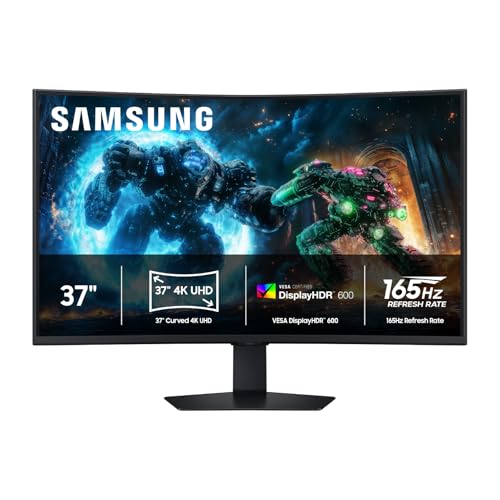
If you want scale, the 37-inch curved Odyssey G7 delivers 4K across a genuinely immersive VA panel with much deeper blacks than any IPS on this list. It’s the largest and usually the priciest option, so check current pricing carefully against your budget — and be aware that a 37-inch curve demands a deep desk.
Frequently Asked Questions
Do I need a high-end GPU for 4K gaming?
For 60–90fps at 4K in modern titles, a current-generation upper-mid-range card is the realistic minimum. Upscaling technologies like DLSS and FSR have narrowed the gap considerably, and dropping to a lower internal resolution on a 4K panel still looks better than a native 1440p display in most cases.
Is 4K worth it at 27 inches?
Yes, though the benefit is sharpness rather than screen real estate. At 27 inches you get roughly 163 pixels per inch, which produces noticeably crisper text and finer detail than 1440p. If you sit close to your monitor, the difference is obvious.
Should I choose 4K at 120Hz or 1440p at 240Hz?
It depends entirely on what you play. Competitive shooters reward the higher refresh rate and lower resolution; single-player, visually rich games reward the pixel density. Dual-mode panels like the Acer Nitro attempt to give you both, with some caveats.
Is HDMI 2.1 essential?
Only if you’re connecting a current-generation console and want 4K at 120Hz. PC users on DisplayPort 1.4 with Display Stream Compression can hit high refresh rates at 4K without it, so it’s a nice-to-have rather than a dealbreaker for a PC-only setup.
Final Thoughts
For most buyers, the Acer Nitro VG270K V4 is the smartest use of a $500 budget — it delivers the 4K high-refresh experience with the fewest meaningful compromises. Step up to the ASUS TUF VG27UQ1A if you value the longer warranty and stronger colour coverage, or the Dell S2725QS if your monitor pulls double duty for work and you’d rather have ergonomics and calibration than the last 40Hz of refresh rate.