Key takeaways
- Use Velcro over zip ties inside: Reusable straps let you adjust and add cables later without cutting anything.
- Route behind the tray first: Hide every cable you can behind the motherboard so the main chamber stays clean and airy.
- Leave slack at connectors: A little give prevents strain on ports and makes reseating cables easier during upgrades.
- Manage external cables too: An under-desk tray or cable sleeve tidies the run between your PC, monitor and peripherals.
Good cable management is more than looks, though a clean build certainly looks great through a glass side panel. Tidy cables improve airflow by clearing the path for intake and exhaust fans, make future upgrades painless, and reduce the dust traps that raise component temperatures. The best news is that cable management needs almost no money, just patience, a handful of Velcro straps and zip ties, and a willingness to route wires behind the motherboard tray.
This guide walks through planning your routing, using the case’s built-in channels, bundling cables cleanly, and finishing with combs for a showcase look. Whether you’re building fresh or retidying an existing rig, a basic cable management kit with sleeves, clips and straps makes the job faster. Set aside 30-45 minutes and your PC will breathe easier and look far more professional.
Our top picks
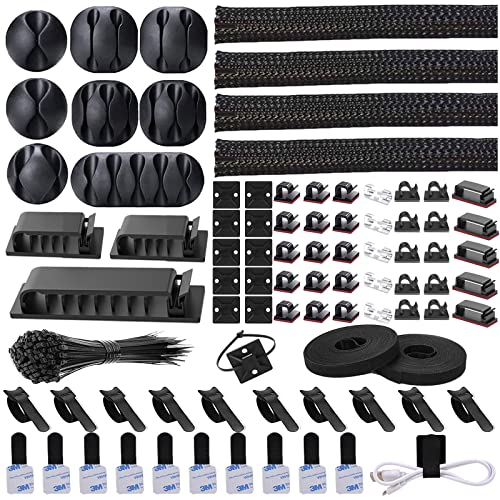 N NOROCME 192 PCS Cable Management Kit
- Cable Management Kit: 4pcs Cable Sleeves( 20 in…
- 6 kinds of Cable Clips:46pcs wire Clips is…
- Premium Material: Made of highly sturdy and quality…
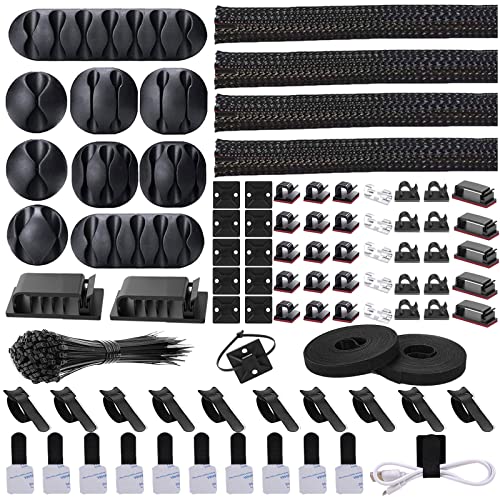 Cord Management Organizer Kit 4 Cable Sleeve
- Cable Management Organizer Kit: This comprehensive kit includes…
- Safety Material: Made of highly sturdy and quality…
- 3 kinds of Black Cable Clips:36pcs wire Clips…
 311Pcs Cable Management Organizer Kit 4 Cable
- Cable Management Kit:4pcs Cable Sleeves( 20 in L…
- 6 kinds of Cable Clips:65pcs wire Clips is…
- Premium Material:The sleeve is made from PET material,…
| Product | Key specs | |
|---|---|---|
| N NOROCME 192 PCS Cable Management Kit | Cable Management Kit: 4pcs Cable Sleeves( 20 in… 6 kinds of Cable Clips:46pcs wire Clips is… Premium Material: Made of highly sturdy and quality… | Check price |
| Cord Management Organizer Kit 4 Cable Sleeve | Cable Management Organizer Kit: This comprehensive kit includes… Safety Material: Made of highly sturdy and quality… 3 kinds of Black Cable Clips:36pcs wire Clips… | Check price |
| 311Pcs Cable Management Organizer Kit 4 Cable | Cable Management Kit:4pcs Cable Sleeves( 20 in L… 6 kinds of Cable Clips:65pcs wire Clips is… Premium Material:The sleeve is made from PET material,… | Check price |
 Alex Tech 10ft Alex Tech 10ft | Size: Diameter: 1/2"| Length: 10 Feet | Color:… Operating temp (degree F.):-103 to 257|Melt temp: 446 Our cord protector keeps cat from chewing cables | Check price |
 Sirlyr Black 24-PCS PSU Cable Combs Kit Sirlyr Black 24-PCS PSU Cable Combs Kit | 【Premium Cable Management Kit】✔️ Includes 24 PCS of… 【Durable & Flexible PP Material】✔️ Made of reinforced… 【Clean PC Builds, Better Airflow】✔️ Eliminates tangled cables,… | Check price |
 494 PCS Cable Management Kit 494 PCS Cable Management Kit | 【Cable Management Kit】 4 cable sleeve split (15.7… 【Make Your Life Easier and Tidy】 To break… 【High-Quality Materials】 Our cable management kit is made… | Check price |
 80PCS Hook and Loop Cable Ties 80PCS Hook and Loop Cable Ties | Flexible Cord Management: With more and more appliances… Strong Back-Glue: Hook and loop cable clips is… Easy Adjustment: The hook and loop cable clips… | Check price |
 Cable Management Under Desk Cable Management Under Desk | 【NO DRILL & INSTANT CLAMP INSTALLATION】 Say goodbye… 【LARGE CAPACITY CABLE MANAGEMENT TRAY】 The 25.3-inch wire… 【PREMIUM METAL WIRE ORGANIZER】 Constructed from high-quality metal,… | Check price |
As an Amazon Associate we earn from qualifying purchases at no extra cost to you.
⚡ Save on Your Next PC — Amazon Prime
Prime members get fast free shipping on the systems above, plus early access to Prime Day & Black Friday PC deals. New members get a 30-day free trial.
Watch: How to Cable Manage Your Gaming PC — Video Review
Plan Your Routes Before Connecting
Before plugging anything in, look at where each cable needs to go and find the shortest hidden path. Modern cases include cutouts near the motherboard edges and a gap behind the tray for exactly this. Route power, front-panel and data cables behind the tray so only the necessary ends poke through near their connectors, keeping the main chamber clear.
Use the Case’s Channels and Tie Points
Most cases have built-in cable channels, rubber grommets and pre-installed anchor points or Velcro loops behind the tray. Feed cables through the grommets so they emerge right beside their sockets, and use the anchor points to hold bundles flat. A tray-mounted cable channel or under-desk tray can also corral the external cables between your PC and monitor.
Bundle and Secure Cleanly
Group cables that run the same direction and bind them with reusable Velcro straps rather than overtightened zip ties, which are hard to adjust later. A cable management kit with sleeves lets you wrap loose runs into a single neat tube. Leave a little slack at connectors so nothing tugs, and keep bundles flat against the tray to fit the side panel back on.
Improve Airflow by Clearing the Path
Dangling cables in front of fans or the CPU cooler disrupt airflow and collect dust. By moving them behind the tray, you give intake fans a clear draw and exhaust fans an unobstructed push, which can drop component temperatures a few degrees. Keep the area around the GPU and CPU cooler especially clear for the best thermal results.
Finish for a Showcase Look
For builds with a glass panel, PSU cable combs align the individual wires of your 24-pin and GPU power cables into a flat, parallel ribbon that looks custom. Extension cables in a matching color add a premium touch. These final steps are purely cosmetic but transform a functional build into a display piece behind tempered glass.
Tips
- Use Velcro over zip ties inside: Reusable straps let you adjust and add cables later without cutting anything.
- Route behind the tray first: Hide every cable you can behind the motherboard so the main chamber stays clean and airy.
- Leave slack at connectors: A little give prevents strain on ports and makes reseating cables easier during upgrades.
- Manage external cables too: An under-desk tray or cable sleeve tidies the run between your PC, monitor and peripherals.
Frequently Asked Questions
Does cable management actually improve temperatures?
Yes, modestly. Clearing cables from in front of fans improves airflow and reduces dust buildup, which can lower component temperatures by a few degrees over time.
Zip ties or Velcro straps, which is better?
Velcro straps inside the case, because they’re reusable and adjustable. Zip ties are fine for permanent external bundles but a hassle to change later.
Do I need a modular power supply for clean cables?
It helps, since you only connect the cables you use. With a non-modular PSU, tuck unused cables behind the tray or in an empty drive bay instead.
What are PSU cable combs for?
They align the individual wires of power cables into a flat, parallel ribbon for a clean, custom look, mainly for showcase builds with glass side panels.
Conclusion
Cable management is cheap, quick and genuinely worthwhile, improving airflow, easing upgrades and elevating your build’s appearance. Plan your routes, hide cables behind the tray, bundle with Velcro, and add combs if you want a showcase finish. A basic kit and 30 minutes turn a tangled interior into a clean, cool, professional-looking machine.