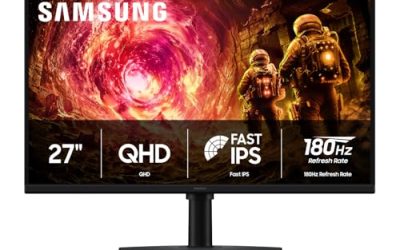
A second screen changes how you game. You can keep Discord, a wiki, or a stream chat parked on one panel while the action stays full-screen on the other, and once you have lived with it, going back to a single display feels cramped. The good news for 2026 is that a matched dual setup no longer costs a fortune, with two-pack kits like the Kado Dual Monitor 2-Pack 24″ Curved 1500R panels landing well under the price of a single premium display.
This guide walks through the whole process, from picking panels that actually pair well to cabling, Windows arrangement, and the little tweaks that stop the mouse from snagging between screens. Whether you buy a curved twin-pack or add a flat 24″ to a monitor you already own, the steps are the same and take about 20 minutes.
Our top picks
 Kado 2-Pack Dual 24" Curved 1500R 1920x1080
- Curved monitors in a dual setup provide a…
- The 1500R curved design provides a more comfortable…
- Fast response times reduce ghosting & blurring while…
 Kado 2-Pack Dual 27" Curved 1500R 1920x1080
- Curved monitors in a dual setup provide a…
- The 1500R curved design provides a more comfortable…
- Fast response times reduce ghosting & blurring while…
 Kado Dual Monitor 2-Pack 24" Curved 1500R
- Curved monitors in a dual setup provide a…
- The 1500R curved design provides a more comfortable…
- Fast response times reduce ghosting & blurring while…
| Product | Key specs | |
|---|---|---|
| Kado 2-Pack Dual 24" Curved 1500R 1920x1080 | Curved monitors in a dual setup provide a… The 1500R curved design provides a more comfortable… Fast response times reduce ghosting & blurring while… | Check price |
| Kado 2-Pack Dual 27" Curved 1500R 1920x1080 | Curved monitors in a dual setup provide a… The 1500R curved design provides a more comfortable… Fast response times reduce ghosting & blurring while… | Check price |
| Kado Dual Monitor 2-Pack 24" Curved 1500R | Curved monitors in a dual setup provide a… The 1500R curved design provides a more comfortable… Fast response times reduce ghosting & blurring while… | Check price |
 Kado Dual Monitor 2-Pack 27" Curved 1500R Kado Dual Monitor 2-Pack 27" Curved 1500R | Curved monitors in a dual setup provide a… The 1500R curved design provides a more comfortable… Fast response times reduce ghosting & blurring while… | Check price |
 Kado 2-Pack Dual 22" Flat Screen 1920x1080 Kado 2-Pack Dual 22" Flat Screen 1920x1080 | Flat monitors in a dual setup provide a… Fast response times reduce ghosting & blurring while… Experience vibrant and true-to-life colors with a 99%… | Check price |
 Kado 2-Pack Dual 27" Flat Screen 1920x1080 Kado 2-Pack Dual 27" Flat Screen 1920x1080 | Flat monitors in a dual setup provide a… Fast response times reduce ghosting & blurring while… Experience vibrant and true-to-life colors with a 99%… | Check price |
 Kado Dual 2-Pack 27" 165Hz 1ms 1920x1080 Kado Dual 2-Pack 27" 165Hz 1ms 1920x1080 | DUAL 27" FLAT SCREENS Ultra-smooth visuals with lightning-fast response times. Reduces motion blur for crisp, competitive gameplay. | Check price |
 Sceptre New 22-Inch Gaming Monitor Sceptre New 22-Inch Gaming Monitor | 【INTEGRATED SPEAKERS】Whether you're at work or in the… 【EASY ON THE EYES】 Protect your eyes and… 【WIDEN YOUR PERSPECTIVE】Our sleek minimal bezel design ensures… | Check price |
As an Amazon Associate we earn from qualifying purchases at no extra cost to you.
⚡ Save on Your Next PC — Amazon Prime
Prime members get fast free shipping on the systems above, plus early access to Prime Day & Black Friday PC deals. New members get a 30-day free trial.
Watch: How to Set Up Dual Monitors for Gaming — Video Review
Match Your Panels Before You Buy
The cleanest dual setups use two identical monitors, which is exactly why matched two-packs like the Kado 2-Pack Dual 27″ Curved 1500R 75Hz kit exist. Identical panels share the same height, bezel thickness, refresh rate, and color profile, so text lines up perfectly across the seam and colors don’t shift when you drag a window from one to the other. If you must mix, match the resolution and physical height first (a 24″ 1080p pairs naturally with another 24″ 1080p), since Windows can scale but cannot hide a height mismatch.
- Resolution: Keep both screens at the same native resolution, typically 1920×1080, so scaling stays at 100% and the mouse crosses at the correct point.
- Refresh rate: Aim for at least 75Hz on both; the Kado kits and the Sceptre 22-inch run 75Hz to 144Hz, so your desktop stays smooth even off the game screen.
Check Your Graphics Card Outputs
Before ordering, count the video ports on your GPU. Most modern cards expose three DisplayPort connectors and one HDMI, which is plenty for two monitors. Prefer DisplayPort for your primary gaming panel because it handles high refresh at 1080p without compression, and use HDMI for the secondary screen. If your card only has one free port, a DisplayPort MST hub or a USB-C dock can drive the second display instead of forcing a GPU upgrade.
Position and Cable for Comfort
Set your main monitor directly in front of you at arm’s length, with the top of the screen at eye level, then angle the second panel inward about 15 to 30 degrees so you turn your head instead of your eyes. Curved 1500R models like the Kado 27″ curved twin-pack wrap slightly toward you, which reduces the neck swivel on a wide setup. Route both video cables and both power cables down the same side and use a couple of velcro ties so nothing tugs the stands out of alignment.
Arrange the Displays in Windows
Right-click the desktop, open Display settings, and drag the two numbered rectangles so their on-screen order matches their physical order on your desk. Align the tops of the rectangles precisely, or the cursor will jump vertically at the boundary. Set your gaming monitor as the “Make this my main display” screen so games and the taskbar default to it, then confirm each panel is running its full refresh rate under Advanced display.
Tips
- Game in borderless windowed: This lets you move the mouse to the second screen without minimizing your game, unlike exclusive fullscreen.
- Disable mouse “sticky edges” software: Some vendor utilities slow the cursor at screen edges; turn that off for instant crossing.
- Calibrate both panels: Even matched units can drift slightly, so run Windows color calibration on each so whites match.
- Mind the seam: Never split a single important element, like a scoreboard, across the bezel gap; keep tools on the second screen instead.
Frequently Asked Questions
Do both monitors need the same refresh rate?
They don’t strictly have to, but mismatched refresh rates can cause the higher one to stutter on some drivers. Matched two-packs sidestep this entirely, which is one reason kits like the Kado 165Hz flat twin-pack are popular for gaming.
Will a second monitor hurt my in-game FPS?
Only slightly. Playing a video or animation on the second screen uses a little GPU, but a static Discord or browser window costs almost nothing measurable, usually a frame or two at most.
Can I use two different sized monitors?
Yes, but match the resolution and try to match physical height. A 24″ and a 27″ of the same resolution work fine; you just align their tops in Windows and accept a small height offset at the bottom.
What cable should I use for gaming?
Use DisplayPort for your primary high-refresh screen and HDMI for the secondary. DisplayPort 1.4 comfortably drives 1080p at 144Hz and above without the bandwidth juggling HDMI sometimes needs.
Final Thoughts
A dual-monitor setup is one of the highest-value upgrades a gamer can make, and in 2026 a matched two-pack makes it almost effortless. Pick identical panels, prioritize DisplayPort for your main screen, align the displays carefully in Windows, and you’ll have a workspace that improves both play and everything else you do at the desk.