Key takeaways
- Enable XMP/EXPO before manual tuning: It gives 90% of the gain with zero risk and is the right starting point for everyone.
- Change one setting at a time: Isolate each tweak so you know exactly what caused an instability or a failed boot.
- Keep voltage sane: Stay near 1.4V for DDR5 unless you have cooling and experience; excess voltage degrades modules over time.
- Save a working BIOS profile: Store your stable settings so a failed experiment is one reset away from recovery.
Overclocking your RAM is one of the highest-value tweaks in PC gaming, because memory speed and timings directly feed the CPU, and faster memory can add real frames in CPU-bound games, especially on Ryzen. The best part is that most of the gain comes free: enabling your kit’s XMP or EXPO profile alone unlocks its rated speed. True manual overclocking goes further, tightening timings by hand for a few extra percent, and this guide walks you through both safely.
We’ll cover what determines memory speed, how to apply profiles, how to push timings manually, and how to test for stability so you never corrupt data chasing benchmarks. A good kit like a DDR5-6000 CL30 set already has headroom, and a simple RAM cooler helps keep temperatures in check during longer stress runs. Follow the steps in order and you’ll gain performance without the guesswork.
Our top picks
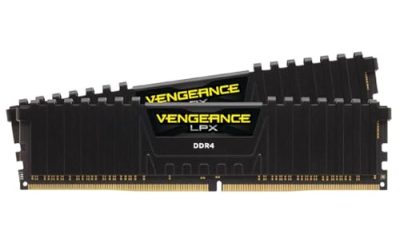
 CORSAIR Vengeance LPX DDR4 RAM 32GB
- Disclaimer: Maximum Speed requires overclocking/PC BIOS adjustments
- Hand-sorted memory chips ensure high performance with generous…
- VENGEANCE LPX is optimized for wide compatibility with…
 JEYI RAM Heatsink Cooler with Thermal Pads
- ram heatsink
- 【Efficient Heat Dissipation】: Equipped with a thermal conductive…
- 【High-quality Materials】: The product utilizes an anodized aluminum…
 Desktop Memory RAM Cooler Heat Sink Pure
- 【Upgraded Model】, we have upgraded the product and…
- And retains the thermal double-sided adhesive on the…
- Product material: pure copper
| Product | Key specs | |
|---|---|---|
| CORSAIR Vengeance LPX DDR4 RAM 32GB | Disclaimer: Maximum Speed requires overclocking/PC BIOS adjustments Hand-sorted memory chips ensure high performance with generous… VENGEANCE LPX is optimized for wide compatibility with… | Check price |
| JEYI RAM Heatsink Cooler with Thermal Pads | ram heatsink 【Efficient Heat Dissipation】: Equipped with a thermal conductive… 【High-quality Materials】: The product utilizes an anodized aluminum… | Check price |
| Desktop Memory RAM Cooler Heat Sink Pure | 【Upgraded Model】, we have upgraded the product and… And retains the thermal double-sided adhesive on the… Product material: pure copper | Check price |
 Thermals DDR4 RAMs Coolers PWMs Fan Control Thermals DDR4 RAMs Coolers PWMs Fan Control | Upgrades your gaming with ARGB DDR4 rams Heatsink… installs this cooling on DDR4 / DDR5 rams… Engineered with temperature sensings pwms fan (0-2500RPM) and… | Check price |
 Acclamator DDR4 RAM 32GB Acclamator DDR4 RAM 32GB | Specifications: Suitable for desktops, dual-channel combination can maximize… Overview: Each module of Acclamator OUNCE is designed… The white aluminum heatsink provides maximum heat dissipation… | Check price |
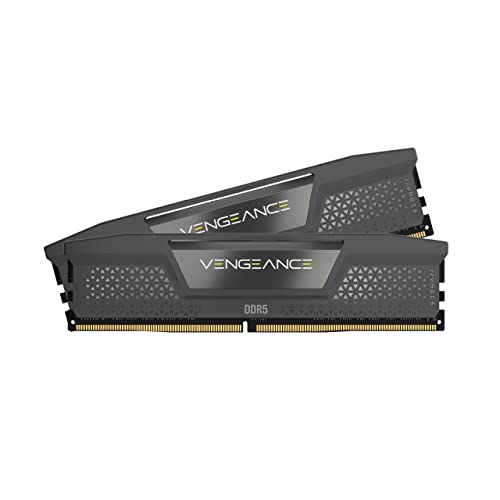 CORSAIR Vengeance DDR5 32GB CORSAIR Vengeance DDR5 32GB | Disclaimer: Maximum Speed requires overclocking/PC BIOS adjustments AMD EXPO & Intel XMP 3.0 Compatible Only:… Onboard Voltage Regulation: Enables easier, more finely-tuned, and… | Check price |
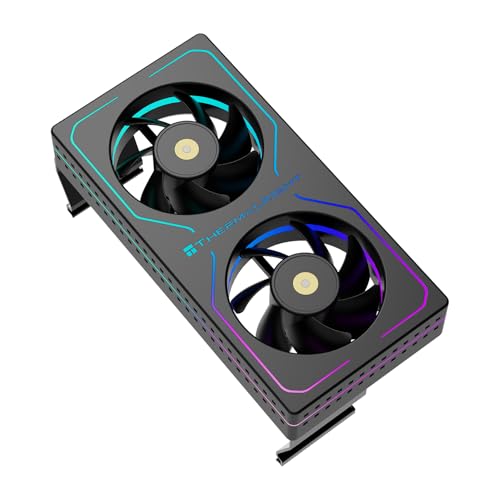 Thermalright MC-2 ARGB Black RAM Cooler Thermalright MC-2 ARGB Black RAM Cooler | [Efficient Heat Dissipation] Equipped with a high-performance dual-fan… [Low-Noise Operation] Despite a speed of up to… [Vibrant ARGB Lighting Effects] The front and sides… | Check price |
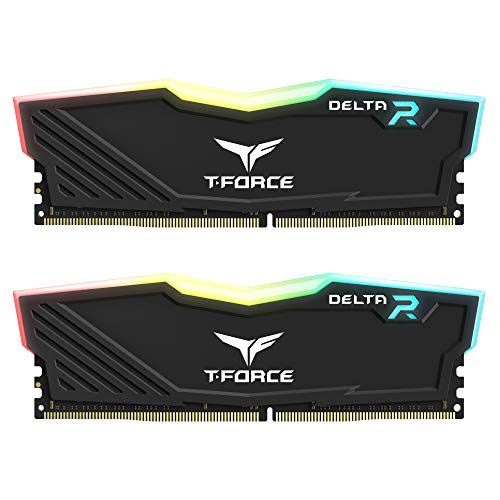 TEAMGROUP T-Force Delta RGB DDR4 16GB TEAMGROUP T-Force Delta RGB DDR4 16GB | TeamGroup Delta RGB 16GB (2 x 8GB) 3200… Full-frame 120 ultra wide-angle illumination with built-in force… Aluminum alloy heat sink with asymmetrical minimalist design. | Check price |
As an Amazon Associate we earn from qualifying purchases at no extra cost to you.
⚡ Save on Your Next PC — Amazon Prime
Prime members get fast free shipping on the systems above, plus early access to Prime Day & Black Friday PC deals. New members get a 30-day free trial.
Watch: How to Overclock Your RAM Safely — Video Review
Understand Speed vs Timings
Memory performance has two levers: frequency (like 6000MT/s) and timings (like CL30). Higher frequency raises raw bandwidth, while tighter timings reduce latency. On AMD’s Zen platforms, the “sweet spot” is often DDR5-6000 with a 1:1 memory controller ratio, because pushing frequency higher can force a slower ratio that erases the gains. Know your kit’s rated numbers before you change anything.
Enable XMP or EXPO First
Your RAM ships at a slow JEDEC default until you enable its profile. In BIOS, find XMP (Intel) or EXPO (AMD) and select Profile 1 to jump to rated speed, for example from 4800 to 6000MT/s. This one toggle delivers the bulk of the benefit. Reboot and confirm the new speed in Task Manager or CPU-Z before attempting anything manual.
Push Timings Manually
To go beyond the profile, lower primary timings one step at a time, such as CL30 to CL28, or raise frequency in small increments. Change one value, save, boot, and test. Keep voltage within safe limits, roughly 1.4V for DDR5 and 1.35-1.4V for DDR4 kits like Vengeance LPX, unless you know your kit tolerates more. Small, methodical steps beat aggressive jumps that won’t boot.
Manage Heat
Faster memory at higher voltage runs warmer, and heat causes instability. A low-profile RAM heatsink or an active RAM cooler with a small fan, like a Thermalright MC-2 or JEYI cooler, keeps modules under control during stress tests and long gaming sessions. Good case airflow over the memory area matters just as much as the sticks’ own heat spreaders.
Test for Stability
An overclock that boots isn’t necessarily stable. Run TestMem5 with an anta777 config or MemTest86 for at least an hour, and watch for a single error, which means you’ve gone too far. Back off timings or add a touch of voltage until you pass a clean run. Only then is the overclock safe for daily use and gaming.
Tips
- Enable XMP/EXPO before manual tuning: It gives 90% of the gain with zero risk and is the right starting point for everyone.
- Change one setting at a time: Isolate each tweak so you know exactly what caused an instability or a failed boot.
- Keep voltage sane: Stay near 1.4V for DDR5 unless you have cooling and experience; excess voltage degrades modules over time.
- Save a working BIOS profile: Store your stable settings so a failed experiment is one reset away from recovery.
Frequently Asked Questions
Is overclocking RAM safe?
Enabling XMP or EXPO is very safe and is the intended way to reach rated speed. Manual overclocking is safe too if you keep voltage reasonable and test thoroughly for stability.
How do I know if my RAM overclock is stable?
Run a memory stress test like TestMem5 or MemTest86 for at least an hour. Zero errors means stable; any error means you should loosen timings or adjust voltage.
Will overclocking RAM void my warranty?
XMP and EXPO are advertised features and won’t void a RAM warranty. Extreme manual voltages could, but staying within rated limits keeps you covered.
How much performance will I actually gain?
In CPU-bound games you might see 5-15% more frames going from default to rated speed, with a few extra percent from tight manual timings. GPU-bound games gain less.
Conclusion
RAM overclocking rewards patience: enable XMP or EXPO for the easy win, then tighten timings step by step while testing for stability and managing heat. Keep voltages sensible, save your stable profile, and you’ll squeeze meaningful extra frames from hardware you already own, no upgrade required.