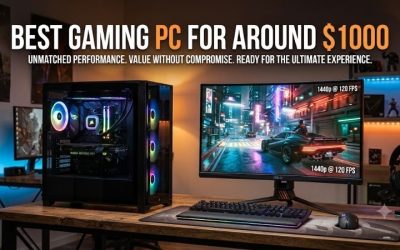
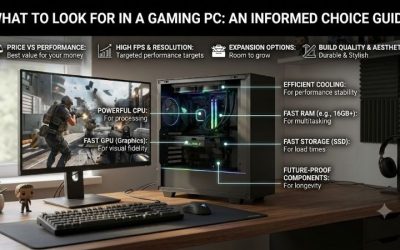
If you’re wondering what to look for in a gaming desktop, start with the games you play, your monitor’s resolution, and the frame rate you want. Those three details tell you whether to prioritize the graphics card, the processor, or a balance of both. From there, check how the memory is configured, how much SSD space you’ll have, and whether the case and power supply can support the upgrades you expect to make. If you’re buying a prebuilt, compare the exact configurations at checkout. Two desktops with the same name can have different hardware.
What to look for in a gaming desktop at a glance
Choose a performance target before comparing parts. A desktop for competitive games at 1080p and high refresh has a different job from one for graphically demanding games at 4K. Use the table to decide where to start, then verify that the particular system you’re considering can handle your games and settings.
| How you play | What to check first | What can change the decision |
|---|---|---|
| Competitive games on a high-refresh 1080p monitor | CPU and GPU performance at the settings you actually use | Busy fights and crowded areas can cause dips that an average frame rate hides. |
| A mix of multiplayer and single-player games at 1440p | GPU performance in demanding games and CPU performance in your fastest multiplayer titles | A higher graphics preset or ray tracing can shift more of the workload to the GPU. |
| Visually demanding games at 4K | GPU performance and video memory at your intended settings | Native 4K, upscaled 4K, and 4K with frame generation represent different workloads and experiences. |
| Simulation, strategy, or heavily modded games | CPU performance in large saves or busy scenes, plus system RAM capacity | Results from an early-game benchmark may miss slowdowns in a large city or late-game campaign. |
| Gaming with recording or streaming | CPU or GPU encoding options, RAM, and recording storage | The impact depends on your encoder, capture settings, and what else runs during play. |
Turn your monitor specs into a performance target
Resolution tells you how many pixels the display shows. Refresh rate tells you how often it can update. A 1440p monitor running at 165 Hz gives you room for high frame rates, but your desktop still has to render those frames. Think about the experience you want in each kind of game you play. You might aim for a responsive 144 frames per second in a shooter and accept 60 fps in a single-player game where you prefer higher visual settings.
If you plan to keep your current monitor, use it as the starting point. If a new display is part of the purchase, compare the cost of the desktop and monitor together. Paying for a graphics card to drive 4K makes more sense when the display upgrade is already part of your plan.
How to judge the graphics card and processor
Get the full GPU and CPU model names before comparing listings. Broad labels such as “RTX graphics,” “Core i7,” and “Ryzen 7” leave out details that affect performance. Once you have the exact parts, use game-specific benchmarks to see where each component helps. Look for the titles, settings, and scenes closest to how you play.
Match the GPU to resolution and visual settings
The graphics processing unit, or GPU, does most of the work of drawing each frame. It typically becomes more important as resolution rises or you enable demanding effects such as ray tracing. Start with results at the resolution and preset you expect to use. If you value sharp textures more than ray-traced reflections, look for tests that resemble that combination. An ultra-preset chart may describe a workload you would never choose.
Video memory, or VRAM, is a separate consideration. Higher-resolution textures and certain effects can increase VRAM demand. When a game runs short of available video memory, the result can be stutter or a need to lower texture quality, depending on how the game manages assets. Compare VRAM alongside actual performance. Two graphics cards with the same capacity can deliver very different frame rates.
Check the CPU where it affects play
The processor handles work such as game logic, simulation, and preparing data for the GPU. It deserves extra attention when you’re chasing high frame rates or playing games with many objects, characters, or calculations happening at once. A stronger graphics card may offer little relief if the processor is already the part limiting how quickly a busy scene can update.
Evaluate the exact processor in context. Core count is useful when comparing multitasking workloads, but a single number leaves out architecture, cache, and how the game uses the processor. Look for benchmarks of a large race grid, a crowded match, or a developed city if those are the scenarios where slowdowns would bother you.
Read benchmark settings before comparing frame rates
Start with the test configuration. Check the CPU, GPU, resolution, graphics preset, ray tracing setting, and whether the test used upscaling or frame generation. Upscaling starts from a lower internal rendering resolution, while frame generation adds intermediate displayed frames. A game can look smoother with frame generation enabled, but the displayed frame count alone tells you little about how quickly the game responds to input.
Read average frame rate alongside a measure of slower frames, such as the reviewer’s reported 1% lows. Those lows can help distinguish a system that feels steady from one that averages well but slows down in difficult scenes. Compare figures within the same test when possible, since reviewers may use different scenes and measurement methods. A standalone GPU review can help you compare graphics cards. Expect a complete desktop’s results to depend on its processor, memory, cooling, and power settings as well.
How much RAM and SSD storage make sense
RAM capacity affects how much the system can keep available while a game and other applications are running. SSD capacity determines how many games, updates, and recordings you can keep on the PC. You can check both against your habits before you buy. Start with your most demanding games, then account for browser tabs, voice chat, mods, and capture software.
Check both RAM capacity and stick count
Consider 16 GB a starting point for many gaming setups, then check the recommended memory for your most demanding titles. A 32 GB configuration gives you more room if you play heavily modded games, run several applications while gaming, or record and edit footage on the same machine. Once your workload fits comfortably in memory, adding capacity alone may make little difference to frame rate.
Ask how the stated capacity is installed. A listing that says “16 GB DDR5” could describe one 16 GB module or two 8 GB modules. On a typical dual-channel desktop, two matching modules in the recommended slots allow the processor to use both memory channels. Also find out how many slots are free. If a board has only two slots and both are occupied, your planned upgrade may require replacing the existing modules.
Size the SSD around the games you keep installed
An SSD is the practical choice for the operating system and frequently played games. It can improve boot and load times compared with a hard drive, and some games specify an SSD in their requirements. For capacity, add up the installed sizes of the games you keep in rotation, then leave room for the operating system, other applications, and updates. Check the publisher’s requirements for any title that could take up a large share of the drive.
A 1 TB SSD is a reasonable starting point if you rotate games and rarely keep local recordings. A 2 TB drive is easier to justify if you keep several large titles installed or save gameplay clips to the same drive. These are planning baselines. If a listing offers “2 TB total storage,” check the breakdown. A system with a smaller SSD and a secondary hard drive has less fast storage available for games than the combined figure suggests.
What matters beyond the headline specs
Cooling, power delivery, and connectivity affect how the desktop fits into your setup and what you can change later. These details often take more digging than the CPU and GPU names. Check the product specifications or service manual for the exact configuration, particularly if the tower will sit in a tight space or you plan to keep it through a graphics card upgrade.
Look for airflow and noise evidence
Check where the case draws in cool air and where it exhausts warm air. A mesh intake and a clear path through the case are useful design clues, though fan placement and fan settings also matter. Measure the desk or floor space where the tower will sit, and leave space for rear cables and airflow. A case that fits inside a cabinet can still have too little room to vent.
If noise matters to you, look for a review that measures it under sustained gaming loads on the same configuration. A large cooler, a liquid-cooling label, or a high fan count gives you limited information about what you’ll hear at your desk. A review of a different configuration in the same case can help you understand the layout, but a different graphics card or cooler may change the result.
Check the power supply and upgrade path together
Ask for the power supply model, rated wattage, and available GPU power connectors. An efficiency rating describes efficiency under the applicable test conditions. Connector compatibility, protections, and power capacity are separate questions. If you already have a future graphics card in mind, check its manufacturer’s power and connector guidance against the actual power supply in the desktop.
Check physical and platform compatibility at the same time. A future GPU needs room for its length and thickness, with enough space to route its power cable. A storage upgrade needs a compatible slot you can access. If you expect to replace the motherboard or power supply, look for standard mounting and connections in the service documentation. A larger case can give you working room even when some internal parts still use custom fittings.
Verify display outputs and accessory connections
Check the ports on the graphics card as well as those on the motherboard. For a desktop with a dedicated GPU, use the graphics card’s output for your gaming monitor. Confirm that the graphics card, cable, and monitor input all support the resolution and refresh rate you plan to use together. If you use two displays, verify that the graphics card has suitable outputs for both.
Count the devices you’ll connect at the same time. A keyboard, mouse receiver, headset, controller, external drive, and capture device can fill ports quickly. Check whether the front USB-C port, if present, supports the speed your device needs. Confirm Wi‑Fi and Bluetooth separately if you rely on either for your setup.
How to compare two prebuilt gaming desktops
Compare the exact configurations you can order. Retail pages can group several versions under one product name, so record the SKU, selected options, and complete price before deciding. Then identify the difference that will affect your games or setup. A faster graphics card, more SSD capacity, and better service terms solve different problems.
What to look for in a gaming desktop listing
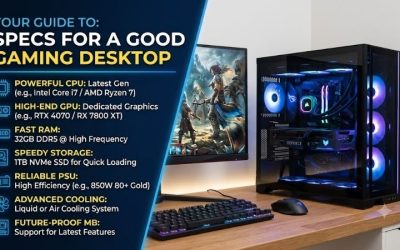
A listing should give you enough information to tell whether the desktop meets your target and whether it fits your setup. Collect the full CPU and GPU models, installed RAM capacity and module count, SSD capacity, and case dimensions. Then check the available display connections, number of free storage slots, power supply details, and whether the operating system is included.
If a detail would change your choice, ask the seller about that specific SKU. For example, “Does this configuration have a free M.2 slot that accepts an NVMe SSD?” is more useful than asking whether the PC is expandable. Check the return window and warranty separately. Look for who handles a claim, whether parts and labor are covered, and who pays shipping if the tower needs service.
Use your actual play habits to break a tie
Suppose two desktops cost about the same. One has the faster GPU and a 1 TB SSD. The other has a slower GPU and a 2 TB SSD. If the faster card is the one that reaches your target in the games you play and the system has a free storage slot, taking the smaller drive can make sense. You can revisit storage as your library grows. If both systems already meet your frame-rate target and you regularly manage a crowded drive, the larger SSD may solve the more immediate problem.
The answer changes if your main game slows down during complex simulations. In that case, a system with the faster CPU in a comparable workload may be more valuable than either a GPU upgrade or more storage. Compare the performance you expect to notice with the cost and effort of upgrading later.
Conclusion
Start with the games you spend the most time in, agree on the settings you’d actually use, and match the GPU and CPU to your display and frame-rate target. Choose RAM and SSD capacity around what you run and keep installed. Before ordering a prebuilt, verify the exact configuration, how it connects to your monitor, and whether it can accept the upgrades you expect. If two systems meet the same gaming target, decide which one better fits the way you’ll live with it, whether that means fewer storage compromises, quieter operation under load, or simpler service.
More from Amazon
Programs that pair well with the guide above. Offers and eligibility are set by Amazon and may change.
Set up recurring deliveries of everyday items on eligible products. Terms and savings are set by Amazon.
Explore Subscribe & SaveFree shipping on eligible items, Prime Video and more. Eligible new members can start with a free trial.
Start a Prime free trialA Prime membership for ages 18-24 with a trial period. Eligibility is set by Amazon.
See Prime for Young AdultsAudiobooks and podcasts to listen to on the go. Eligible new members can start with a free trial.
Try Audible freeAs an Amazon Associate we earn from qualifying purchases.