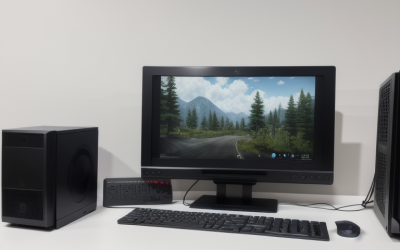
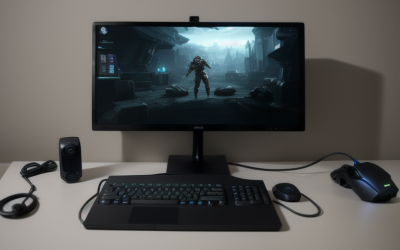
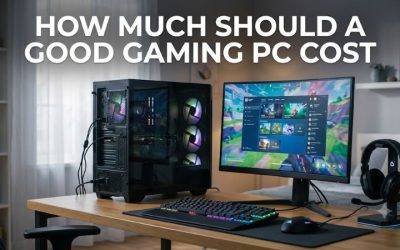
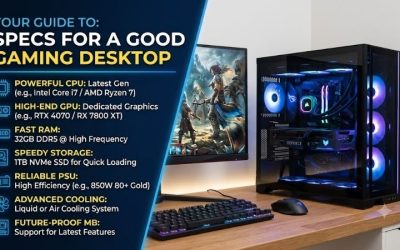
To understand what makes a good gaming desktop, start with the games you play, the resolution of your monitor, and the frame rate you want. A good desktop pairs a graphics card that can handle your preferred settings with a processor that keeps gameplay responsive in demanding scenes. It also has enough memory for your games and background apps, enough SSD space for your library, and cooling that keeps performance steady during long sessions. A 1080p competitive setup and a 4K single-player setup can both be excellent gaming desktops, even when they put most of the hardware budget into different components.
What makes a good gaming desktop at your resolution?
Start with two or three games you expect to play regularly. For each one, decide whether you care most about responsive controls, sharper visuals, or a steady frame rate in demanding scenes. Those priorities tell you which benchmark settings to look for and which component deserves more of your budget.
| Gaming setup | What to prioritize | What to check before buying |
|---|---|---|
| 1080p competitive gaming | CPU performance and consistent frame delivery | Results in your games at competitive settings, including frame-time data when available |
| 1440p mixed gaming | A GPU that can handle demanding games, paired with a CPU that can meet your multiplayer targets | Benchmarks at 1440p in both graphics-heavy and CPU-heavy games |
| 4K single-player gaming | Graphics performance and enough video memory for the settings you want | Native and upscaled results, with ray tracing and frame generation clearly labeled |
| Simulation games or heavily modded games | CPU performance in complex scenes, plus enough RAM for your workload | Results in large saves, busy maps, or comparable modded setups when available |
These are starting points. A player who mainly runs strategy games on a 4K monitor may care more about simulation speed than graphics settings. A player who alternates between competitive shooters and visually demanding games may use a different frame-rate target for each.
Why monitor refresh rate and game frame rate both matter
Refresh rate describes how often the monitor can update its image. Frame rate describes how many frames the desktop produces each second. A 144 Hz monitor gives you room to benefit from higher frame rates, and the desktop still has to render those frames. If your display supports variable refresh rate, it can adjust its refresh timing to follow changing frame rates within its supported range.
An average frame rate can hide uneven delivery. A benchmark might average 120 FPS across a run while still showing visible pauses when the scene gets busy. Look at frame-time graphs or 1% lows alongside the average when a reviewer provides them. Compare 1% lows within the same test methodology because reviewers may calculate them differently. For your own decision, a test set in the crowded area you play every night tells you more than an average from a quiet benchmark route.
How the GPU and CPU shape gaming performance
The GPU renders the image. The CPU handles work such as simulation, game logic, and preparing instructions for the graphics card. Which component sets the pace can change from one game to another or even between scenes. Raising resolution generally increases graphics work. Chasing high frame rates can expose CPU limits because the processor has less time to prepare each frame.
Choose graphics performance for the settings you’ll use
Look for benchmarks at your target resolution with graphics settings close to your own. If you want 1440p with high textures and ray tracing, check whether the review actually used those settings. A result labeled “1440p high” leaves questions open if the reviewer used upscaling or enabled ray tracing separately. Compare native rendering and upscaled results as distinct test conditions, and check which upscaling mode was used.
Frame generation adds generated frames between rendered frames. It can make motion look smoother, while control responsiveness still depends on factors such as the underlying rendered frame rate and input latency. For a competitive game, pay particular attention to how the system runs with frame generation disabled. For a single-player game, judge whether the combination of base performance, motion smoothness, and image quality suits you.
Check the CPU where the game is hardest to run
Look up the exact CPU model and test it against the kind of gameplay you care about. A processor can perform well in a short benchmark and behave differently in a strategy game with a large late-game map or a simulator with heavy traffic. Core count and clock speed are useful specifications, but they leave out how a particular game uses the processor.
As a practical example, imagine that a game runs poorly in a crowded city and lowering the render resolution barely changes the frame rate. That points toward investigating CPU or game-engine limits before spending more on graphics. If reducing resolution produces a large improvement in the same scene, graphics work is more likely to be limiting performance there. Treat this as a clue. A frame cap, background activity, or a different test route can change what you see.
Why video memory capacity matters alongside GPU speed
Video memory, or VRAM, holds data the graphics card needs, including textures and rendering resources. High-resolution textures, certain ray-tracing settings, and extensive visual mods can raise demand. If the working data exceeds what the card can handle comfortably, a game may show frame-time spikes, delay texture loading, or require lower texture settings. The symptoms vary by game.
When comparing two cards, check performance at the texture settings you want and look for signs of inconsistent frame delivery. A larger VRAM capacity can help under memory pressure. Overall GPU performance still depends on the card’s processing capabilities and how the game uses them. The exact graphics card model and results from comparable tests give you more context than the memory figure alone.
How much RAM and storage does a good gaming desktop need?
RAM holds data for running games and apps. Storage holds installed games, saves, recordings, and the operating system. Size RAM around the workload you expect to run at one time. Size the SSD around the games you want installed together, the space they need to update, and any clips you plan to record.
When 16 GB is enough and 32 GB makes sense
For a general-purpose gaming desktop, 16 GB is a reasonable starting point if your games fit comfortably and you keep background apps light. Consider 32 GB if you use large mod packs, play titles with higher memory requirements, or regularly run a game with a browser, voice chat, and recording software. Check the requirements of your most demanding title and account for the apps you actually keep open.
On a prebuilt, check the installed module layout as well as the total capacity. A listing that says “16 GB RAM” could mean one 16 GB module or two 8 GB modules. That affects how the memory channels are populated and how you might expand later. The motherboard manual or system documentation should tell you which slots to use and which memory type and configurations the system supports.
Size the SSD around the games you keep installed
An SSD makes sense as the main drive for a gaming desktop. It can shorten loading compared with a hard drive, and some games require SSD storage. A 1 TB drive is a practical starting point for many buyers. A 2 TB drive is easier to justify if you rotate among several large games, keep your captures locally, or want room for mods and expansion packs.
Add up the listed install sizes of the games you want ready to play, then leave room for the operating system, apps, and update files. If the capacity is tight, check whether the desktop has an open M.2 slot or another supported way to add a drive. An available slot can let you expand the library later while leaving the original system drive in place.
What to check in the case, cooling, and power supply
Two desktops with the same CPU and GPU can differ in fan noise, temperatures, sustained performance, and upgrade options. Those differences come from the case, cooler, fan layout, and supporting hardware. For a prebuilt, a review of the exact configuration can answer questions that a component benchmark leaves open.
Check cooling during a sustained workload
Look for a clear path for air to enter and leave the case. The CPU cooler, graphics card, fan layout, and intake openings all affect how the system handles heat. A compact tower can work well when its cooling is designed around the installed parts. If it will sit under a desk or inside a shelf, include space around the intake and exhaust in your measurements.
When reviews are available, look for temperature and noise observations from extended gaming or a repeatable sustained workload. A short benchmark says little about how loud the fans get after the case warms up. If the desktop will sit on the desk beside you, sustained gaming noise can matter as much to your experience as a modest difference in average FPS.
Verify the power supply and upgrade clearances
Check the power supply model, rated wattage, and available connectors. For a future graphics card, consult the card maker’s system power recommendation and verify the connectors it calls for. Also check the space available for card length and thickness, including any room lost to front fans or a radiator. If you replace a modular power supply, use cables supplied with it or explicitly approved for that model.
Upgrade plans can also depend on the motherboard layout, power connectors, and case mounting points. If you expect to replace major parts, check whether the system documentation identifies standard components and provides replacement instructions. If your only planned upgrade is storage, drive slots and accessibility deserve more attention than theoretical support for a much larger GPU.
How to evaluate a gaming desktop listing
Write down your target resolution, preferred settings, and the games that matter most. Then compare each desktop using its exact CPU and GPU models, installed RAM, SSD capacity, and available system documentation. For a prebuilt with several configurations on the same product page, verify the specifications for the version selected in the cart.
What makes a good gaming desktop on paper and in play?
A spec sheet helps you decide whether a desktop belongs on your shortlist. Benchmarks help you decide whether it can deliver the experience you want. Use standalone GPU tests to compare graphics cards under consistent conditions. Use reviews of the complete desktop to evaluate how its CPU, GPU, cooling, and fan settings work together. Keep the game, resolution, preset, upscaling, and frame-generation settings in view when comparing results.
Suppose you’re comparing two desktops for 1440p single-player games. One has a faster GPU but a smaller SSD, while the other has more storage and a faster CPU. If the first system demonstrably meets your graphics target and has an open drive slot, adding storage later may be an easy trade-off. If your favorite games are simulations and the second system handles dense scenes better, the stronger CPU may do more for the way you play.
Compare features you’ll use after the first day
Check that the graphics card and monitor have compatible ports for your intended resolution and refresh rate. Count the USB ports you need for controllers, a headset, or an external drive. If your setup relies on wireless connectivity, verify that the selected configuration includes the Wi-Fi and Bluetooth support you expect. Exact configuration details matter when a listing groups several builds under one name.
For a prebuilt, read the seller’s return terms and the written warranty for that configuration. Find out whom you contact for service, what the coverage includes, and whether shipment is required. If you plan to install RAM or storage yourself, check the manufacturer’s service instructions and warranty terms before opening the case.
Frequently asked questions
Can integrated graphics be enough for a gaming desktop?
Yes, for some lightweight, older, or less demanding games at settings the integrated GPU can run smoothly. Check benchmarks for the exact processor and memory configuration because integrated graphics use system memory and performance can vary across setups. For demanding games, higher resolutions, or higher graphics settings, a dedicated GPU usually gives you more room to reach your target.
Do you need an expensive motherboard for gaming?
Choose the motherboard for CPU support, the memory and storage you plan to install, the ports you need, and the upgrades you realistically expect. A more expensive board may give you extra M.2 slots or more connectivity. If your processor can run as intended and the board already accommodates the build, those extras matter only if you’ll use them.
Conclusion
A good gaming desktop delivers the frame rate, visual settings, and consistency you want in the games you actually play. Start with your monitor and your most demanding titles. Use graphics benchmarks to judge image quality and frame rate at your chosen resolution, and check CPU performance in scenes where simulation or high frame rates matter. Then confirm that RAM, SSD capacity, cooling, and power fit your daily use. For a prebuilt, verify the exact configuration before buying. The right balance is the one you’ll notice during gameplay and live comfortably with between sessions.
More from Amazon
Programs that pair well with the guide above. Offers and eligibility are set by Amazon and may change.
Set up recurring deliveries of everyday items on eligible products. Terms and savings are set by Amazon.
Explore Subscribe & SaveFree shipping on eligible items, Prime Video and more. Eligible new members can start with a free trial.
Start a Prime free trialA Prime membership for ages 18-24 with a trial period. Eligibility is set by Amazon.
See Prime for Young AdultsAudiobooks and podcasts to listen to on the go. Eligible new members can start with a free trial.
Try Audible freeAs an Amazon Associate we earn from qualifying purchases.