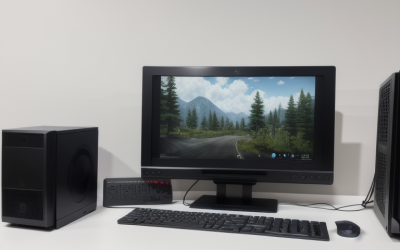
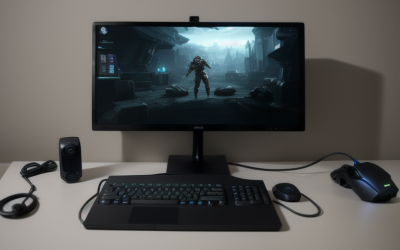
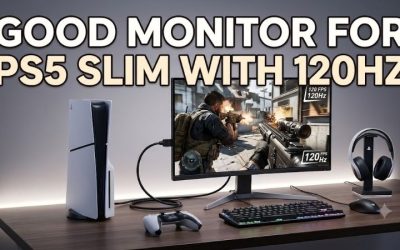
A good gaming PC runs the games you play at the resolution, settings, and frame rate you want, with consistent performance through a long session. If you’re wondering what makes a good gaming PC, start with your monitor and the two or three games you spend the most time playing. The graphics card often matters most at higher resolutions, while the processor can matter more in high-refresh competitive games or busy simulations. Enough RAM, an SSD with room for your library, and cooling that keeps the system running steadily turn those parts into a PC you’ll enjoy using.
What makes a good gaming PC for your games?
Start by deciding what you want to see and feel when you play. A competitive shooter on a 1080p, 240Hz monitor calls for a different balance than a single-player game on a 4K TV. Both PCs can be good for gaming, even when they spend their hardware budgets in different places.
| How you play | What matters most | What to check |
|---|---|---|
| Competitive games at 1080p and high refresh rates | CPU and GPU performance at competitive settings, plus consistent frame delivery | Average FPS and 1% lows in a busy match or a representative test |
| A mix of multiplayer and single-player games at 1440p | A GPU that can handle your preferred settings, paired with a CPU that supports your frame-rate target | Results at 1440p, with the graphics preset and upscaling mode stated |
| Visually demanding games at 4K | GPU performance and enough graphics memory for the intended textures and effects | Native and upscaled results, with ray tracing and frame generation settings disclosed |
| Strategy games, simulators, or heavily modded games | CPU performance in demanding scenarios and enough RAM for the game and mods | Late-game saves, dense maps, or the actual mod pack you plan to use |
Monitor refresh rate and game frame rate describe different things. Refresh rate, measured in hertz, tells you how often the screen can refresh. Frames per second, or FPS, measures how many frames the game delivers. A 144Hz monitor can still be useful when a game runs below 144 FPS, especially with variable refresh rate enabled within the display’s supported range. You can also set different priorities by game. A steady 60 FPS might suit a story-driven title, while you may want a much higher target in a competitive shooter.
What makes a good gaming PC feel smooth?
Look at how consistently the PC delivers frames. An average can hide short drops during explosions, rapid camera movement, or travel through a dense area. Benchmarks that report 1% lows help summarize the slower end of a run. Use them alongside the average, ideally from the same reviewer and test method. A frame-time graph can also show the timing and frequency of spikes, which a single low-FPS figure cannot tell you.
A run that averages 120 FPS with repeated pauses can feel worse than one that stays near 90 FPS throughout the same scene. That’s an illustration of frame pacing, not a performance estimate for a particular PC. Compare benchmarks at the same resolution and settings, and favor gameplay that resembles what you actually do. An empty practice area can be a poor stand-in for a full multiplayer match.
How the CPU and GPU work together
The CPU processes game logic, simulation, and other work needed to prepare frames. The GPU renders the image. The part that limits performance can change as you move between games, change the settings, or enter a busier scene. A PC can be GPU-limited in a visually demanding game and CPU-limited in a competitive game on the same evening.
When the graphics card matters most
Increasing resolution gives the GPU more pixels to render. Higher-quality lighting, shadows, and ray-traced effects can add more work. If you plan to play demanding single-player games at 1440p or 4K, start with benchmarks for the exact desktop GPU at that resolution. Two cards with the same amount of graphics memory can deliver different frame rates, so check the full GPU model and how it performs in your games.
Graphics memory, or VRAM, stores assets the GPU needs, including textures. If a game puts more pressure on VRAM than the card can handle comfortably, lowering texture quality may help. Check whether the benchmark uses the same texture and ray tracing settings you want. A card can handle one preset well and struggle when a higher preset adds effects or requires more memory.
When the processor matters more
CPU performance becomes more important when you’re chasing very high frame rates, running a large simulation, or playing a game that depends heavily on a few CPU threads. A broad label such as “Core i7” or “Ryzen 7” leaves out the generation and exact model. Look up the whole processor name, then check tests that resemble your workload. A late-game strategy benchmark may tell you more than an aggregate chart covering only action games.
If you’re assessing a PC you already own, try lowering render resolution while keeping the same test scene. A large FPS increase suggests graphics load mattered at the original settings. Little change gives you a reason to investigate frame caps, CPU limits, or other constraints. Repeat the test before deciding what to upgrade. One short run can be affected by shader compilation, background activity, or a scene that varied between passes.
How upscaling and frame generation change the comparison
Upscaling uses a lower internal rendering resolution to produce a higher-resolution output. It can reduce GPU load, with image quality depending on the game, the upscaler, and the mode you choose. Frame generation inserts additional images between rendered frames. That can make motion look smoother, while input responsiveness still depends in part on how quickly the system renders the underlying frames.
When comparing PCs, read the benchmark labels for native rendering, upscaling, and frame generation. A frame-generation result can be relevant for a single-player game where motion smoothness matters. For a competitive game, start with the frame rate without generated frames and check latency measurements when available. Also confirm that the feature works in the game and on the GPU you intend to use.
What RAM, storage, and cooling change in everyday use
A strong CPU and GPU can set a high performance ceiling. The rest of the system determines how comfortable the PC is to live with, from loading into a game to keeping fan noise tolerable during a long session. These parts are easy to overlook when a prebuilt listing leads with the graphics card.
Choose RAM for the game and everything you run beside it
For many gaming desktops, 16GB is a practical starting point when the games you play fit comfortably and you keep background apps modest. Consider 32GB if your games recommend it, you use large mod packs, or you run recording software, voice chat, and a browser while playing. Extra capacity is most useful when the workload would otherwise put pressure on available memory. Once your workload fits comfortably, more RAM may have little effect on frame rates.
Check the installed module configuration as well as the total capacity. A listing that says “16GB” may describe one 16GB module or a pair of 8GB modules. The arrangement can affect which memory channels the system uses and what an upgrade will cost. If you’re building or upgrading, check the motherboard manual for supported memory and the slots to populate first.
Give your game library enough SSD space
An SSD is a practical choice for Windows and the games you play regularly. It helps with load times, and some games list an SSD in their requirements. Capacity affects day-to-day use, too. Estimate the space for your active games, then leave room for Windows, updates, and anything you record locally. Look at actual installation sizes. A drive that suits a rotating library of small games may feel cramped with several large titles installed together.
If you expect to add storage later, confirm that the motherboard has an accessible spare slot and supports the type of drive you plan to install. For someone who regularly uninstalls games to make room for patches, a larger drive can solve a more immediate problem than a premium SSD chosen for its peak advertised speed.
Check sustained cooling and the actual power supply
Case airflow, cooler fit, and fan behavior affect how the PC works after it warms up. For a prebuilt, look for a review of the exact case and configuration that reports temperatures, noise, and sustained performance under gaming load. A short benchmark run tells you less about how the machine sounds and performs after an extended session.
For the power supply, check the exact model, rated wattage, GPU connector requirements, and the graphics card manufacturer’s system power guidance. If you expect to upgrade, also check case clearance and whether the PC uses standard mounting and power connections. A future card needs space in the case as well as compatible power. Confirm both before treating a system as easy to upgrade.
How to tell whether a specific gaming PC is a good fit
Take the exact CPU and GPU model numbers from the listing and compare them with benchmark results for the games you play. Then look at the parts that affect the total cost and that listings often describe less clearly. For a prebuilt, a review of the full system is especially useful for noise, cooling, and upgrade access.
- Define your target. Write down the games, monitor resolution, settings you care about, and frame rate you’d be happy to sustain.
- Find a comparable test. Match the desktop GPU, resolution, and settings. Check the CPU, memory configuration, and upscaling mode before treating the result as representative.
- Read beyond the average. Check 1% lows or frame-time plots when available. Look for a scene that resembles the parts of the game you find most demanding.
- Price the complete setup. Include any memory or storage upgrade you would need right away. If you’re replacing your monitor or need Wi-Fi, account for those costs too.
- Check the next likely upgrade. Verify the actual motherboard, power supply, connector layout, and case space for the part you expect to change first.
Frequently asked questions
Can a PC with integrated graphics be good for gaming?
Yes, if the exact integrated GPU meets your expectations in the games you play. It can make sense for older games, indie titles, or some esports games when you’re comfortable adjusting resolution and graphics settings. Integrated graphics use system memory, so look for benchmarks with a similar memory configuration. For demanding games, confirm performance in those specific titles before paying for a system on the assumption that all integrated GPUs perform alike.
Does a gaming PC need to run every game at ultra settings?
No. Start with a preset that delivers consistent performance, then adjust the options that make a visible difference to you. In a game with frequent camera movement, stable frame delivery may matter more than a subtle change to shadows. In a slower single-player game, you may prefer better lighting at a lower frame rate. A PC that gives you an acceptable balance in your own library meets a more useful standard than one judged solely on its ability to run the Ultra preset.
Conclusion
A good gaming PC delivers the experience you want on the screen you use. Start with benchmarks for your hardest-to-run games, then check whether the CPU and GPU can sustain your target at settings you’re happy with. Give yourself enough RAM for your usual workload and enough SSD space for the games you keep installed. When two systems fit those needs, use cooling, noise, and the cost of your next likely upgrade to decide between them. Those differences often tell you more about daily use than the headline specs alone.
More from Amazon
Programs that pair well with the guide above. Offers and eligibility are set by Amazon and may change.
Set up recurring deliveries of everyday items on eligible products. Terms and savings are set by Amazon.
Explore Subscribe & SaveFree shipping on eligible items, Prime Video and more. Eligible new members can start with a free trial.
Start a Prime free trialA Prime membership for ages 18-24 with a trial period. Eligibility is set by Amazon.
See Prime for Young AdultsAudiobooks and podcasts to listen to on the go. Eligible new members can start with a free trial.
Try Audible freeAs an Amazon Associate we earn from qualifying purchases.